Shopping lists
A shopping list collects every ingredient of the meals in your planner, adds them up and scales them to your servings. You can tick items off in the shop, even with no network. You need to be logged in.
Generate a list
Shopping lists are created from the planner:
- Open Planner and display the week (or month) you want to shop for.
- Click Generate shopping list at the bottom.
- The new list opens.
See Meal planning for details. Each click creates a new list. Existing lists are never updated, so if you change your planner afterwards, generate a new list.
How quantities are calculated
For each planned meal, Cocotte takes the recipe's ingredients and multiplies them by planned servings ÷ recipe servings. It then adds up the same ingredient across all the meals, and across the sections of a recipe that uses it more than once (butter in the dough and in the filling, say). The list is always built from the recipe's own ingredients: the alternatives an author suggests are not added to it.
| Recipe servings | Planned servings | Recipe quantity | On the list | |
|---|---|---|---|---|
| Lentil soup | 4 | 2 | 200 g carrots | 100 g |
| Carrot salad | 2 | 2 | 300 g carrots | 300 g |
| Total | 400 g carrots |
Good to know:
- Quantities are only added up when the unit is the same. 200 g of onion and 1 piece of onion stay on two separate lines.
- Quantities in pieces are rounded up to a whole number (1.5 eggs becomes 2).
- Other quantities are shown with up to two decimals.
Use a list in the shop
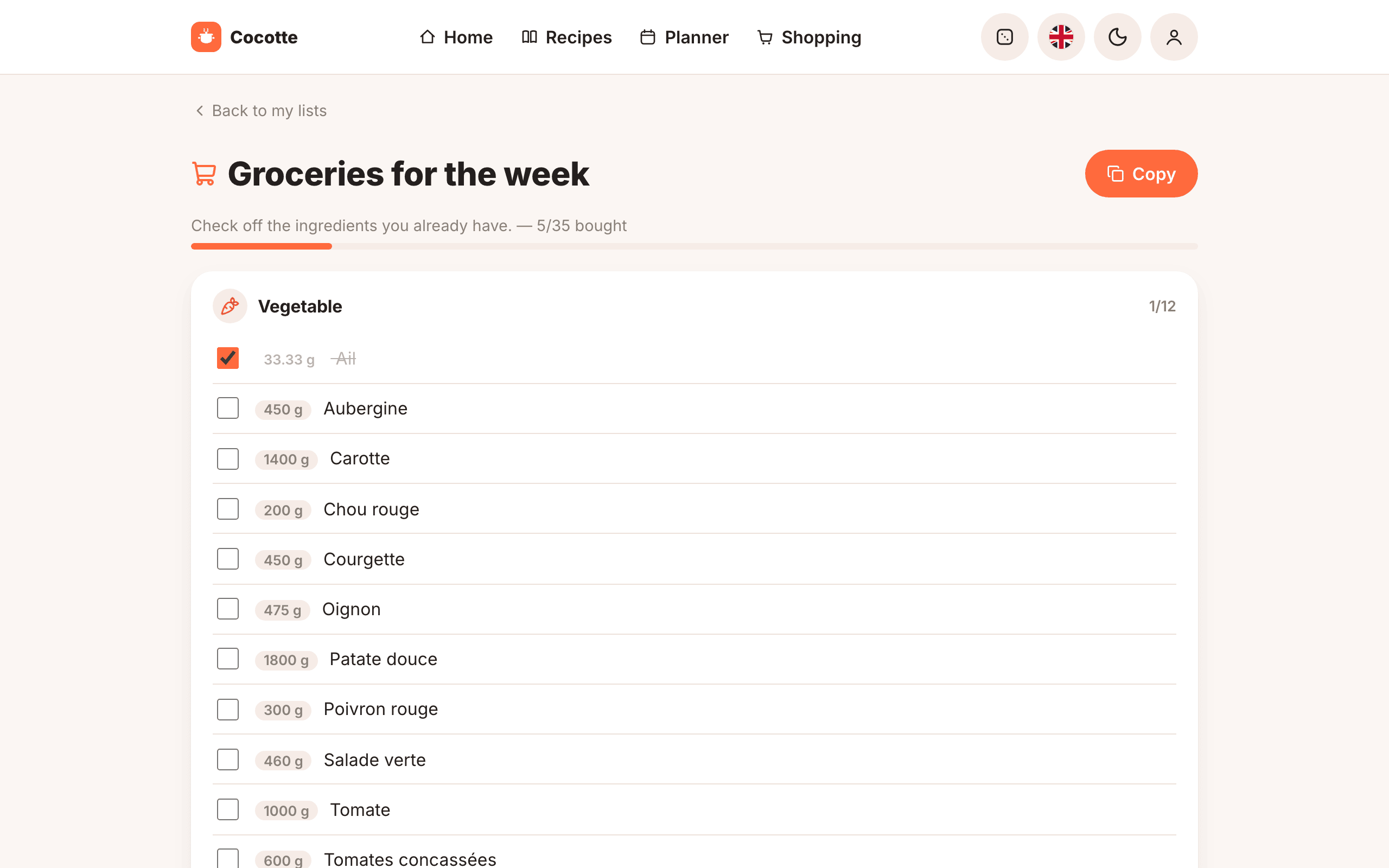
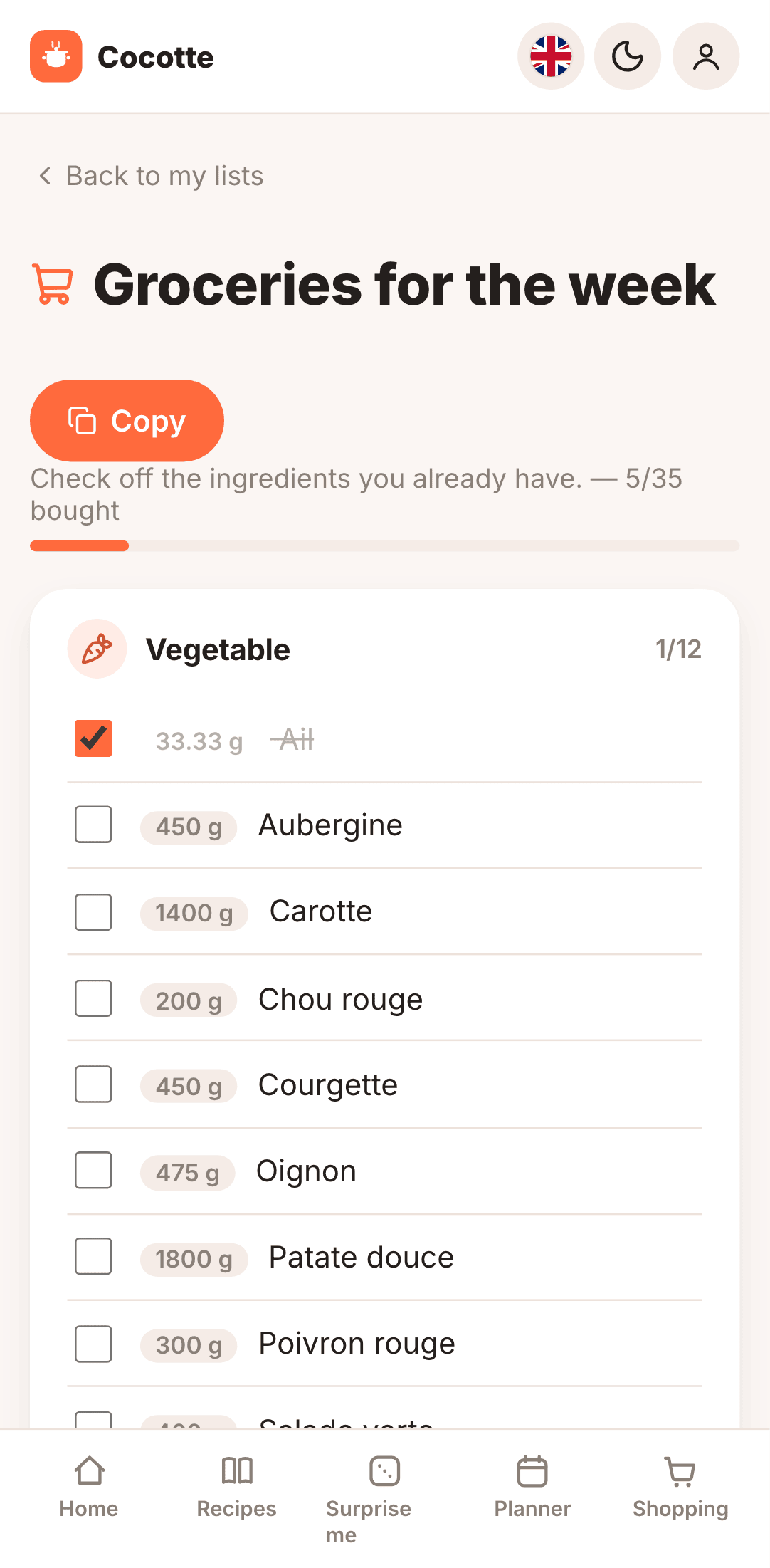
Items are grouped under a heading per ingredient category (dairy, fruit, vegetables and so on), each with its own icon and sorted by name within each category, so that similar products end up next to each other. A progress bar above the list shows how many items you've already ticked off in total, and each category heading shows its own "ticked/total" count.
Tick an ingredient when it's in your basket, or when you already have it at home. It is greyed out, struck through and saved immediately. Click it again to untick it if you ticked it by mistake, or changed your mind.
Without a network
You can keep ticking items when your phone loses its connection in the shop:
- The tick is shown immediately, with a small cloud icon (Waiting for a connection to sync) next to the item.
- Cocotte remembers the tick on your device and sends it as soon as the connection comes back. The cloud icon then disappears.
- Pending ticks are also sent the next time you open Cocotte online.
Unticking an item needs a connection: if you untick one offline, it snaps back to ticked since there's nothing to sync it with yet.
To use a list offline, open it once while online so it's saved on your device. See Install & offline.
Export a list
On a phone or browser that supports sharing (most mobile browsers), click Share to send the list straight into another app — Notes, Google Keep, Reminders, Todoist, a chat app, and so on — through the device's usual share sheet. On a desktop browser without sharing support, the button instead reads Copy and copies the list to the clipboard, ready to paste into any notes app. If neither is available, the button reads Export as .txt and downloads the list as a plain text file named after the list.
Either way, the content contains the list name and one line per ingredient, for example
- 400 g Carotte. Ticked items are left out, so it only contains what you still need to buy.
Unit names are always in French (for example c. à soupe), whatever the interface language.
Your lists
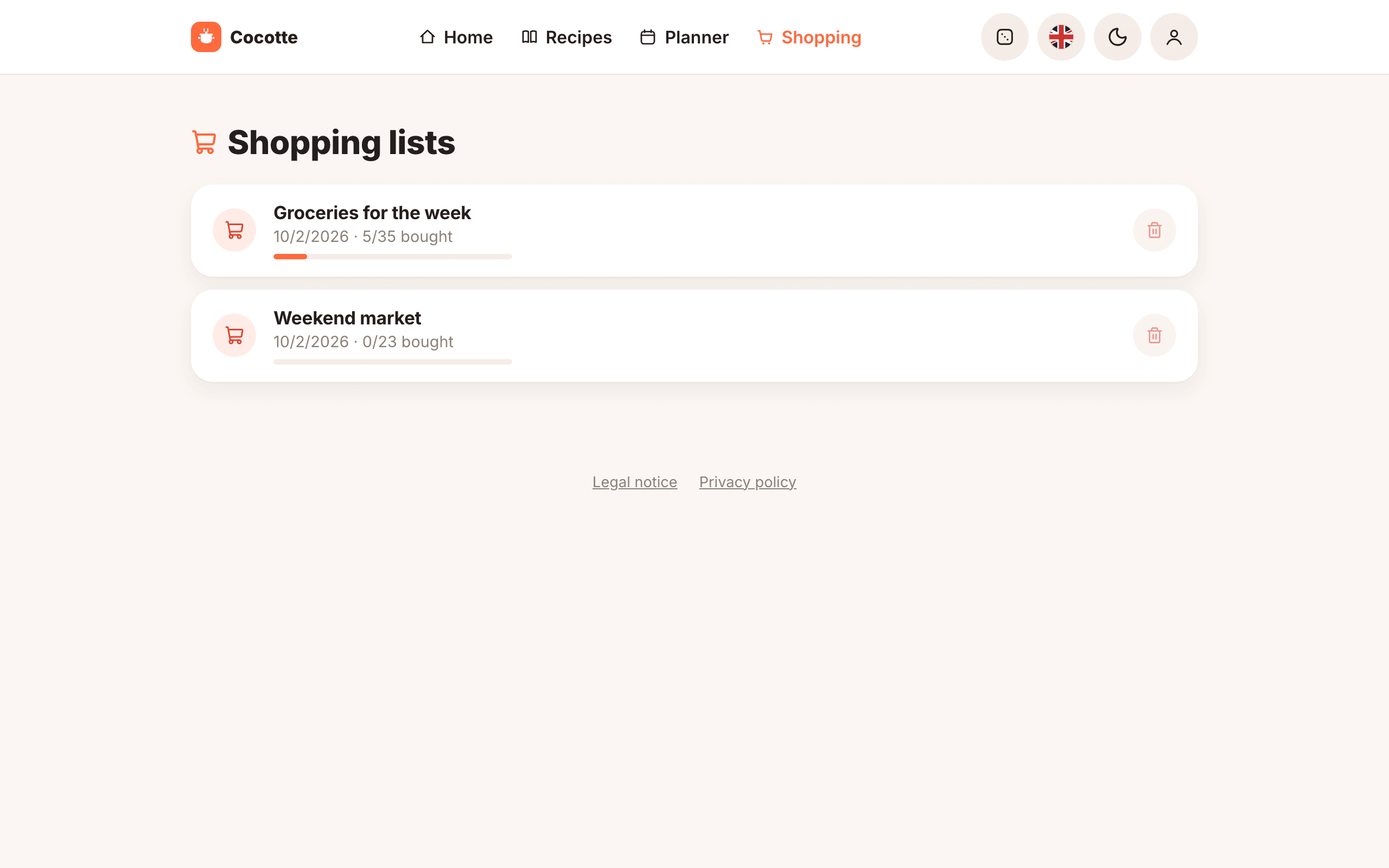
Click Shopping in the top bar to see all your lists, newest first. Each one shows its name (Liste de courses by default), creation date and a progress bar for how much of it you've already ticked off. Click anywhere on a list to open it, or the trash icon to delete it. From a list, click Back to my lists to return to this page.
When you have more than 20 lists, use the arrows at the bottom to move between pages.
While you have no list yet, the page says No list yet. Generate one from the planner. with an Open the planner button that takes you straight there.
Delete a list
On the Shopping lists page, click the bin button (Delete) next to a list.
Warning
The list is deleted immediately, without confirmation. Your planner isn't affected: you can always generate the list again.