Django admin
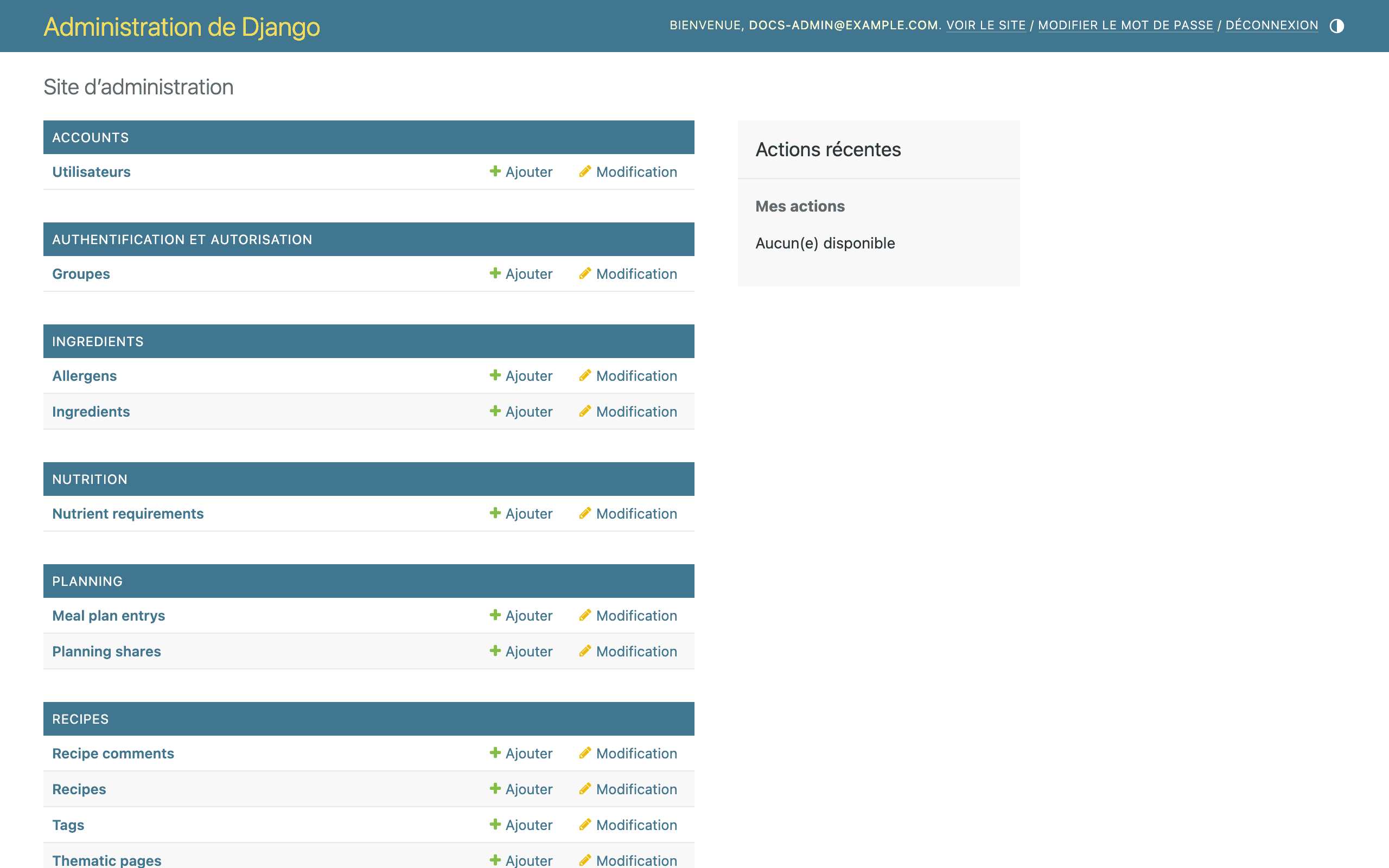
Besides the staff pages built into the app, Cocotte ships Django's generic administration
interface at /django-admin/. It gives raw access to every important table, including a few that
have no page in the app (nutrient thresholds, allergens, planner shares, tags). This page explains
how to log in, what each section offers, and when to prefer it over the staff pages.
Log in
- Go to
https://cocotte.example.org/django-admin/. - Log in with your email address and password (the same as in the app).
Only accounts with the staff flag can log in. What you can do then depends on your Django permissions:
- a superuser (for example the account created with
createsuperuser) sees and can edit everything; - a user made Staff from the app's Users page has no model permission by default, so the Django admin tells them they have no permission to view or edit anything. A superuser can grant permissions or groups from the user's page (see Users).
Note
The Django admin is displayed in French (the server language is fixed to fr-fr),
regardless of the language you use in the app. Its own interface reads Administration de
Django, Ajouter (add), Modification (change), Rechercher (search), Filtre (filter),
Enregistrer (save) and Supprimer (delete). Most section and model names are Cocotte's own and
remain in English, as listed below.
When to use it
| Task | Use |
|---|---|
| Activate, deactivate, promote to staff, delete users | The app's Users page |
| Make someone a superuser, manage permissions and groups | Django admin, Accounts > Utilisateurs |
| Edit the ingredient library | The app's Ingredient library page (it has the Suggest values pre-fill); the Django admin is handy to filter by allergens or review status |
| Manage homepage thematic pages | The app's Thematic pages page; the Django admin allows quick reordering from the list |
| Hide or unhide a comment | The recipe page (see Moderation) |
| Show a maintenance or update banner | Django admin, Announcements (see Announcements) |
| Delete a comment | Django admin only |
| Adjust nutrient thresholds | Django admin only |
| Rename or add allergens | Django admin only |
| Inspect or remove planner shares | Django admin only |
| Clean up tags | Django admin only |
| Inspect a user's planner or shopping lists | Django admin only |
What each section offers
Accounts
Utilisateurs (users). Django's standard user administration, plus a Préférences alimentaires section with the user's diet type and activity level (these drive the nutrition thresholds).
- List filters: staff status, superuser status, active status, groups.
- Search: username, first name, last name, email.
Users' allergies and intolerances are not editable here; users manage them from My account.
Warning
Don't use the Ajouter (add) form to create accounts: it asks only for a username and a
password, not the email address that Cocotte uses for logins. Users should sign up in the app;
use createsuperuser for administrators.
Audit logs. Read-only journal of staff moderation actions, see Moderation log.
The Authentification et autorisation > Groupes section is Django's standard permission groups, useful if you want to give several non-superuser staff the same Django admin rights.
Ingredients
Ingredients. The ingredient library.
- List columns: name, category, default unit, season months, verified, created by.
- List filters: verified, category, allergens reviewed, allergens, created by.
- Search: name.
- The form also shows the raw
translationsJSON (for example{"en": "garlic", "de": "Knoblauch", "es": "ajo"}), where you can edit the German and Spanish names the app form doesn't expose. Season months are entered as comma-separated numbers (5,6,7); leave empty for all year.
Filtering on allergens reviewed = no is the quickest way to list ingredients whose allergens still need checking.
Allergens. The reference list (slug and French name), loaded by seed_allergens.
Caution
The app translates allergen names from its own translation files, looked up by slug. Changing
a slug, or adding an allergen with a new slug, displays an untranslated key in the app until
matching entries are added to frontend/src/i18n/locales/fr.json and en.json (see
Translations). Deleting an allergen removes it from every ingredient
and every user profile.
Nutrition
Nutrient requirements. The daily minimum intakes used for the planner's weekly deficiency
alerts, one row per diet type, activity level and nutrient (loaded by
seed_nutrient_requirements).
| Field | Content |
|---|---|
| diet type / activity level | The profile combination the row applies to. |
| nutrient | The ingredient field it is compared with: protein_g, iron_mg, vitamin_b12_ug, calcium_mg, omega3_g or zinc_mg. Must match a nutrition field name exactly. |
| unit | Display unit (g, mg, µg). |
| daily minimum | The threshold per day. |
This is the only place to adjust thresholds. Remember that re-running
seed_nutrient_requirements resets them (see
Re-run the seed commands).
Planning
Meal plan entrys (sic). Every planner entry of every user: date, meal, recipe, servings. Useful for support; users normally manage these themselves.
Planning shares. Who shared their planner with whom, and with which access (read only, or read and write). Each owner/recipient pair can exist only once. Deleting a row revokes the access; users can also do this themselves from My account.
Recipes
Recipes.
- List columns: title, author, diet type, total time, public flag.
- List filters: diet type, public flag.
- Search: title.
- Inlines: the recipe's ingredient lines (ingredient, quantity, unit, group, order) and steps, so you can edit a whole recipe on one page. This is also where you can find which recipes use a given ingredient before deleting it.
- The form includes fields the app shows only partly: the Is public flag (see
The "Private" flag), Content publicly licensed (see
Copyright-restricted imported recipes),
the source type, the version family (
root recipe,version label) and the raw Cooklang text. - Cookware: a two-list selector to add or remove the recipe's cookware.
Cookware. The cookware library (name, slug, translations, verified, created by),
searchable by name and filterable by verified and creator. Prefer
the app's Cookware page (see Cookware library) for day-to-day edits.
Recipe comments.
- List columns: recipe, author name, user (empty for anonymous posters), creation date, hidden.
- List filter: hidden.
- Search: author name, comment text, recipe title.
- This is where comments are deleted (select them, pick the delete action in the action menu, confirm), and where personal-data erasure requests for comments are handled.
Tags. Name and kind (meal type, cuisine, other). Note that any logged-in user can create and edit tags through the API, so the list may need occasional cleaning.
Announcements. Banners shown on top of every page; see Announcements.
Thematic pages.
- List columns: title, icon, order, active, with order and active editable directly in the list (change them, then save at the bottom of the list).
- The slug is pre-filled from the title when you create a page.
filtersis edited as raw JSON; see Advanced filters for the accepted keys.
Blog
Blog posts.
- List columns: title, author, creation and last-modification dates, comments enabled.
- The form also shows the Cover image (stored under
media/blog/covers/). - List filter: comments enabled. Search: title, author's username.
contentis the post's HTML. It is cleaned by the API on save, not by the Django admin: avoid editing it here, use Edit on the post in the app instead.
Blog post comments. Same columns, filter and search as Recipe comments (with the post title instead of the recipe title). This is where blog comments are deleted.
Blog images. Pictures uploaded from the post editor, with their owner and upload date.
Shopping
Shopping lists. Name, owner and creation date, with the list items as an inline. Useful for support and to delete old lists that keep an ingredient from being deleted.
Caution with direct edits
The Django admin writes straight to the database. It skips some checks the app performs and shows data the app normally hides:
- Validation is weaker. The app, for example, refuses fractional quantities for the piece unit; the admin does not. Keep values consistent with what the app would accept.
- Deletions cascade. Deleting a user deletes their recipes, planner and shopping lists; deleting a recipe deletes its comments and removes it from every planner. The confirmation page lists everything that will be deleted: read it before confirming. Ingredients used by a recipe or shopping list are protected and cannot be deleted.
- Seeds overwrite edits. Changes to seeded ingredients, allergen names, thresholds or thematic pages are reset if the corresponding seed command is re-run.
- Restricted content is visible. Every recipe's full text is shown, including recipes whose content is restricted to their author in the app.
- No undo. Take a database backup before bulk edits or deletions.