Your account
This page covers everything about your account: signing up, logging in, resetting a forgotten password, and the settings on the My account page. Those settings include your profile, allergies, appearance, password, data exports, agenda sharing and account deletion.
Create an account
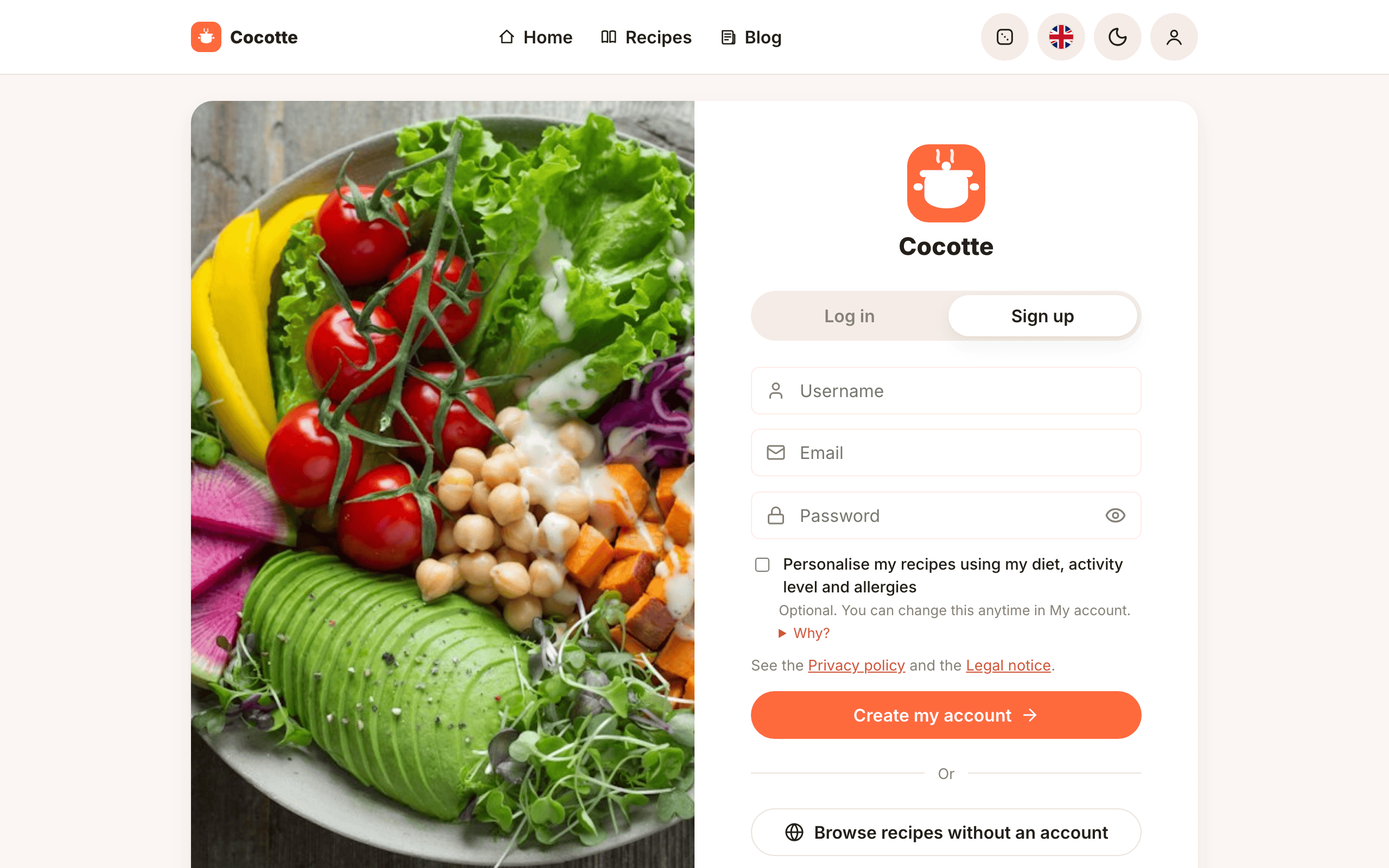
Logging in and signing up share the same page, with two tabs: Log in and Sign up.
- Click the person icon at the top right of any page, or Create an account under the home page's featured recipe.
- Select the Sign up tab.
-
Fill in the form:
Field Notes Username The name other people see (for example on your recipes and comments). It must be unique. Email Used to log in and to receive password-reset links. Password At least 8 characters. Use the eye button to show or hide what you type. Personalise my recipes using my diet, activity level and allergies Optional checkbox: ticking it is your explicit consent to Cocotte processing this data, which may relate to your health. Why? under it explains what it is used for. Leave it unticked to create your account without this data; you can consent later from My account. See Health data consent. Diet Shown once the consent box is ticked. Flexitarian, Vegetarian or Vegan. Used for nutrition alerts. Activity level Shown once the consent box is ticked. Sedentary, Moderate or Athlete. Used for nutrition alerts. -
Click Create my account.
You are logged in straight away and taken to the recipe list. You can change all of these fields later in My account.
Tip
Diet and activity level set the daily minimums used by the planner's nutrition alerts. See Nutrition & carbon.
Log in and log out
- Click the person icon at the top right.
- On the Log in tab, enter your email (not your username) and your password.
- Click Log in.
If the details are wrong, you see Invalid credentials. After logging in, you land on the page you were trying to open, or on the recipe list.
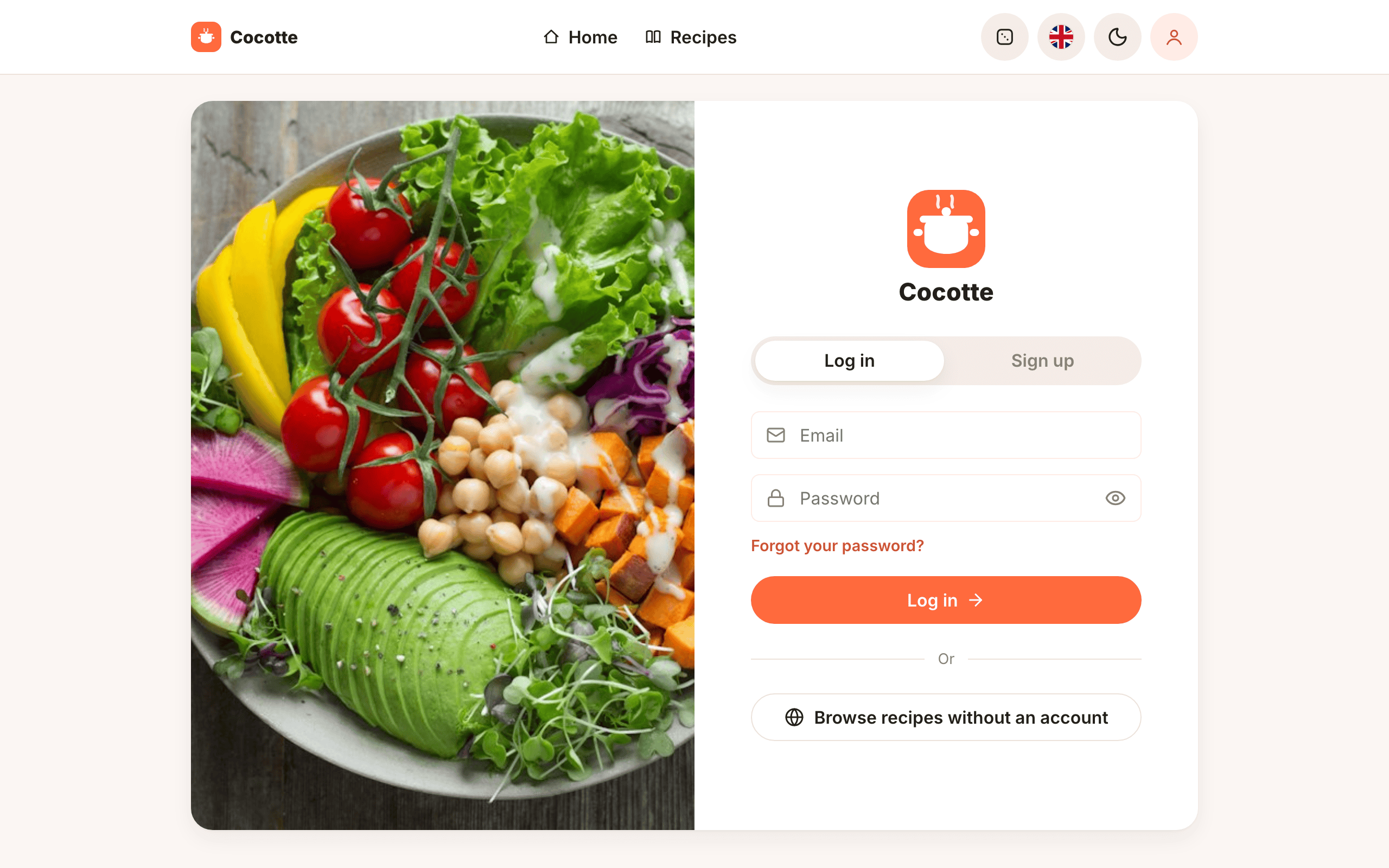
On a phone, the cover photo is hidden and the form takes the whole screen.
To log out, open the account menu (person icon) and click Log out. Logging out also clears your planner and shopping-list data from the offline cache on this device.
Note
Your session lasts about 7 days after you log in. After that, you need to log in again.
Forgot your password
- On the login page, click Forgot your password?
- Enter your email and click Send the link.
- Cocotte always shows the same confirmation message, whether or not an account uses this email. This way nobody can find out which emails are registered.
- Open the email (subject: Réinitialisation de votre mot de passe Cocotte) and follow the link.
- On Choose a new password, type your new password twice (at least 8 characters) and click Set the new password.
- You are taken back to the login page with the message Password changed, you can now log in.
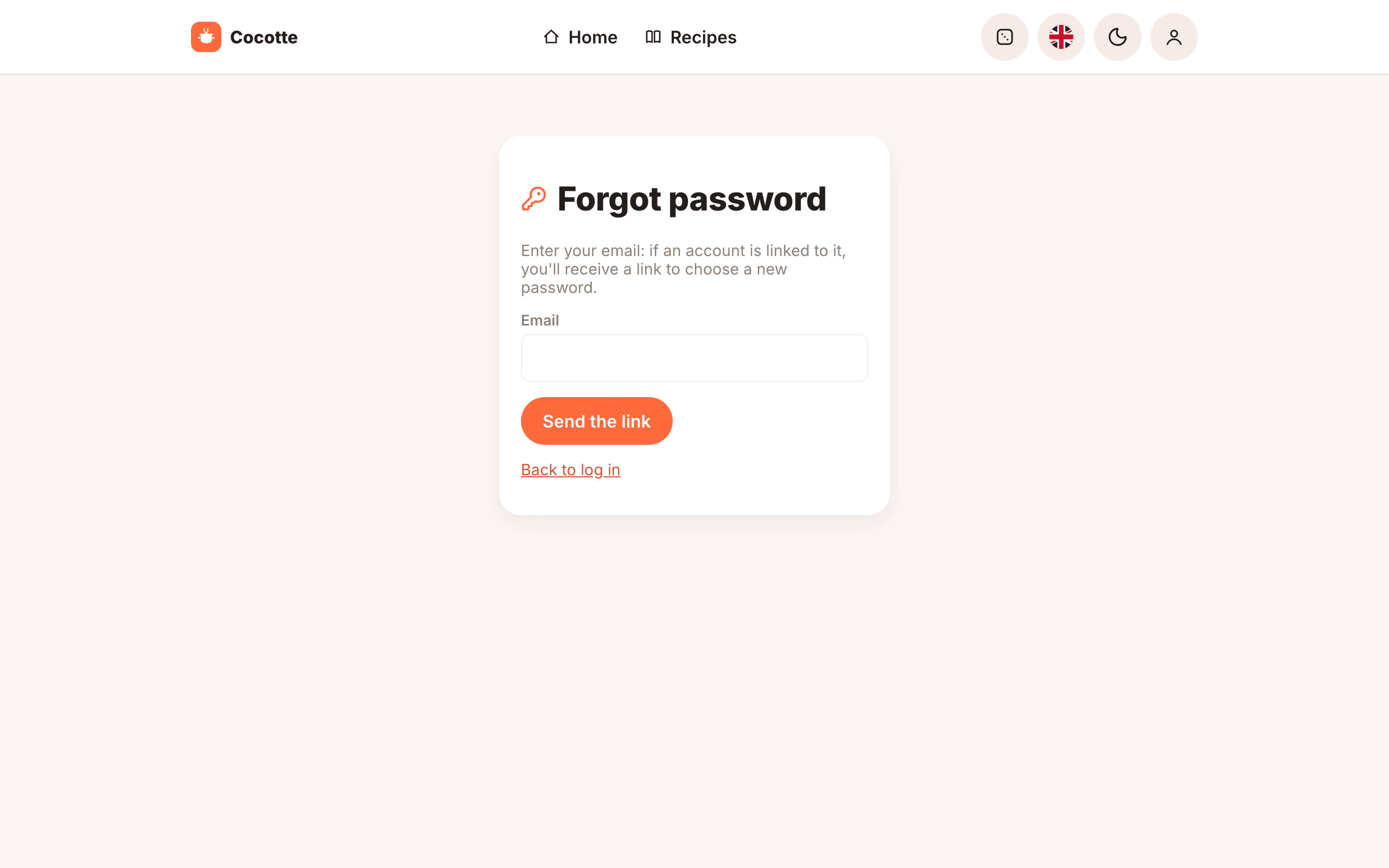
If the link is too old or was already used, you see This reset link is invalid or has expired. Ask for a new one.
Important
Reset emails only arrive if the server administrator has set up email sending. On a local install, they are printed in the backend logs instead. See Configuration.
The My account page
Open the account menu (person icon) and click My account. The page is made of cards, described below from top to bottom.
Appearance (accent colour)

The Appearance card changes the app's main colour (buttons, links and highlights):
- click one of the eight colour swatches, or
- click Custom to pick any colour, or
- click Default to go back to the original orange.
The accent colour is stored on this device only (it doesn't follow your account to other devices). Text on buttons automatically switches between black and white to stay readable.
Dark mode is toggled from the moon/sun button in the top bar. See The interface.
Profile
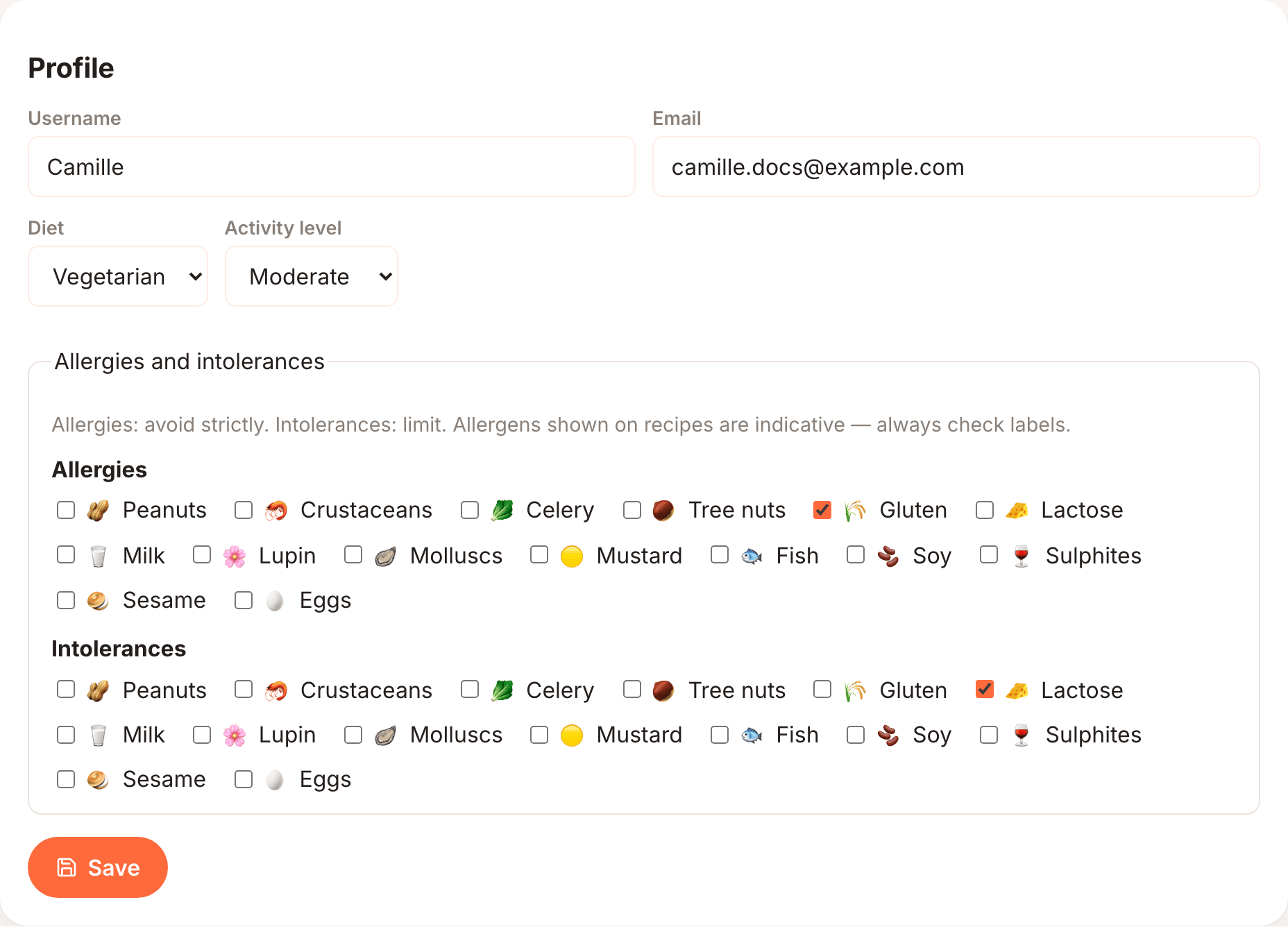
In the Profile card you can change your Username, Email, Diet and Activity level, as well as your allergies and intolerances (next section). Click Save when you're done. Profile updated. confirms it worked.
If you change your email, use the new one the next time you log in.
Allergies and intolerances
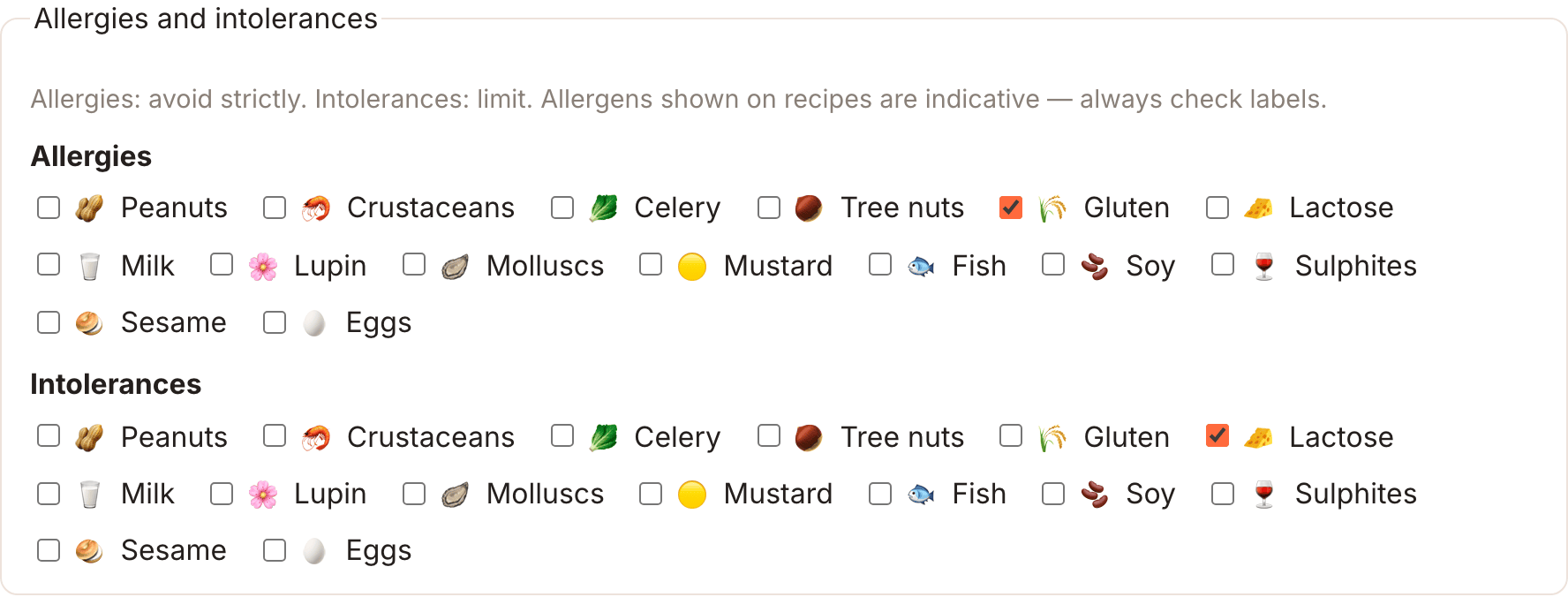
Inside the Profile card, the Allergies and intolerances section lists the 14 EU allergens plus lactose, twice:
- under Allergies: allergens you must avoid strictly,
- under Intolerances: allergens you prefer to limit.
An allergen can be either an allergy or an intolerance, not both. Ticking it in one group unticks it in the other. Click Save to apply.
Once saved, Cocotte uses them in several places:
| Where | What happens |
|---|---|
| Recipe list | Recipes that contain any of your allergies or intolerances are hidden by default. Remove them from Exclude allergens in the filters to see them. |
| Random recipe | The Exclude allergens filter starts pre-filled with your allergies and intolerances. Open the filters panel to change the selection. |
| Recipe cards | Only your allergens are shown as badges, allergies first. |
| Recipe page | All the recipe's allergens are shown, with yours highlighted. |
| Planner and Add to planner | A warning (Contains: for allergies, May bother you: for intolerances) when a recipe contains one of your allergens. It doesn't stop you from adding it. |
Warning
Allergen information comes from the ingredients and is indicative only. Industrial products vary between brands: always check the labels. When an ingredient's allergens haven't been checked, the recipe shows Allergens not verified for some ingredients. Such a recipe is not hidden by the allergen filter. See Nutrition & carbon.
Health data consent
Your diet, activity level and allergies may reveal information about your health, so Cocotte only processes them with your explicit consent. Consent is optional: you can give it at sign-up or later. The Health data consent card shows the date you consented.

- Withdraw my consent erases your diet, activity level, allergies and intolerances (they go back to the defaults) after a confirmation. Your recipes, planner and shopping lists are kept.
- Give my consent appears instead if you haven't consented (you skipped it at sign-up, withdrew it, or signed up before consent was recorded), and lets you consent.
Without consent, the Diet, Activity level and Allergies and intolerances fields of the Profile card are greyed out and locked, under the message Diet, activity level and allergies are health data: they stay locked until you give your consent. A Give my consent button right next to it unlocks them immediately. Save then only updates your username and email.
The Privacy policy link, also in the footer of every page next to Legal notice, explains what is stored, for how long, and how to exercise your rights.
Password
To change your password while logged in:
- Enter your Current password.
- Enter the New password twice (at least 8 characters).
- Click Change password.
After Password changed. Logging you out..., you are logged out and need to log in again with the new password.
Export my data
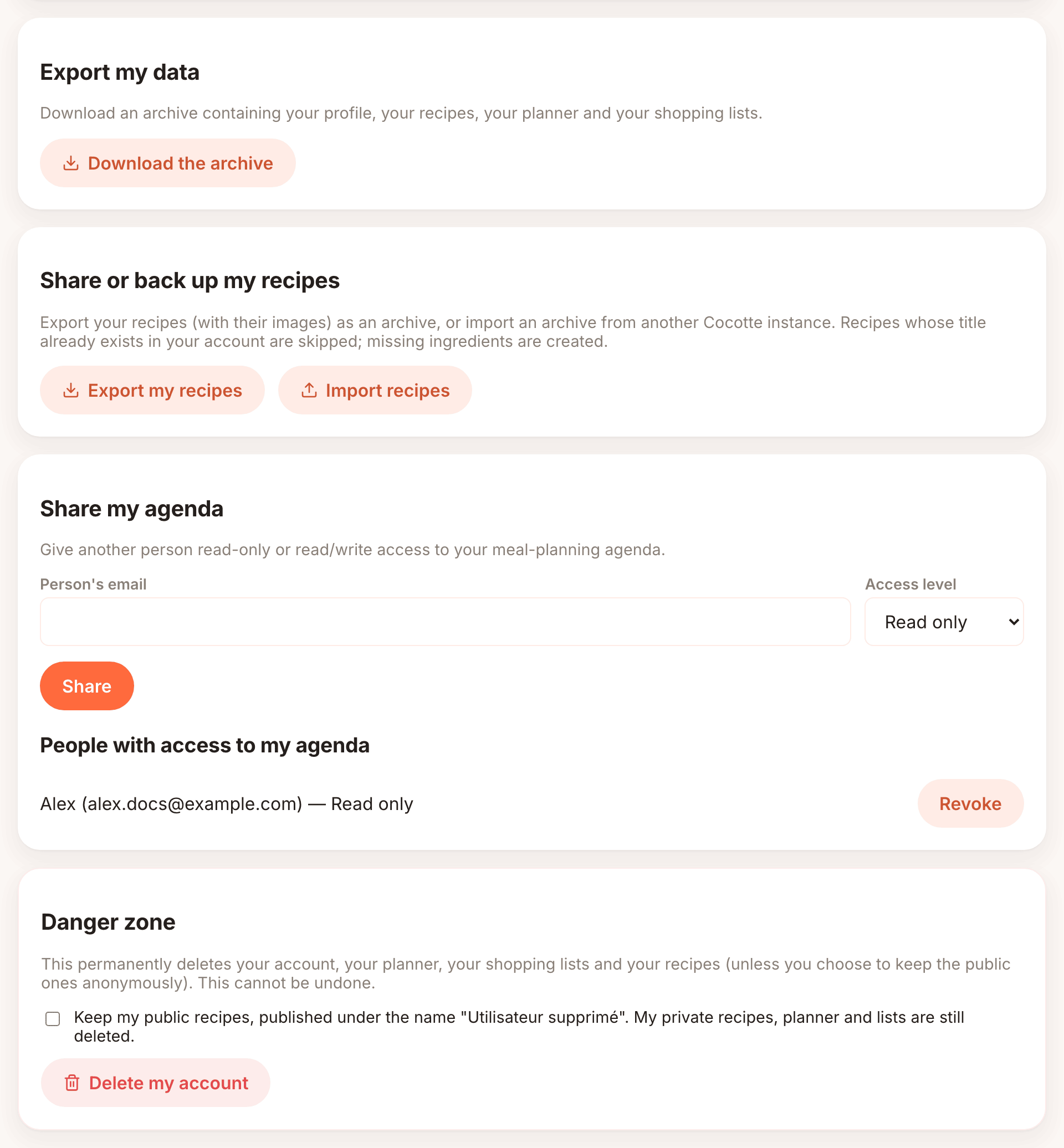
Click Download the archive to get a ZIP file (cocotte-donnees-YYYY-MM-DD.zip) containing
JSON files with your profile, your recipes, your planner entries, your shopping lists, your blog
posts, your comments and your tags (with the recipes they're on). Use it
as a personal backup or to see what Cocotte stores about you.
Share or back up my recipes
This card moves recipes between Cocotte instances, for example from a friend's server to yours.
- Export my recipes downloads a ZIP (
cocotte-recettes-YYYY-MM-DD.zip) with all the recipes you authored and their uploaded images. The full data of each ingredient (nutrition, seasonality and so on) is included so another instance can recreate it, along with the sections of your ingredient lists and the alternatives of each ingredient. - Import recipes asks for such a ZIP file and adds its recipes to your account. When it's
done, you see a summary: N imported, N skipped, N failed.
- Recipes whose title already exists in your account are skipped.
- Ingredients are matched with the existing library. Missing ones are created. Existing ingredients are never modified.
- Export the whole database (admin): staff accounts get this extra button, which exports
every recipe on the instance (
cocotte-base-recettes-YYYY-MM-DD.zip).
Note
This recipe archive is not the same file as Export my data. Only the recipe archive can be imported back into Cocotte.
Share my agenda
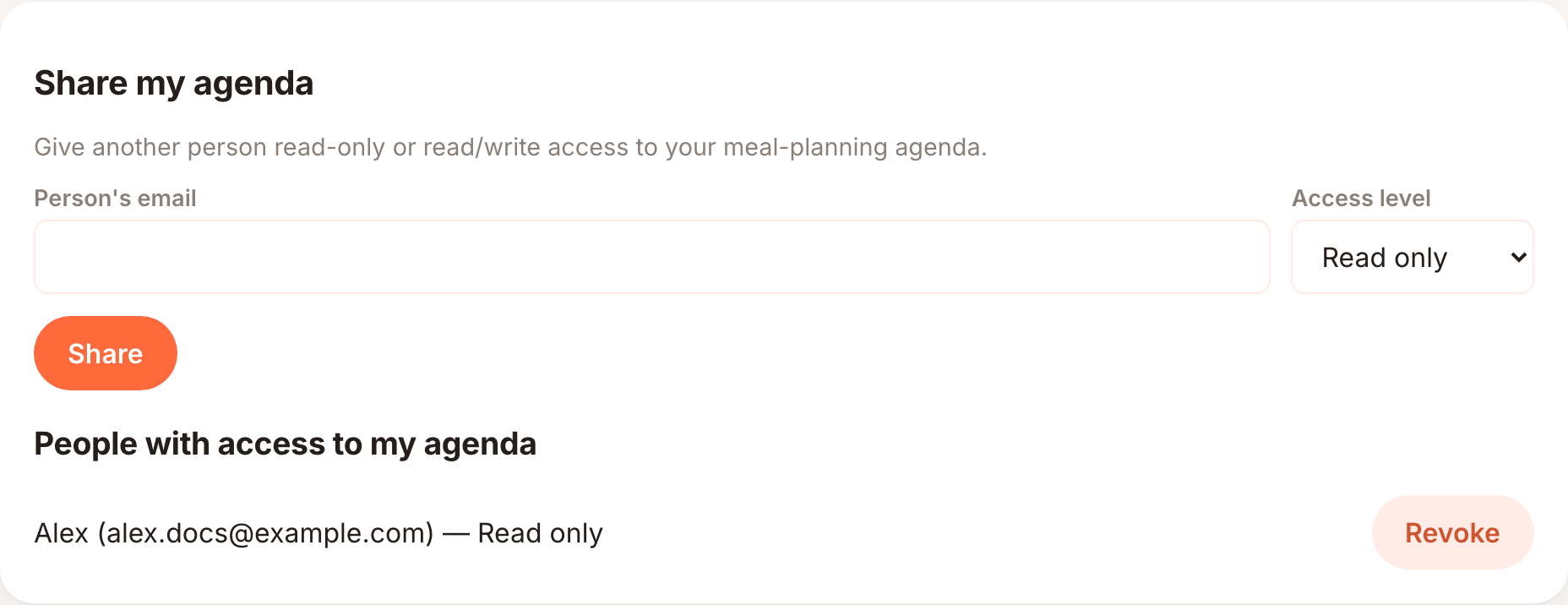
This card lets another person see, or also edit, your meal planner:
- Enter the Person's email. It must be the email of an existing Cocotte account.
- Choose the Access level: Read only or Read & write.
- Click Share.
The list below, People with access to my agenda, shows who has access and at which level. Click Revoke to remove someone's access. To change the level, share again with the same email and the new level.
The other person then finds your agenda in the Displayed agenda selector of their planner. See Meal planning.
Danger zone: delete my account
Click Delete my account, then Delete permanently in the Delete your account? dialog (or Cancel to back out). This permanently deletes your account, your planner, your shopping lists and your blog posts, and by default your recipes. It cannot be undone.
Tick Keep my public recipes, published under the name "Utilisateur supprimé" first if you want your public recipes to stay available to others (including people who planned them). They are then attributed to an anonymous account instead of you. Your private recipes, planner and lists are deleted anyway, and the comments you left stay but no longer carry your name.
Caution
Without that option your recipes are deleted too, including recipes other people may have planned. Download Export my data and Export my recipes first if you might want them later.
App version
At the very bottom of the page, below the Danger zone card, Cocotte shows the version it's running (for example Cocotte v0.1.0) — useful if you're reporting a bug.