Moderation
This page covers the content-related duties of a staff member: moderating recipe and blog comments and blog posts, understanding recipe visibility and the protection of imported (possibly copyrighted) recipes, exporting the whole recipe base, and answering users' personal-data requests.
Hide and unhide comments
Anyone can comment on a recipe, without an account: the form only asks for a Name (up to 80 characters) and a Comment (up to 2,000 characters). When the poster is logged in, the comment is also linked to their account, and the name defaults to their username. To limit spam, anonymous visitors can post about 10 comments per hour; logged-in users are not rate-limited.
There is no pre-moderation: comments appear immediately. Moderation is done after the fact, by hiding comments.
Who can moderate
| Who | Can hide and unhide | Sees hidden comments |
|---|---|---|
| The recipe's author | Comments on their own recipes | On their own recipes |
| The blog post's author | Comments on their own posts | On their own posts |
| Staff | Comments on every recipe and post | Everywhere |
| Everyone else | No | No |
Hide a comment
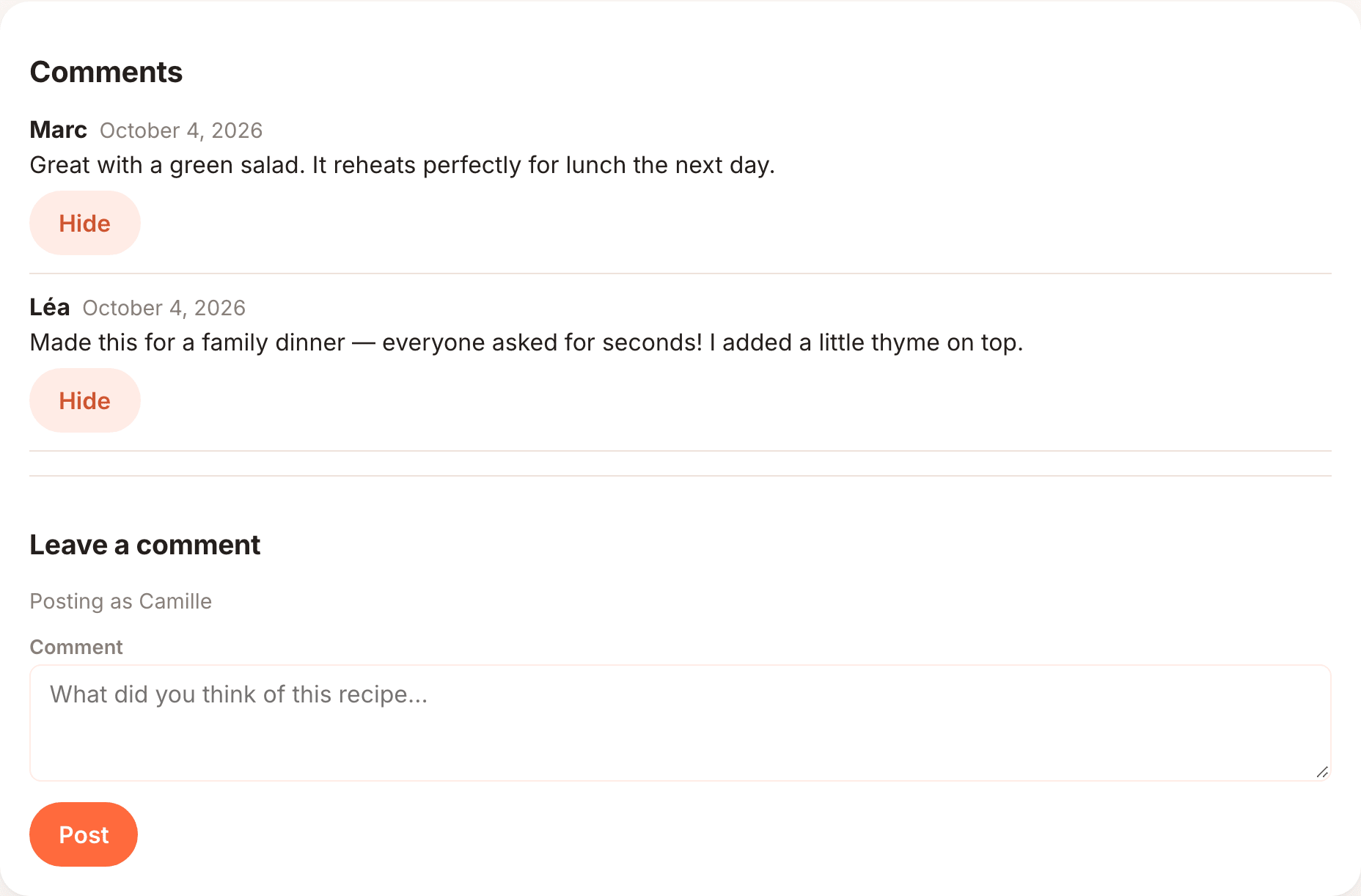
- Open the recipe (or blog post) and scroll to the Comments section.
- Click Hide under the comment.
The comment disappears for everyone else. You and the recipe's author still see it, marked (hidden), with an Unhide button to restore it.
Delete a comment
The app itself only hides comments. To delete one permanently (for example illegal content, or personal data someone asks you to erase), use the Django admin:
- Go to
/django-admin/and open Recipes > Recipe comments. - Search by author name, comment text or recipe title, or filter on the hidden status.
- Tick the comments, choose the delete action in the action menu, and confirm.
Blog post comments follow the same rules and the same rate limit. Their author can also turn comments off for a post (Allow comments in the post form): no new comment can then be posted, and the existing ones stay visible. Delete blog comments in the Django admin under Blog > Blog post comments.
Blog posts
Any logged-in user can publish a blog post, immediately: there is no pre-moderation either. The post form displays the publishing rules (no discriminatory, hateful or harassing content; texts and images must respect copyright) and the author must confirm them on every save.
As staff, you see Edit and Delete on every post, in the blog list and on the post itself. If a post breaks the rules, or a rights holder complains about a text or picture, edit out the problem or delete the post (its comments go with it). The Django admin (Blog > Blog posts) lists posts with their author and dates, searchable by title or author.
The post content is HTML, cleaned by the server on every save: scripts, styles, event handlers
and any embedded frame other than a Cocotte recipe card are removed, so a post can't run code in
its readers' browsers. Pictures uploaded from the editor are stored under media/blog/ and are
listed in the Django admin under Blog > Blog images; they are not deleted when the post
using them is. Cover images (media/blog/covers/) belong to their post: replace or remove one with
Edit on the post, and the file is deleted with the post (also from the Django admin or when the
author's account is deleted).
Editing any recipe
As an admin you see Edit and Delete on every recipe, in the recipe's actions menu and in the recipe list, not only on your own. Use them to correct or remove another user's recipe.
Moderation log
Every action a staff account takes is recorded, on its own content as well as on other people's: editing or deleting a recipe, a blog post, an ingredient, a piece of cookware or a user account, merging duplicates, and hiding or showing a comment. Edits by a regular user to their own content are not logged.
Find the log
- Log in to the Django admin at
https://cocotte.example.org/django-admin/(see Django admin). You need a superuser account, or a staff account that a superuser granted the Can view audit log permission. - Open Accounts > Audit logs (Journaux d'audit may appear in French).
- Narrow the list: the Action and Type filters on the right, the search box (staff email, object name or id) and the date breadcrumbs above the list.
Each line gives the date, the staff email, the action (Modification, Suppression, Fusion,
Commentaire masqué, Commentaire réaffiché), the type of object (for example recipes.Recipe),
its id and name, and, for edits, the fields that changed. Open a line to see the details. The
log is read-only: nobody can add, change or delete a line from the admin.
How long it is kept
Lines are kept 365 days, then deleted by the purge_audit_logs command. Change the period
with AUDIT_LOG_RETENTION_DAYS (0 keeps them forever) and schedule the command: see
GDPR compliance. Deleting a staff account replaces its email in the log
with "compte supprimé"; a user account that staff edited or deleted appears as user #id, never
with their email.
Note
Recipe photo uploads are not logged, and the log stores which fields changed, not their old or new values.
Recipe visibility
Copyright-restricted imported recipes
A recipe imported from a website (anything with a source URL) may contain text protected by copyright. Ingredient lists and times are facts, not covered by copyright, but the way the steps and description are written is. By default, Cocotte therefore publicly shows the title, image, source link, ingredients, times, diet, allergens and carbon footprint, while its description and steps are reserved to:
- the user who imported it (its author);
- staff members.
Other visitors see a notice explaining that the recipe comes from a third-party source, with a link to the original. They also cannot duplicate it as a new version, nor download it as PDF. Recipes written by hand (no source URL) are never restricted.
The author can lift the restriction by ticking I rewrote the steps in my own words and the images used respect copyright: make the whole recipe public in the recipe form, which only appears when the recipe has a source URL. Ticking it shows a copyright reminder (ingredients and times are free to share, the steps and description must be rewritten, the source's photos must not be reused). Right after an import, the form refuses to save with the box ticked while a step is still identical to the imported text; on later edits, Cocotte can no longer compare and relies on the author's word.
Imported recipes never get the source website's photo either: the author adds their own, or picks a freely licensed one with Suggest a free image.
As staff:
- You always see the full content of restricted recipes, and the lock icon that marks them on recipe cards for other visitors is not shown to you. Remember that what you see is not what the public sees: log out (or use a private window) to check a recipe as a visitor.
- You can edit any recipe, including this checkbox. Only tick it on someone else's behalf if the steps have clearly been rewritten; the safe default is to leave imported content restricted.
- Recipes imported before this change may still use the source website's photo. Replace or remove it when you come across one.
- If a rights holder complains about a recipe whose content was made public, untick the box (or delete the recipe).
The "Private" flag
Recipes also carry an is_public flag, shown as a Private badge on recipe cards when it is
off. It is currently not enforced: every recipe, including one marked private, appears in the
recipe list and can be opened by anyone. The app's recipe form has no control for it; it can only
be set through a recipe archive import or the Django admin (Is public field of a recipe).
Important
Don't rely on the Private badge to protect content, and tell your users that recipes they create are visible to everyone who can reach your instance. If an instance must stay confidential, restrict access to it at the network or web-server level.
Export all recipes
Staff can download every recipe of the instance, from every author, as a single portable archive.
- Open My account from the account menu.
- In Share or back up my recipes, click Export the whole database (admin). The button is only shown to staff.
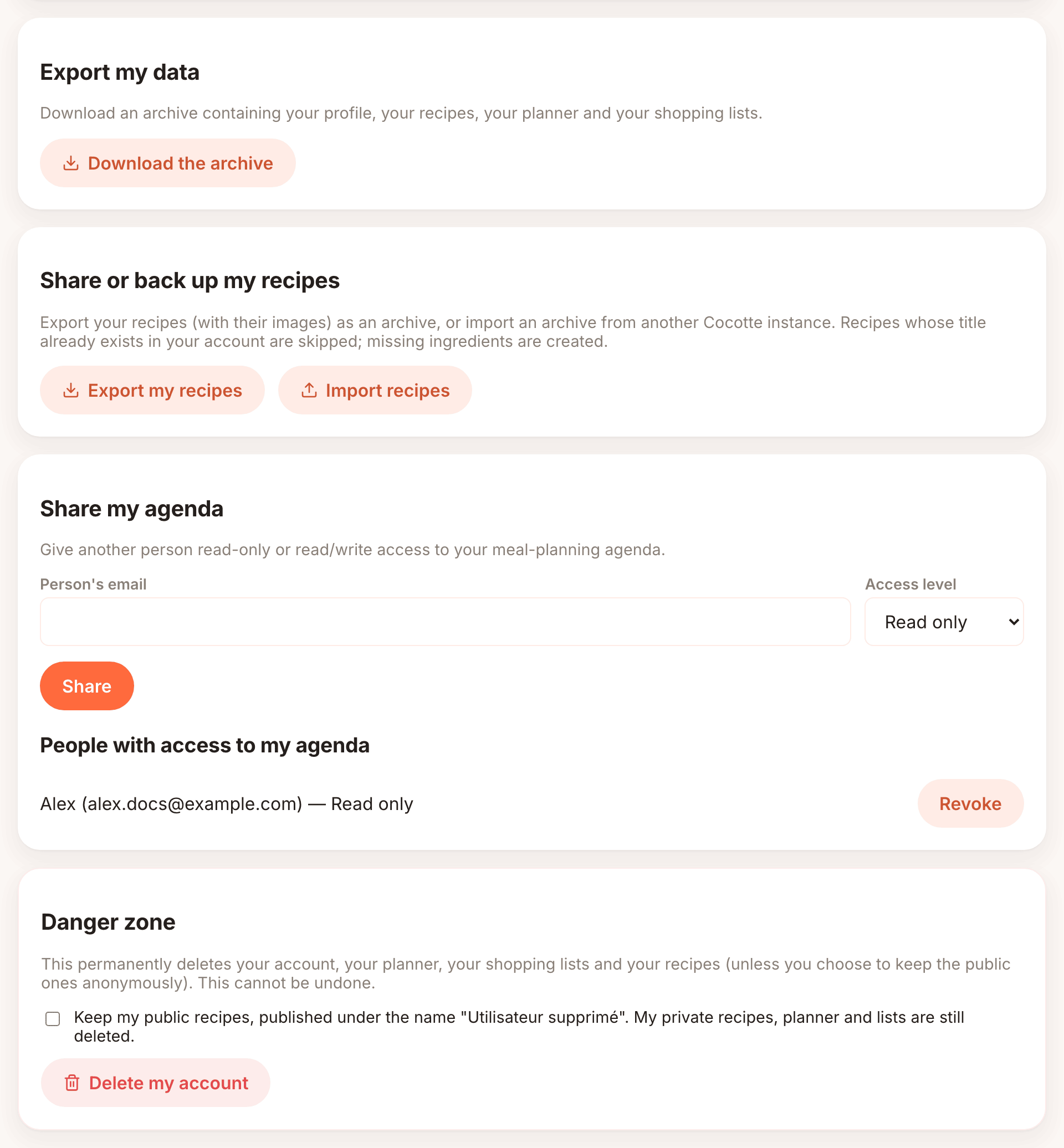
The browser downloads cocotte-base-recettes-<date>.zip, containing recipes.json (recipes with
their ingredients, steps and tags, and the full data of every ingredient used) and an images/
folder with the uploaded recipe images.
This archive can be imported into another Cocotte instance with Import recipes on the same page. Keep in mind that:
- every imported recipe belongs to the account that imports it, whatever its original author;
- recipes whose title already exists in the importing account are skipped;
- missing ingredients are created, and existing ingredients of the target instance are never modified;
- accounts, plannings, shopping lists and comments are not included.
The archive is therefore handy for seeding a new instance or sharing a collection, but it is not a backup. For backups, see Back up and restore.
Handle personal-data requests
Users can serve most requests themselves from My account (see Your account).
Access and portability
Export my data > Download the archive gives the user a ZIP with their profile
(profil.json), recipes (recettes.json), planner (agenda.json), shopping lists
(listes_de_courses.json), blog posts (articles_blog.json) and blog comments
(commentaires_blog.json). Export my recipes gives a re-importable archive of their recipes
with images.
Only the user can generate these exports for their own account; there is no staff button to export another user's data. If a user cannot log in, help them recover access first (see Users). Otherwise, a superuser can consult their records in the Django admin.
Erasure
- The user can click Delete my account in the Danger zone of My account.
- A staff member can delete the account from the Users page (see Delete an account).
Either way, the account, its recipes (with their comments), blog posts (with their comments), planner, shopping lists, allergies and planner shares are deleted immediately.
Important
Comments the user posted on other people's recipes and blog posts survive account deletion: they are detached from the account but keep the display name the user typed. For a complete erasure, search for that name in Recipes > Recipe comments and Blog > Blog post comments in the Django admin and delete the comments. The same search handles requests from people who commented without an account.
Deleted data remains in your database backups until they expire. Mention this retention in your answer to the user, and in your privacy policy if you publish one.