Meal planning
The Planner is where you organise your meals over the week or the month. From it you can check your nutrition and carbon footprint, print the week, add your meals to your calendar app and generate a shopping list. You need to be logged in.
Click Planner in the top bar (or in the bottom tab bar on a phone).
flowchart LR
    R[Recipe] -->|Add to planner| P[Planner]
    P --> N[Nutritional intake]
    P --> PDF[Download the week as PDF]
    P --> C[Export to calendar app]
    P -->|Generate shopping list| S[Shopping list]
Week and month views
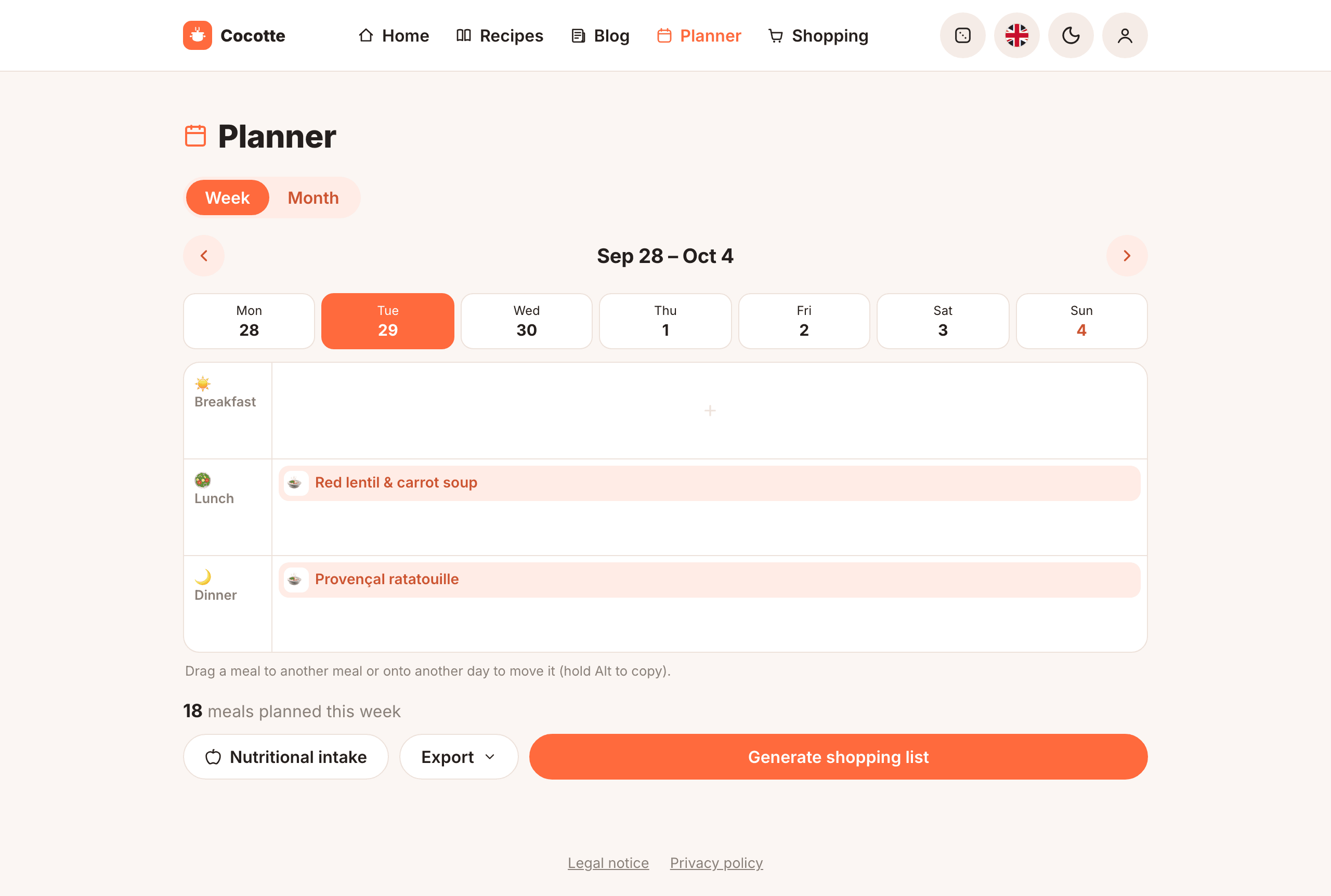
The Week / Month buttons at the top switch between the two views.
- Week view
- A row of seven day buttons (Monday to Sunday) sits above the grid. Click one to show that day, with Breakfast, Lunch and Dinner as rows. Each row lists the recipes planned for that meal; click a recipe to open it. The planner opens on today, and today's day button and cells are tinted so you can spot them at a glance. The layout is the same on a computer and on a phone.
Note
The instance administrator can also enable a fourth row, Snack, for everyone on the instance (off by default). If you don't see it, ask your administrator — see Configuration.
- Month view
- A calendar of the whole month, listing the recipes planned each day with an icon for the meal (☀️ breakfast, 🥗 lunch, 🌙 dinner). A day shows up to three recipes; click +N more or the day number to open that day in the week view. On a phone, each day only shows dots for its planned meals. Today's date is highlighted.
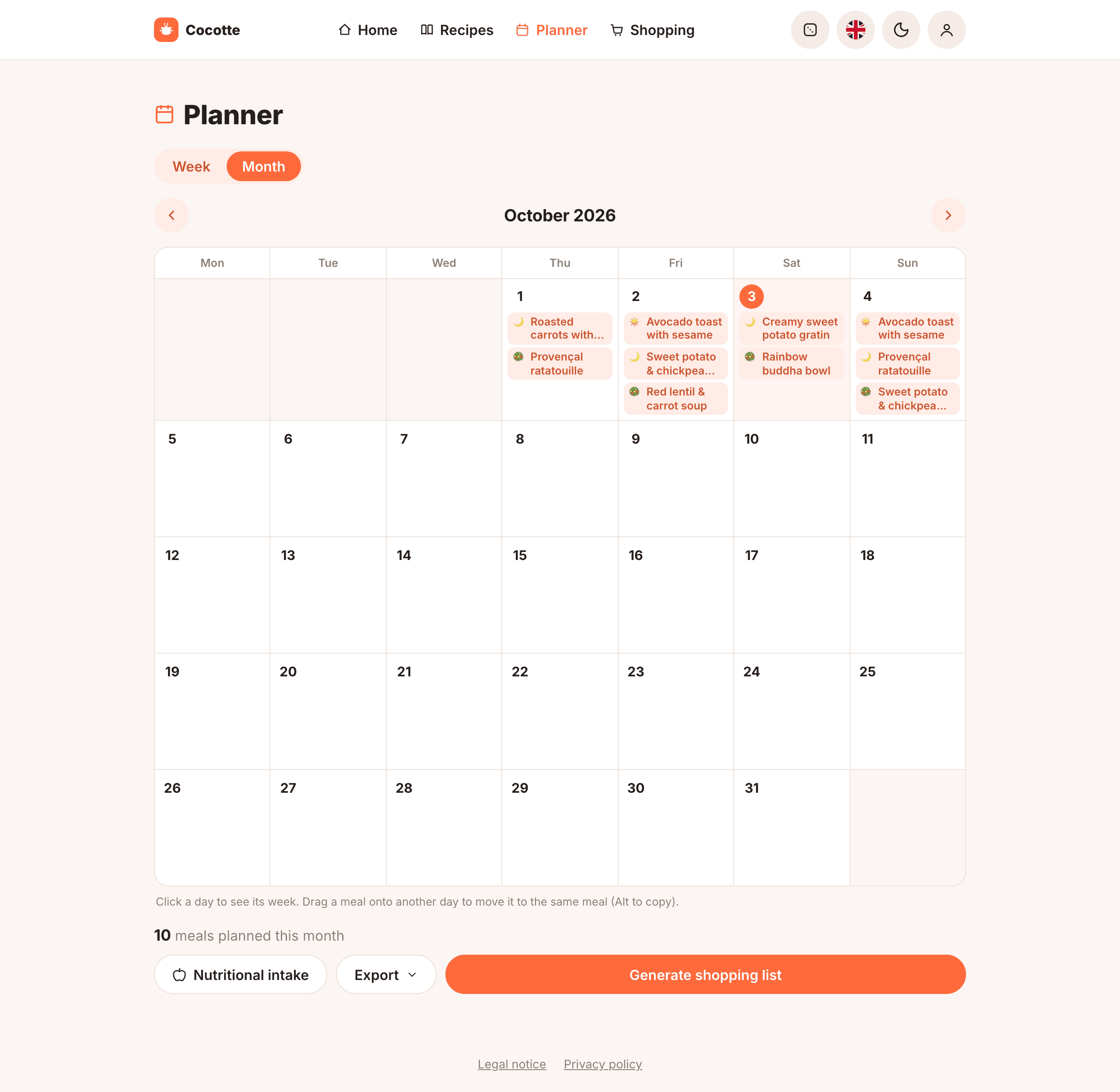
Use the ‹ and › arrows around the date range to move to the previous or next week (or month). When you are not on the current period, a Today button next to the date range brings you back.
Important
The buttons at the bottom of the planner apply to the period currently displayed: the week in week view, the whole month in month view. This covers the nutrition summary, the PDF, the .ics download and the shopping list.
Add a meal
From the planner
- In week view, pick the day, then click the + in the row of the meal you want. In a row that already has a recipe, the + appears under it when you hover the row. This opens the Add a meal dialog.
- Type part of a recipe's title in Search a recipe... and click it in the list. Or click Surprise me to get a random recipe.
- Set the number of Servings (it starts at the recipe's own number of servings). Click Choose another recipe to go back to the search.
- Click Add. Use Cancel, ×, or click outside the dialog to close it without adding.
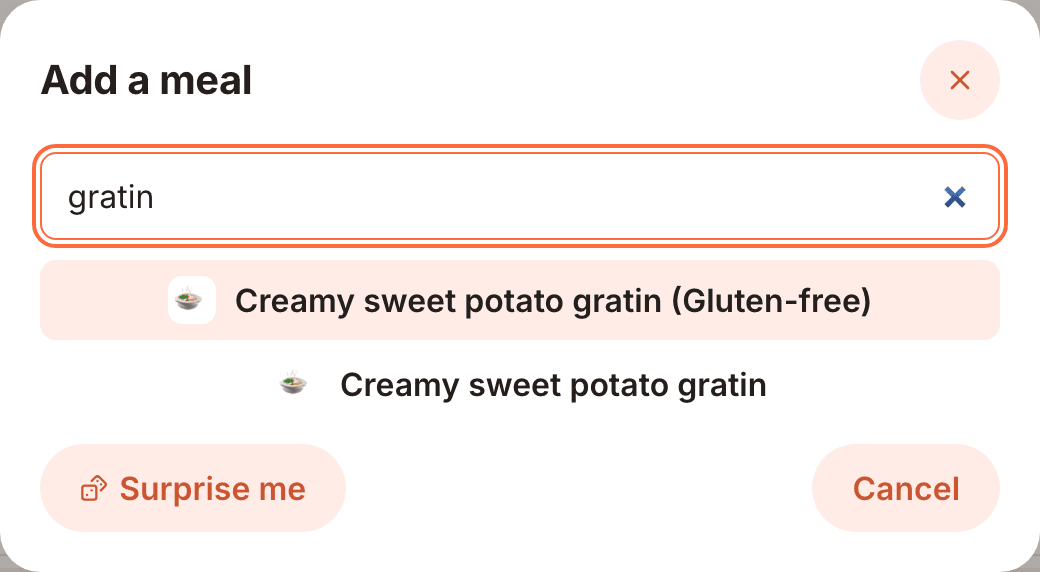
You can plan several recipes for the same meal, for example a main course and a dessert. You can't add the same recipe twice to the same meal on the same day. If you try, you see Could not add this entry (date already planned for this recipe and meal?).
From a recipe
Every recipe page has an Add to planner card. Pick a Date, a Meal and the Servings, then click Add. See Add to the planner. The Random recipe page has the same card.
Servings
The servings you set for a meal are what count for nutrition, carbon and shopping lists. Cocotte scales each recipe by planned servings ÷ recipe servings. For example, a recipe written for 4 and planned for 2 counts as half the recipe.
To change the servings of a planned meal, remove it and add it again with the new number.
Move or copy a meal
Drag a recipe onto another meal row to move it there. To move it to another day, drop it on that day's button above the grid (it keeps the same meal, for example lunch stays lunch). In month view, drag a recipe onto another day. Hold Alt while dropping to copy the recipe instead of moving it.
Note
Drag and drop needs a mouse or trackpad. On a phone, remove the meal and add it again.
Remove a meal
Hover the recipe and click the small × in its corner (on a touch screen it's always visible). The meal is removed right away, and a message at the bottom of the screen offers Undo for a few seconds.
Allergen warnings
If a recipe contains one of the allergies or intolerances from your profile, a warning appears:
- under the recipe in the planner cell,
- in the Add a meal dialog as soon as you pick the recipe.
Contains: lists your allergies and May bother you: lists your intolerances. The warning doesn't stop you from planning the meal. Set your allergens in Your account.
Nutritional intake and carbon footprint
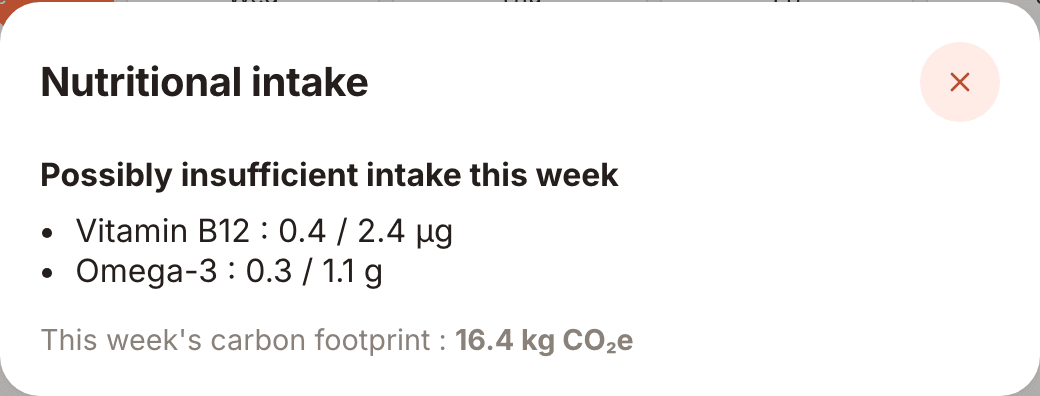
Click Nutritional intake at the bottom of the planner to open a summary of the displayed period:
- Possibly insufficient intake this week lists each nutrient whose daily average falls below your daily minimum, as nutrient : your average / minimum unit. This section only appears if the instance administrator has turned the feature on (off by default — see Configuration).
- This week's carbon footprint is the total kg CO₂e of all the planned meals, scaled to their servings. This is always shown, regardless of the deficiency-alerts setting.
Note
The daily average is spread over every day of the period, including days with nothing planned. If you only plan dinners, or only a few days, you will see alerts: the summary only knows about what's in the planner. Minimums depend on the diet and activity level in your profile. See Nutrition & carbon.
The home page's This week strip also shows a badge with the number of alerts for the next seven days.
Download the week as PDF
Click Export, then Download the week as PDF (Download the month as PDF in month
view) to get a printable PDF of the displayed period
(agenda-START-END.pdf). It contains the meal grid plus the full detail of every recipe in it.
You can take it to the kitchen or to the shop.
Export to calendar
Click Export at the bottom of the planner to add your meals to Google Calendar, Apple Calendar, Outlook or any calendar app that reads iCalendar (.ics).
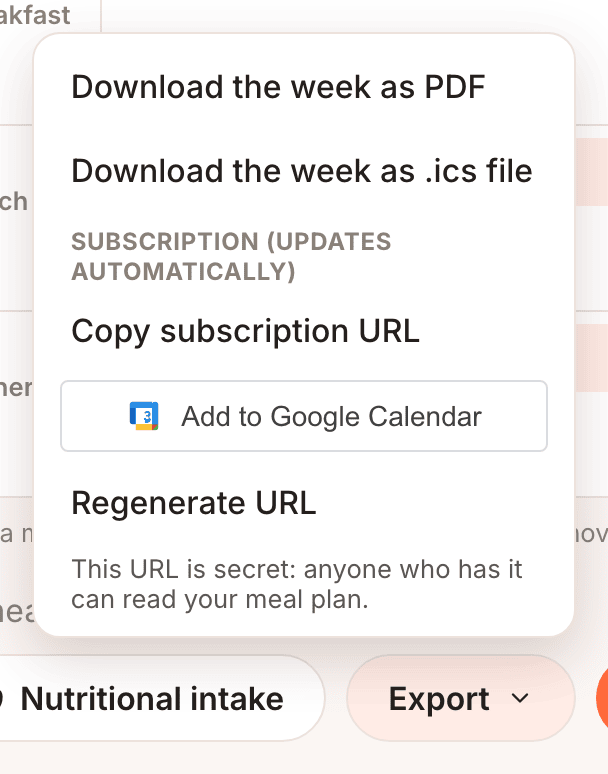
Each meal becomes a one-hour event titled with the recipe's name, at a fixed time:
| Meal | Time |
|---|---|
| Breakfast | 08:00 |
| Lunch | 12:30 |
| Snack | 16:00 |
| Dinner | 19:30 |
One-off download
Download the week as .ics file saves the displayed period as a file. Open it with your calendar app to import the events. This is a snapshot: later changes in Cocotte don't reach your calendar.
Subscription (updates automatically)
A subscription keeps your calendar in sync with your whole planner, past and future.
- Copy subscription URL copies your personal feed address. In your calendar app, add a calendar "from URL" or "by subscription" and paste it.
- Add to Google Calendar opens Google Calendar with the subscription ready to confirm.
Calendar apps refresh subscriptions on their own schedule, which can take from a few minutes to a day, depending on the app.
Warning
This URL is secret: anyone who has it can read your meal plan, without logging in. Don't share it.
Regenerate the URL
If the URL has leaked, or you want to disconnect every calendar using it, click Regenerate URL and confirm. The old address stops working immediately. Calendars subscribed with it stop updating, so subscribe again with the new one.
Shared agendas
Other people can share their planner with you, and you can share yours. Sharing is set up in My account → Share my agenda (see Your account).
When someone has shared their agenda with you, a Displayed agenda selector appears at the top of your planner:
- My agenda: your own planner,
- Name's agenda (read only): you can see their meals, nutrition summary and PDF, but not change anything. The add and remove buttons are hidden, and meals can't be dragged.
- Name's agenda (read & write): you can also add and remove meals in their planner.
The nutrition alerts of a shared agenda are computed with its owner's diet and activity level.
Note
Shopping lists can only be generated from your own agenda. With someone else's agenda selected, the generated list comes out empty. Ask the owner to generate it, or plan the meals in your own agenda. Likewise, the calendar subscription in the Export menu always covers your own planner.
Generate a shopping list
Click Generate shopping list at the bottom of the planner. The line above it shows how many meals are planned in the displayed period (for example 2 meals planned this week). The button is disabled when there are none.
Cocotte creates a new shopping list from all the meals of the displayed period and opens it. Ingredients are added up across recipes and scaled to the servings you planned. See Shopping lists.
Tip
To shop for only part of the week, remove the meals you don't need yet, generate the list, then add them back. Or shop from the month view to cover several weeks at once.