Browsing recipes
This page shows how to find recipes and read them: the home page, the recipe list and its filters, the random recipe, and the recipe page with its timers, nutrition facts, PDF download, variants and comments. You don't need an account for any of this.
The home page
Click Home (or the Cocotte logo) to open the home page.
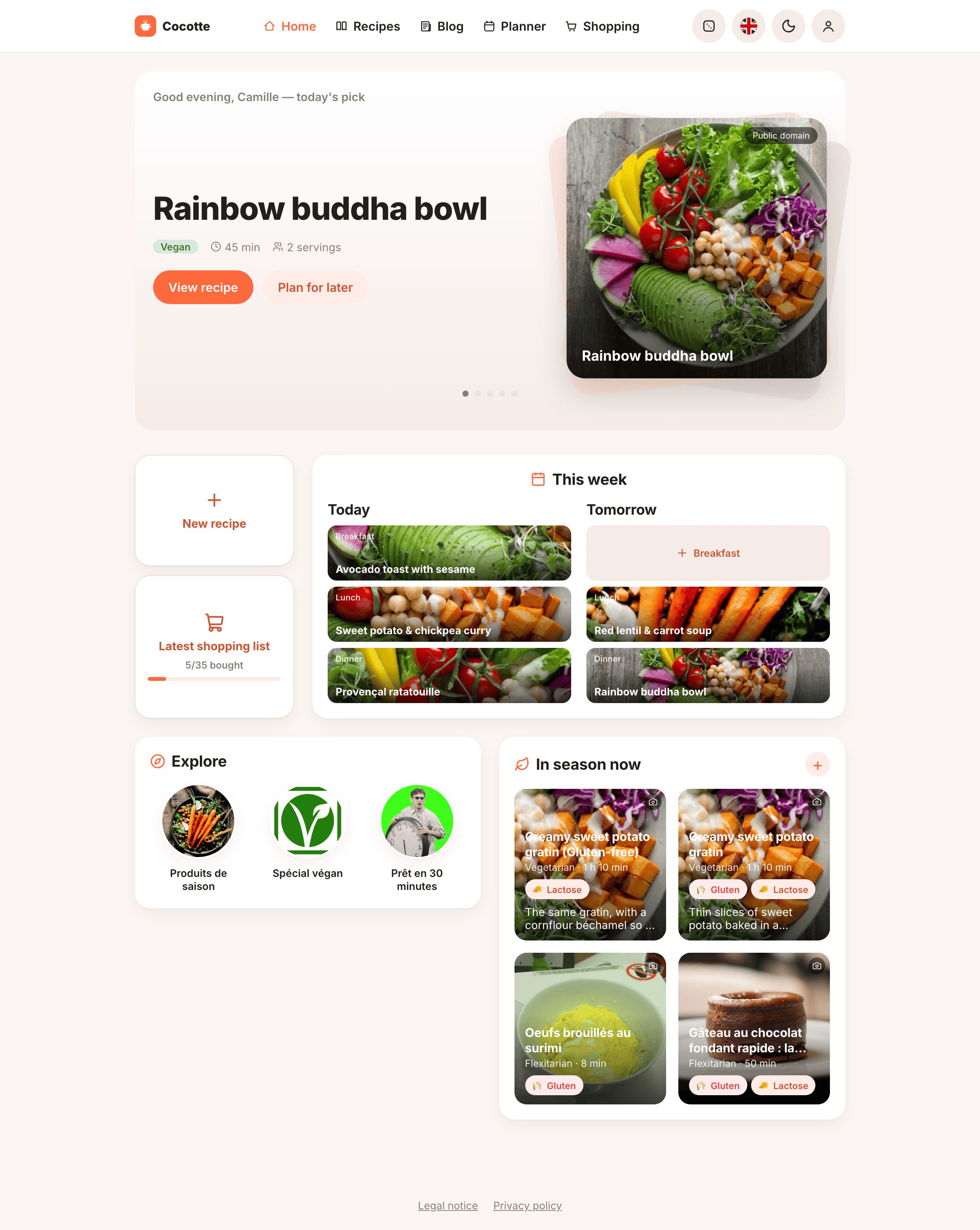
From top to bottom:
- Quick actions
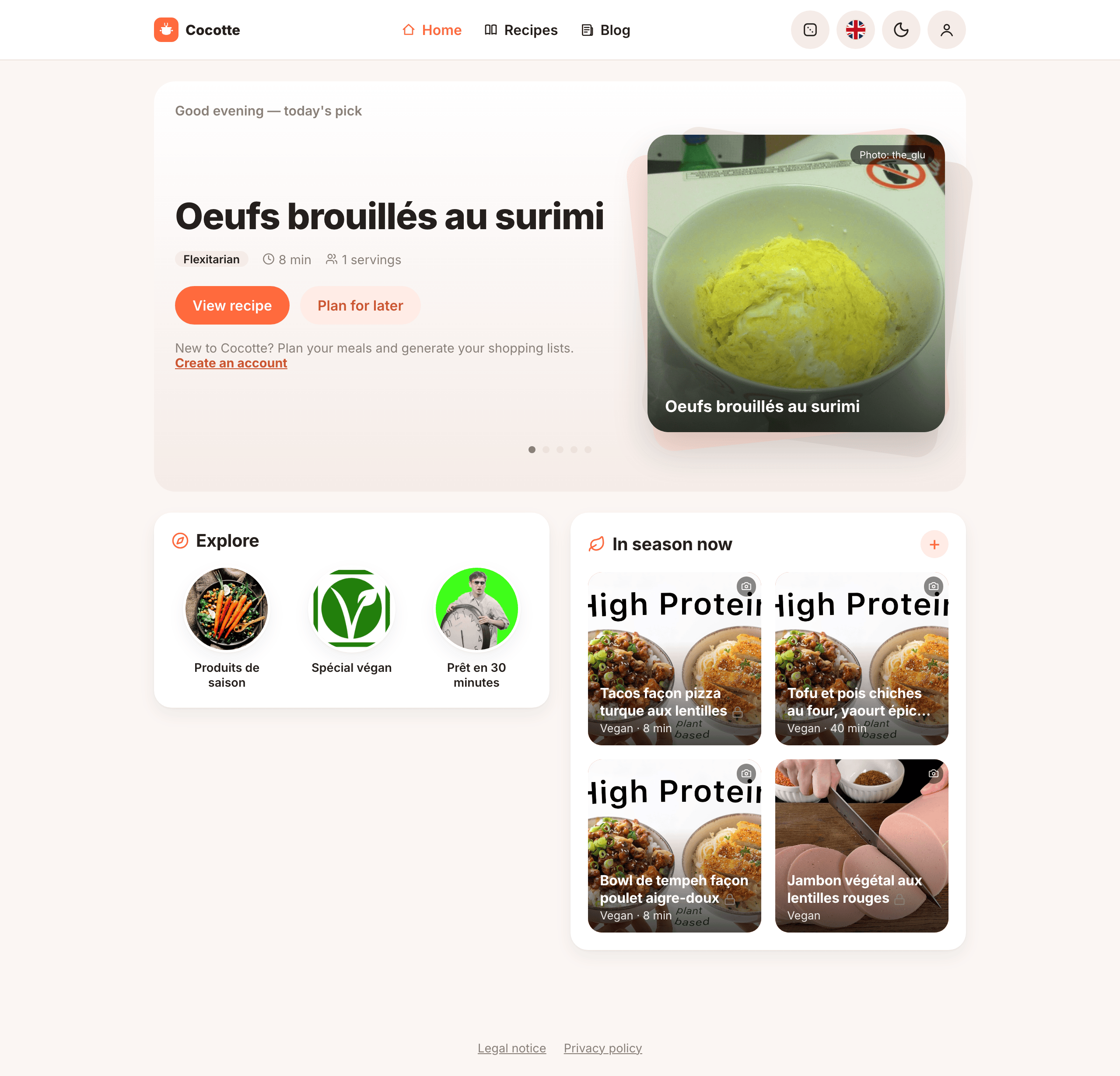
- Visitors see New to Cocotte? Plan your meals and generate your shopping lists. with a Create an account link right under the hero's View recipe / Plan for later buttons. Logged-in users instead get a New recipe button, positioned just above the Latest shopping list card (to the left of This week, see below) rather than in the hero. It opens a small menu with two choices: Create manually (the blank recipe form) or Import from a URL (see Creating recipes). The recipe list itself is always reachable from Recipes in the main navigation, so there's no separate "browse recipes" button here.
- Today's pick
- One of your 5 most recent recipes, with its picture, diet, total time and servings. It auto-advances every few seconds; the dots below it jump straight to one and pause the auto-advance while you're looking. View recipe opens it; Plan for later opens a dialog right on the home page where you pick the date (today by default), the meal and the number of servings, then Add puts that recipe in your planner without leaving the page. The picture's credit sits in its top-right corner.
- This week (logged-in users only)
- A separate Latest shopping list card opens your most recent shopping list and shows its bought/total progress. Next to it, the This week card has a centered heading and lists Today and Tomorrow side by side: each meal (Breakfast, Lunch, Dinner, and Snack if your administrator enabled it) gets its own tile, all the same size — a photo tile with the recipe's picture, meal and title for a planned meal (opens the recipe), or a + button for an empty slot. The + button opens the same Add a meal dialog as the planner (see Add a meal) for that day and meal, so you only pick the recipe and servings; the tile updates as soon as you add it. A red badge such as 2 nutrition alerts appears next to the heading when the next seven days of your planner fall short of your daily minimums (opens the planner).
- Explore and In season now
- Two cards side by side (stacked on narrow screens), each as tall as its content. Explore holds thematic shortcuts chosen by the administrators, for example Produits de saison, Spécial végan or Prêt en 30 minutes — each one opens the recipe list with filters already applied (see Thematic pages). In season now shows up to four recipes made only of ingredients that are in season this month. The + button opens the full list with the in-season filter on. A small camera button in the top-right corner of each picture shows its credit (hover, focus or tap it).
- Latest blog posts
- The three most recent blog posts, with their cover image, title, author, date and first lines. Click one to read it; the + button opens the blog. The card is hidden while the blog has no post.
The recipe list
Click Recipes to see all recipes, newest first, 10 per page. On a computer, recipes are shown two per row, with the filters in a column on the left.
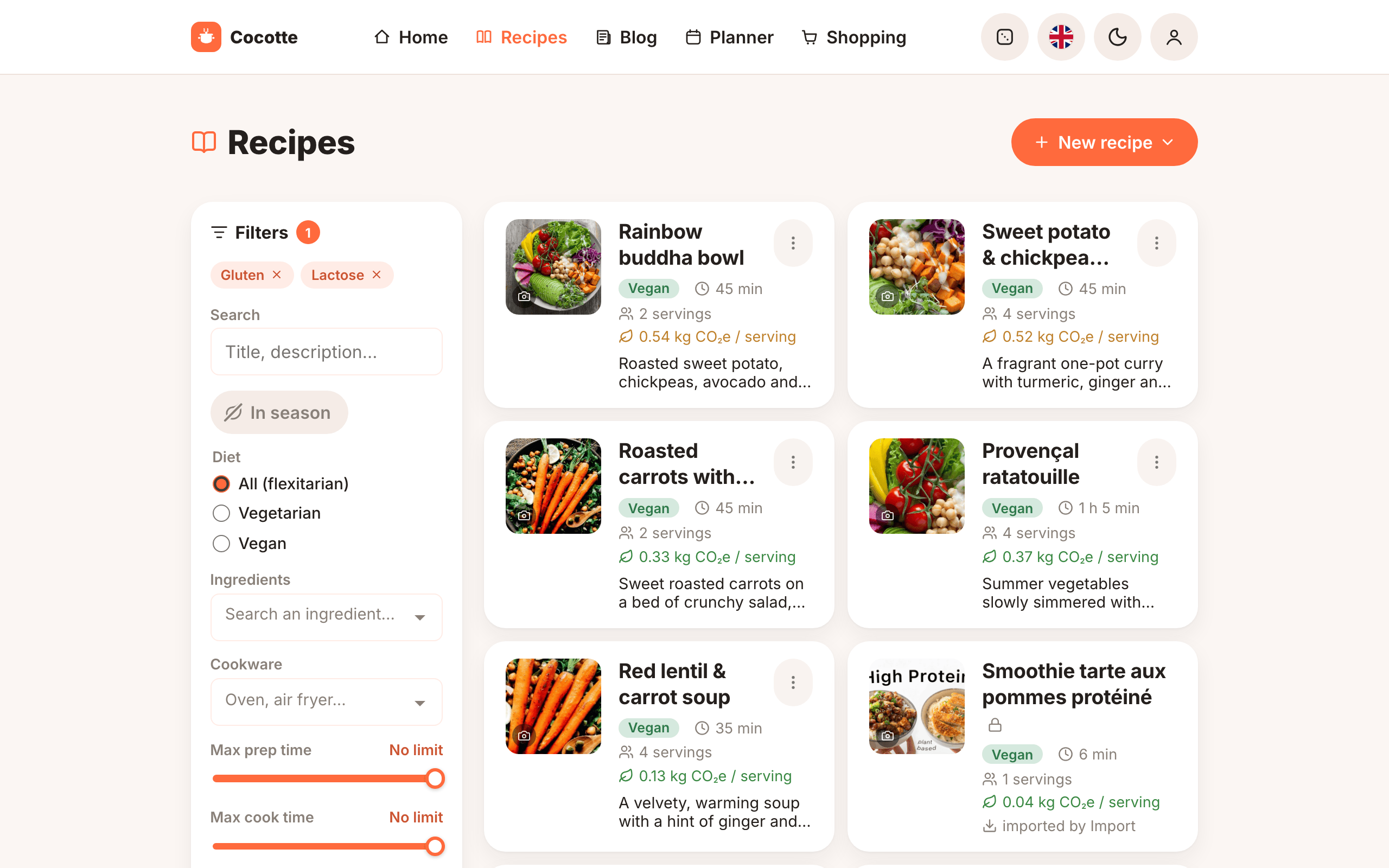
Each row shows the recipe's picture, title, diet, total time (hover it to see prep and cook time separately), servings, a leaf badge with its carbon footprint per serving, and up to three tags. The time and the leaf badge are left out when the recipe has no time or no carbon data (common for imported recipes) rather than showing 0 min or 0 kg CO₂e. It can also show:
- the variant name (for example Gluten-free), if the recipe is a variant,
- your own tags, as colored pills (only you see them),
- imported by … for recipes imported from a website, or by … for other people's recipes,
- a padlock next to the title when the recipe's content is restricted (hover it for a reminder of why),
- a small camera button in the corner of the picture: hover, focus or tap it to see the picture's full credit (see The recipe page),
- badges for your allergens, if the recipe contains any.
On your own recipes, a pencil button (Edit) and a bin button (Delete) appear on the right. Delete asks for confirmation first.
Filter the list
On a computer, the filter panel is always shown on the left of the list; a number next to its Filters heading shows how many filters are active. On a phone, click Filters above the list to open the panel (the same number appears on the button), and Show results to fold it away again.
Active filters also show as removable pills next to Filters (one pill per selected ingredient or allergen) — click a pill's × to clear that filter without opening the panel.
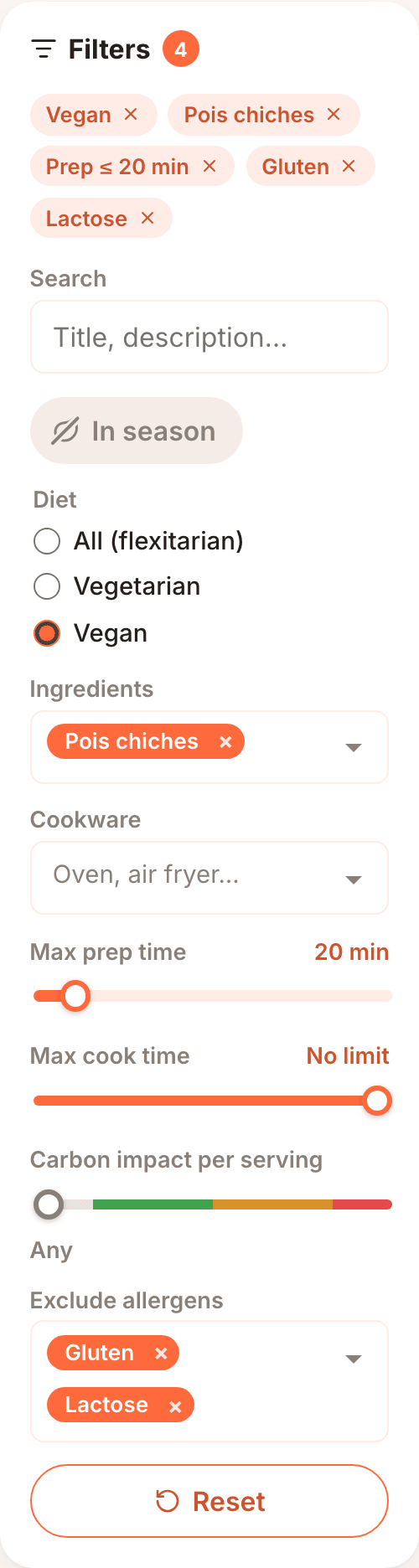
| Filter | How it works |
|---|---|
| Search | Looks for your text in the recipe title and description. |
| In season | A leaf button, crossed out while the filter is off; click it to switch it on (hover it to read In-season ingredients only). Hides recipes that use any ingredient that is out of season this month. Ingredients without a season are considered available all year. |
| Diet | A list of choices: All (flexitarian), Vegetarian or Vegan. A flexitarian eats everything, so there is no separate Flexitarian choice: it is the same as All (flexitarian). |
| Ingredients | Type in Search an ingredient… and pick ingredients from the list; each one becomes a pill (click its × to remove it). Shows recipes that contain all the chosen ingredients. To use a name that isn't in the list, type it and press Enter: it must match an ingredient's full name, but case and accents don't matter (creme fraiche finds Crème fraîche), and the English names of library ingredients work too. |
| Cookware | Pick cookware in Oven, air fryer...; each one becomes a pill. Shows recipes that use at least one of the chosen items, for example every recipe made in the oven or the air fryer. |
| My tags | Shown when you're logged in and have at least one tag. Pick tags in To try, Birthdays...; each one becomes a pill. Shows recipes with at least one of the chosen tags. |
| Max prep time | A slider, in steps of 5 minutes up to 3 h. All the way to the right means No limit. |
| Max cook time | Same as Max prep time, for the cook time. |
| Carbon impact per serving | A slider with four positions: Any, then Low (≤ 0.5 kg CO₂e) (green), Medium (0.5 to 1.5 kg CO₂e) (orange) and High (> 1.5 kg CO₂e) (red) — the same colours as the leaf badge on each recipe. See Nutrition & carbon. |
| Exclude allergens | Hides recipes containing any of the chosen allergens. Pick them in Pick allergens…; each one becomes a pill you can remove. When your profile has allergies or intolerances, they're selected by default, and Add my allergies and intolerances puts back any you removed. See Allergies and intolerances. |
The list updates as you change the filters. Reset clears every filter (it's greyed out while no filter is set). When no recipe matches, the list shows No recipe matches these criteria. with a Reset filters button below it that does the same.
Tip
In a recipe page, clicking an ingredient name opens the recipe list filtered on that ingredient. It's a quick way to find other recipes that use it.
Share or bookmark a filtered list
The active filters and the page number are part of the page address, for example:
Copy the address to share the exact same view, or bookmark it. The Explore shortcuts on the home page work the same way.
Pages
When there are more results than fit on one page, use the arrows at the bottom of the list (Previous page / Next page) to move between pages. Page X of Y shows where you are.
To see more recipes at once, pick 10, 20 or 50 in Recipes per page, below the list (it only appears when there are more than 10 results). The list goes back to the first page, and your choice is remembered in this browser for your next visits.
Random recipe
Can't decide what to cook? Click the dice button in the top bar (or Surprise me in the mobile tab bar).
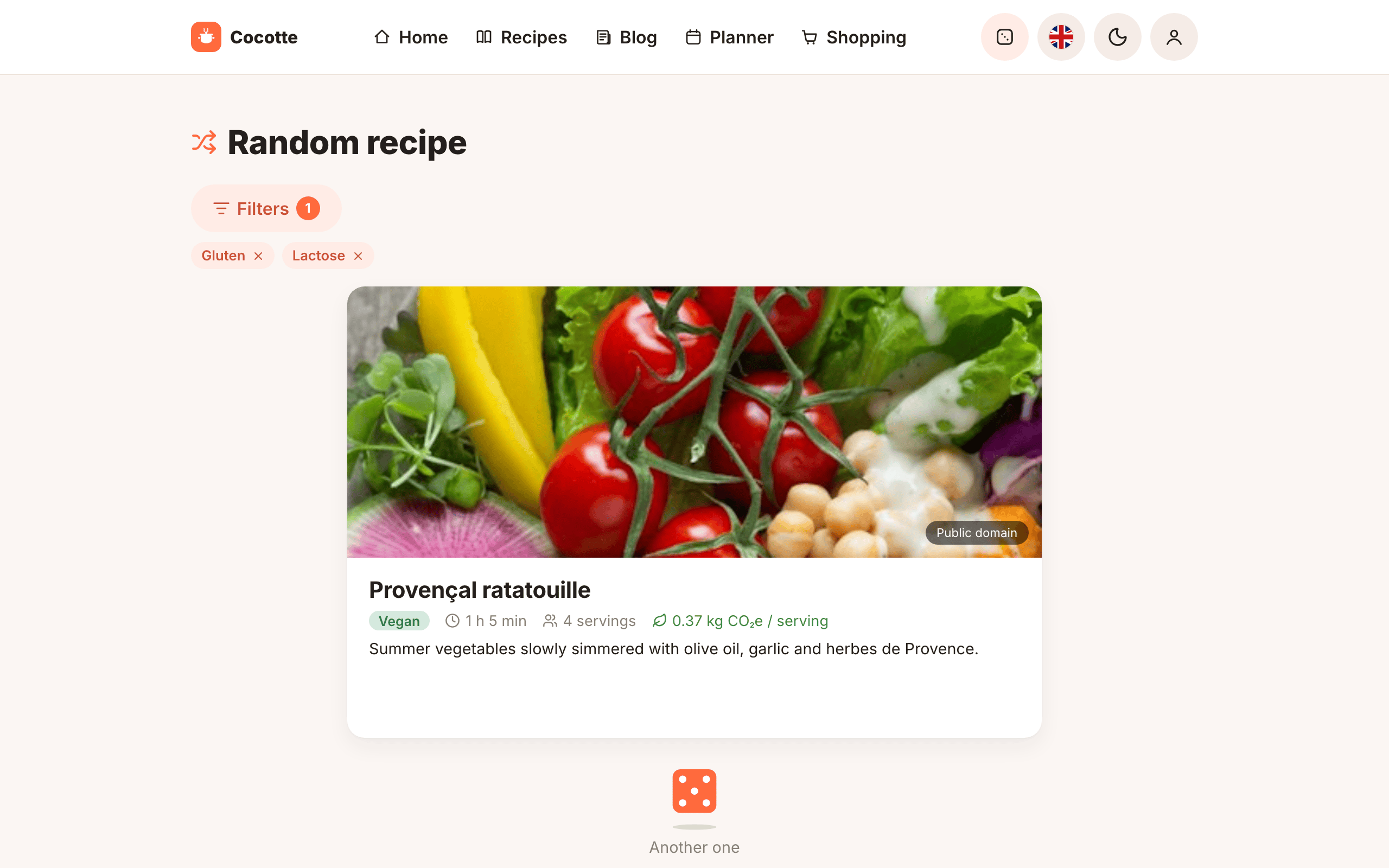
The Random recipe page opens on a big dice. Click it (Roll the dice) to draw a recipe: the dice rolls for a moment, then the recipe appears as a large card — photo on top, diet, time, servings, carbon footprint, tags and description below. Underneath, a smaller dice (Another one) rolls again for a new recipe. You can:
- click the recipe card to open its full page (to read the ingredients and steps, or add it to your planner),
- click Filters to narrow the draw with the same filters as the recipe list (search, In season, diet, ingredients, maximum times, carbon impact, Exclude allergens). The panel is folded away by default; a badge on the button shows how many filters are active. Before your first roll the filters simply apply to it; once a recipe is shown, a new recipe is drawn as soon as you change them. If you've set allergies or intolerances on your account, Exclude allergens starts pre-filled with them, so a random draw doesn't surprise you with something you can't eat — you can still change the selection.
If no recipe matches, you see No recipe matches these criteria.
The recipe page
Click a recipe anywhere in the app to open its page.
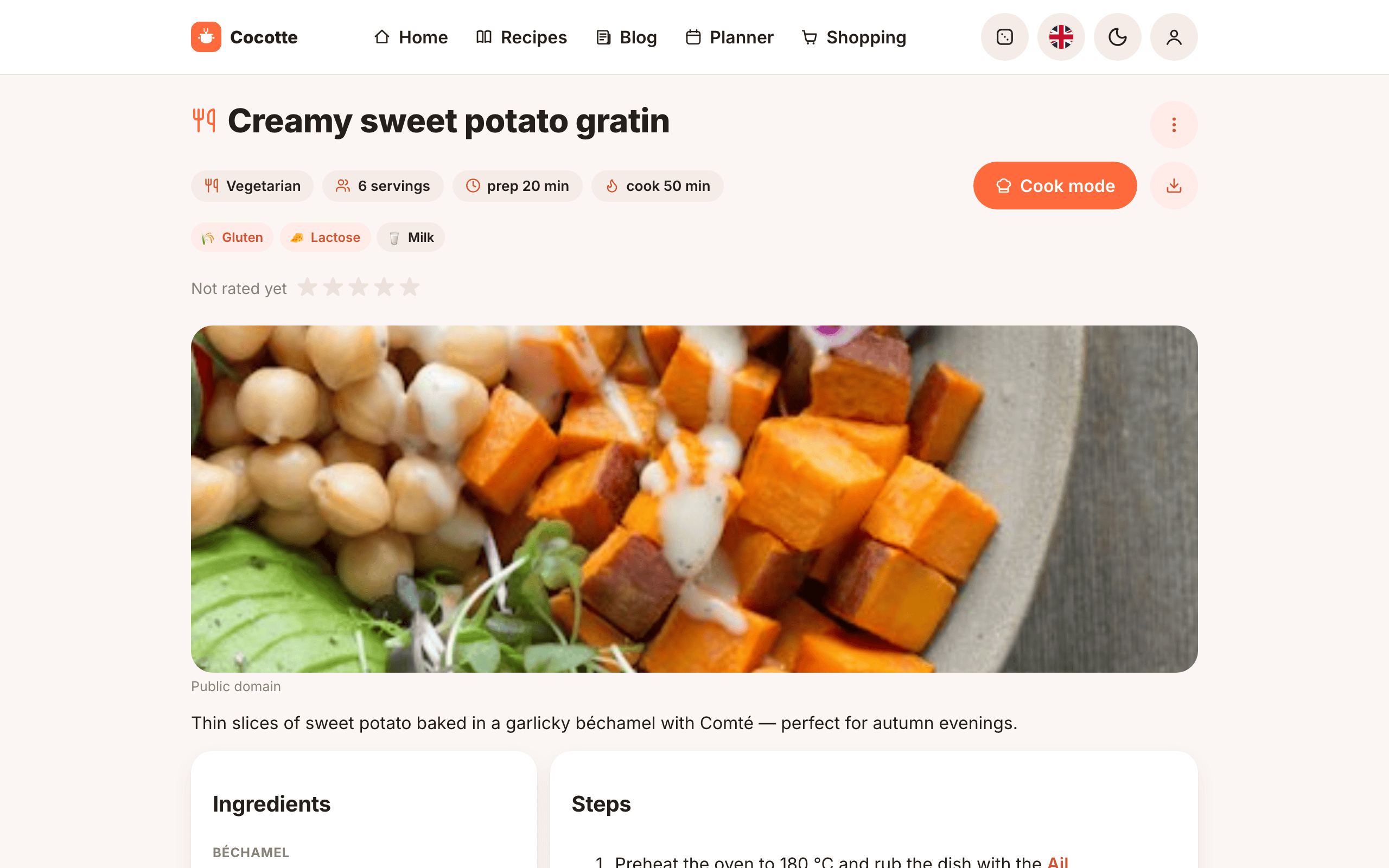
Summary
At the top you find the title, then by … or imported by … when relevant, then chips for the diet, servings, prep and cook time.
Below that, the recipe's allergens are shown as badges, with your own allergies and intolerances highlighted. Allergens not verified for some ingredients appears when at least one ingredient hasn't had its allergens checked.
Then comes the picture, with a Source button on it when the recipe comes from a website, and the YouTube video if there is one. A credit line is shown under the picture — the author and license (see Image credit and license) when they're set, an image via … domain for an older picture that predates that feature and never got one, or Credit not specified when there's truly no credit information at all.
Ingredients and steps
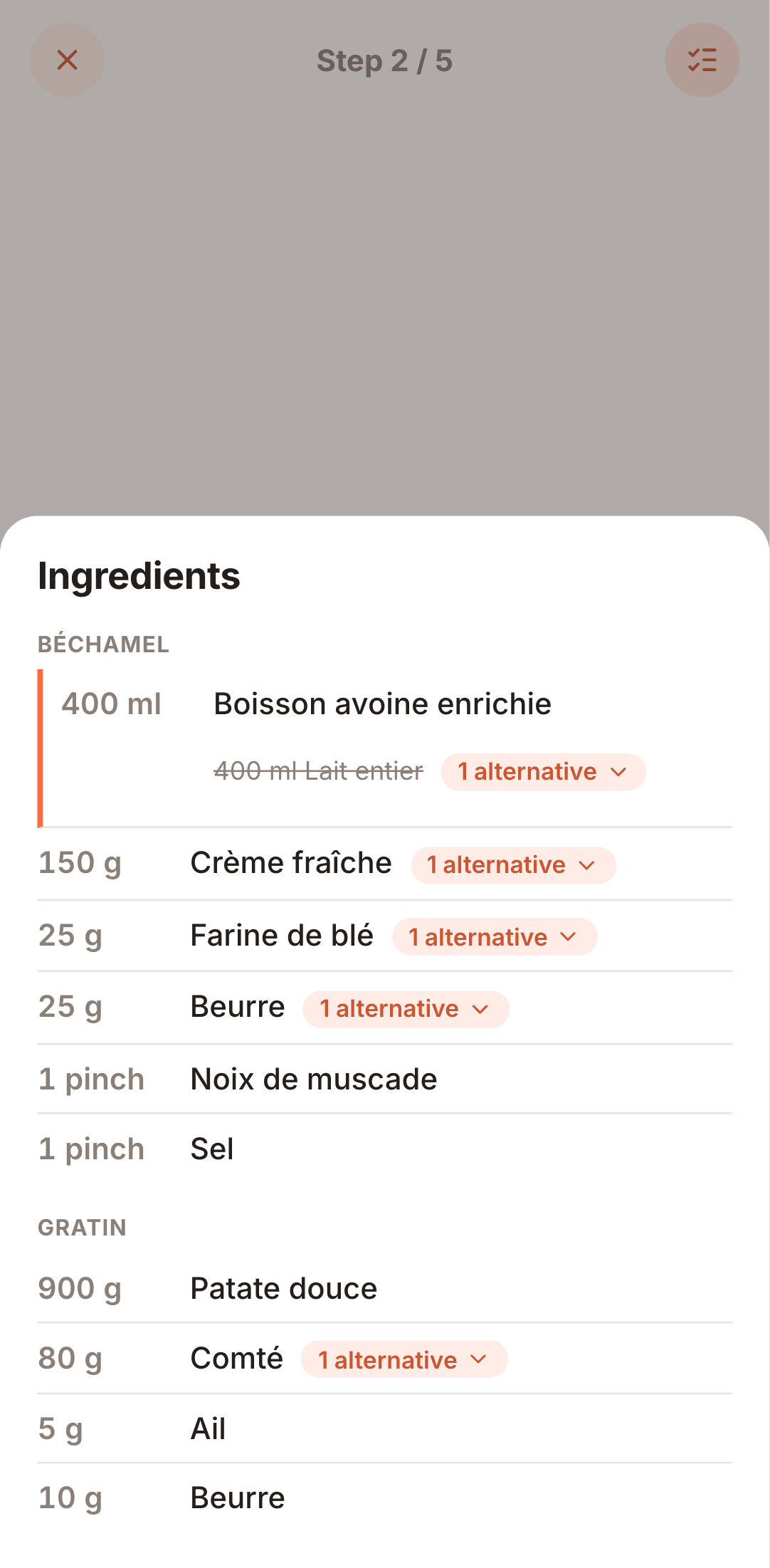
The Ingredients card lists quantities and units. Ingredients may be grouped under sub-headings (the recipe's sections), and the same ingredient can appear in several of them with a different quantity each. Click an ingredient name to see other recipes that use it.
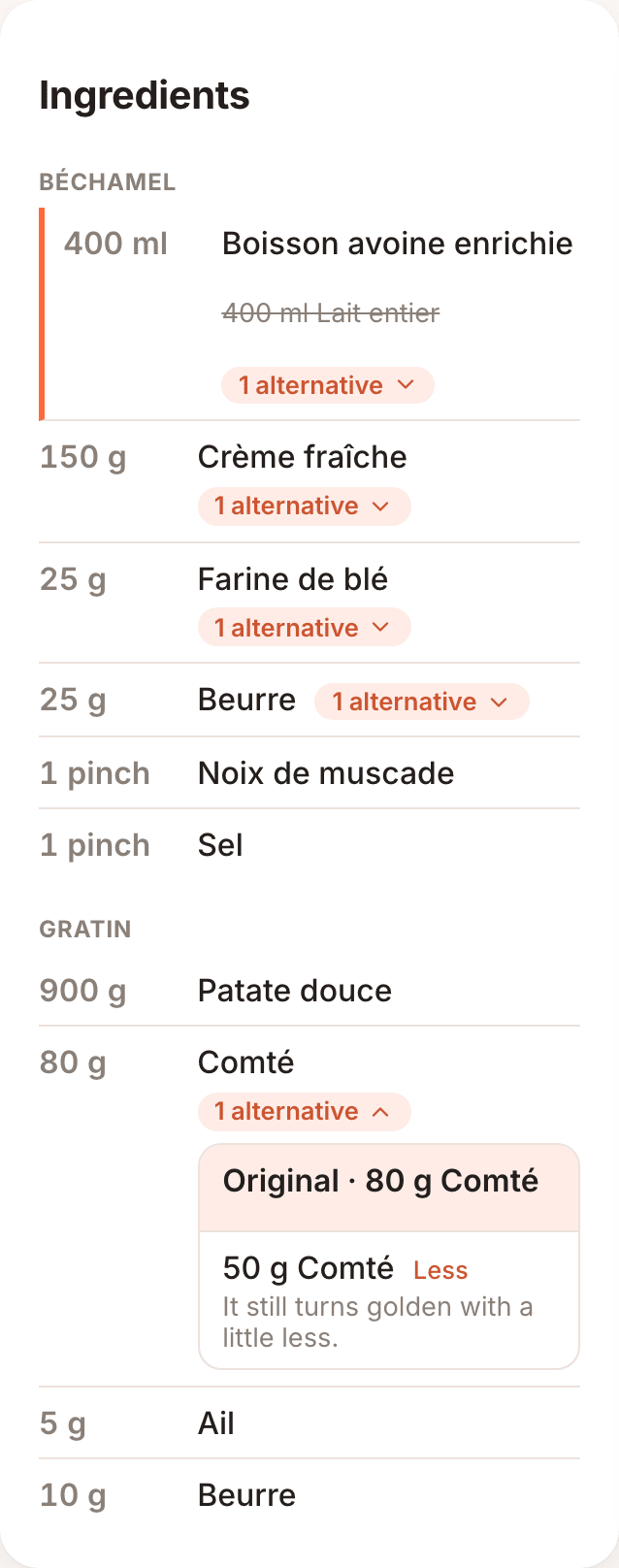
An ingredient the author gave alternatives for shows a small pill reading, for example, 1 alternative, with a chevron that turns when the list is open. Click it to unfold the list: Original and each alternative, with its quantity, its type (Vegan, If you don't have it, Less...) and the author's note. Choosing one replaces the ingredient on that line, marked by an orange bar, and the original stays visible, struck through: click it to go back. The choice only lasts while you read the recipe, and it is shared between the recipe page and cook mode; it doesn't change the shopping list, the planner or the nutrition figures.
When the author listed the cookware the recipe needs, it appears under Cookware, at the bottom of the same card, each item with its photo or emoji: check it before you start. Click an item to open its photo in a dialog, with the photo's credit (author, source and license) and a See recipes using: … link to the other recipes that use it.
In cook mode, cookware mentioned in a step stands out as a pill with its emoji (🍳 by default), and the ingredients panel lists the recipe's cookware too; clicking either opens the same photo dialog (without the link, so you stay in cook mode). The PDF lists the cookware under the title.
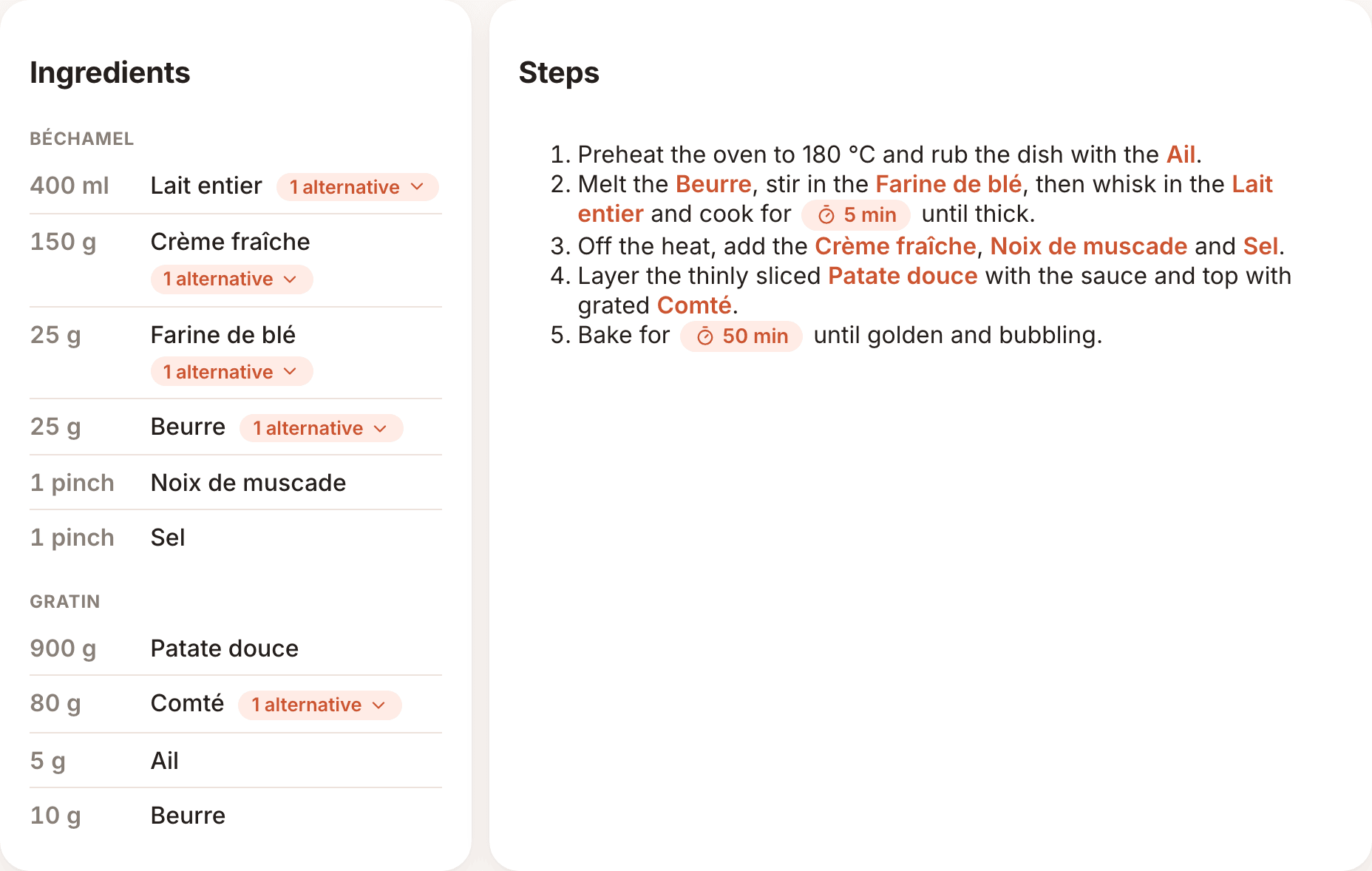
In the Steps card:
- highlighted ingredient names are links to the ingredient in the list (handy on a phone),
- dotted-underlined cookware names open the item's photo dialog,
- timer buttons (for example ⏱ 10 min or ⏱ rest · 1 h) start a countdown,
- a small photo icon at the end of a step's text means that step has its own picture — click it to view it (with its credit) in a dialog.
Cook mode
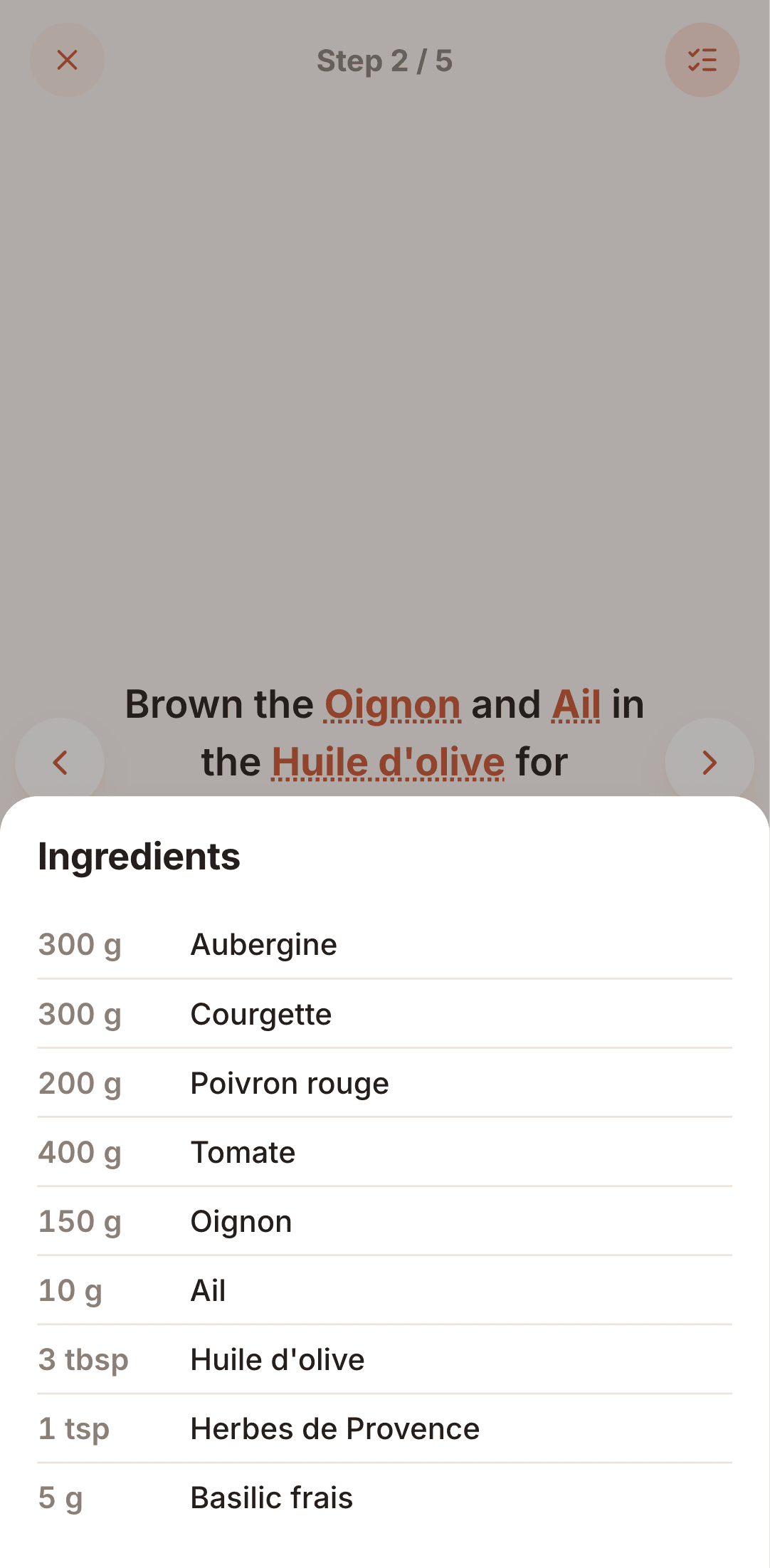
If the recipe has steps, a prominent Cook mode button appears above the diet/servings/time badges (next to a small Download as PDF icon). It opens a full-screen, one-step-at-a-time view, with an animated slide as you move between steps, meant for following along on a phone while cooking:
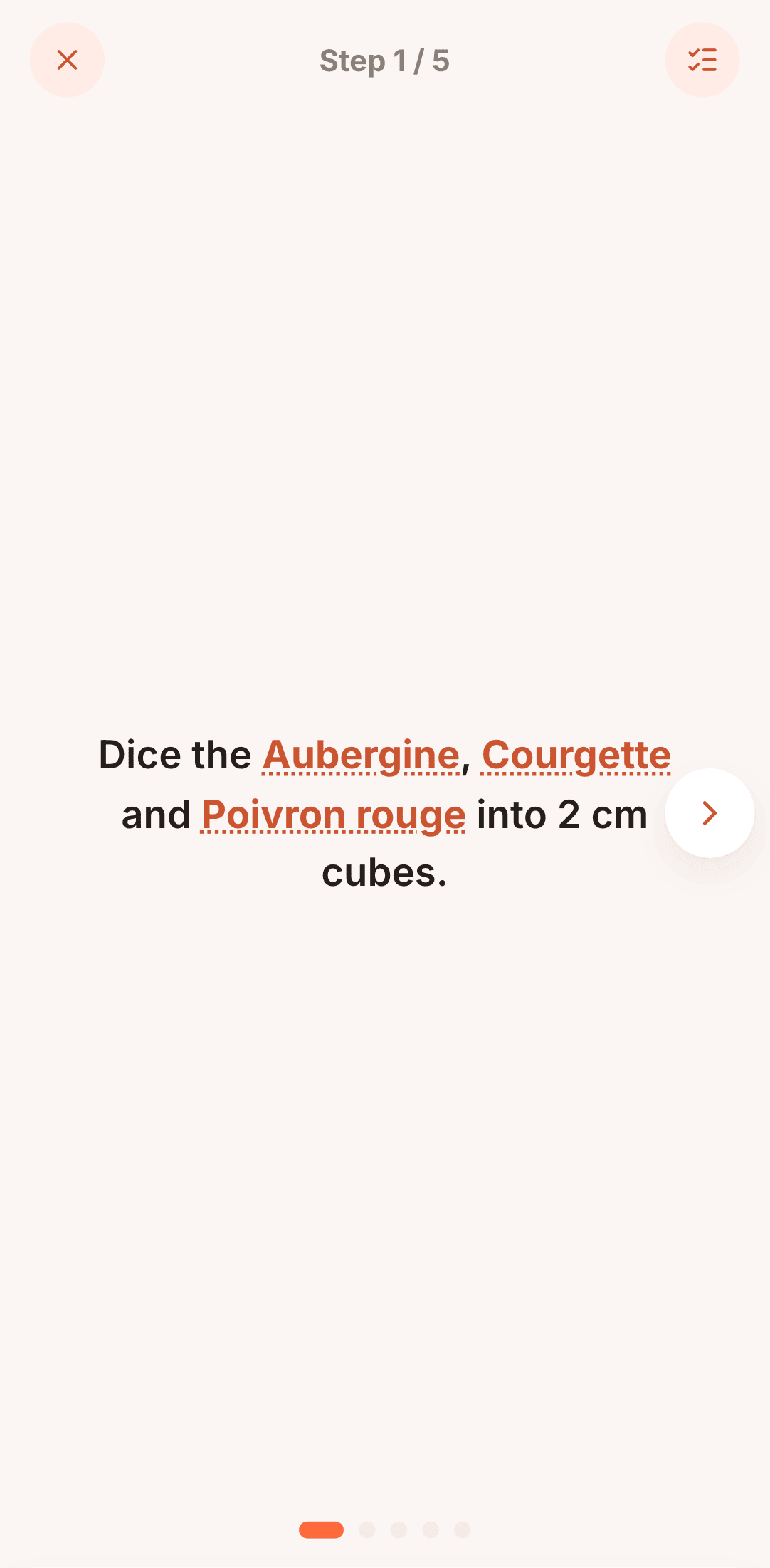
- Move between steps with the ‹ / › buttons on the sides, a swipe left/right on a touch screen, the dots at the bottom, or the ← / → arrow keys. On the last step, the › button turns into a checkmark — pressing it (or swiping/pressing → again) exits cook mode instead of doing nothing.
- A step with its own photo (see Add a photo to a step) shows it filling most of the screen, with the instruction text in a band at the bottom that grows taller for longer instructions.
- The ingredients button (top right) slides up a panel with every ingredient and its quantity, without leaving the step you're on. It closes on the same button, on Escape, or by tapping outside it. An ingredient with alternatives has the same alternative pill there: you can choose a replacement without leaving cook mode, and a choice made on the recipe page is already applied. A replaced ingredient is marked by an orange bar, with the original struck through to go back.
- Once you've replaced an ingredient, the steps follow: its highlighted name in a step reads as the alternative (for example oat drink instead of milk), and its popover gives the quantity of the alternative and the line instead of milk.
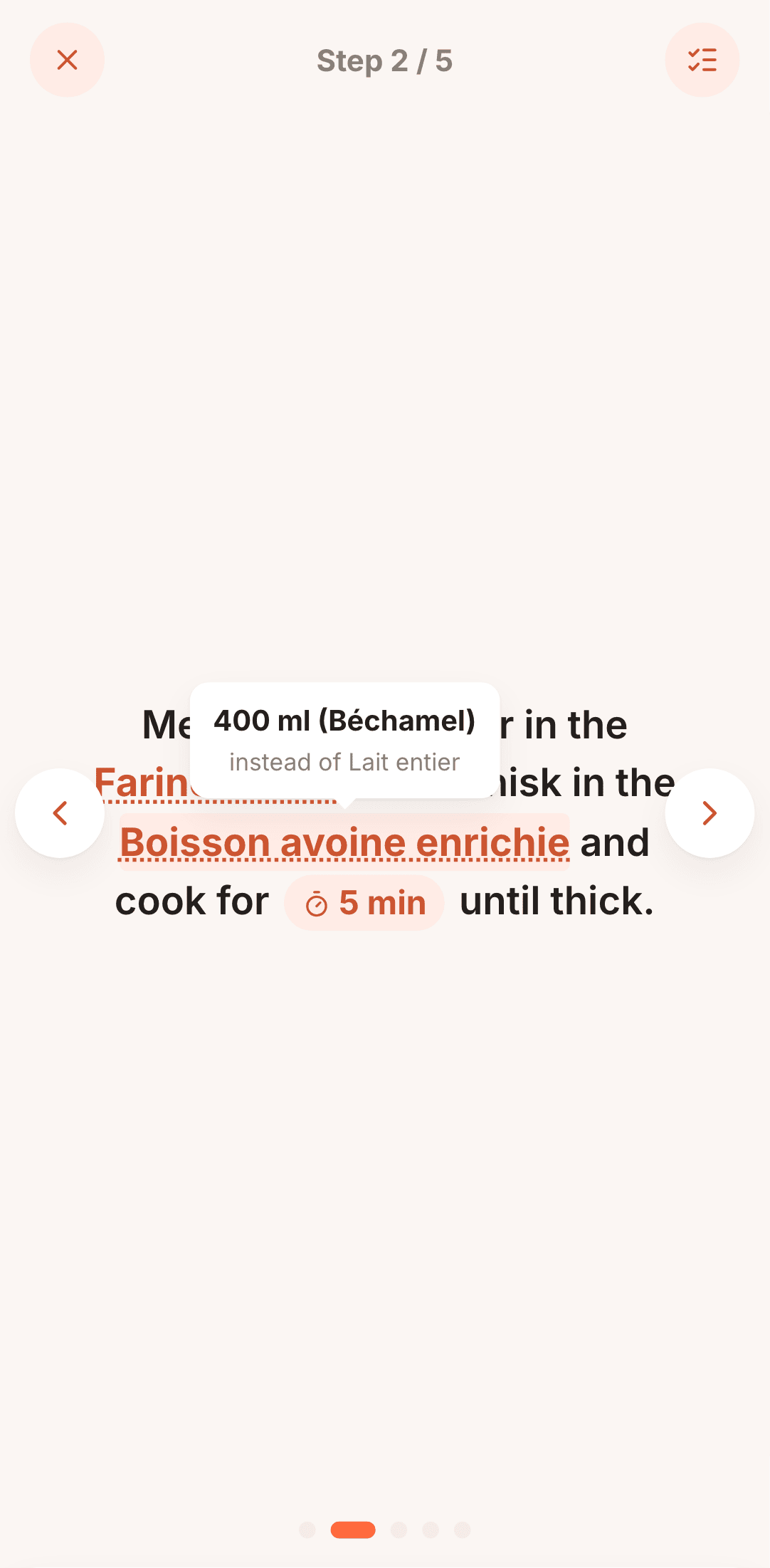 - Hovering or tapping a highlighted ingredient name in a step shows its quantity in a small
popover next to it, without leaving the step. On a mouse, it also appears just by pointing at
the name. Tap/click it again, click elsewhere, or press Escape to dismiss it.
- Hovering or tapping a highlighted ingredient name in a step shows its quantity in a small
popover next to it, without leaving the step. On a mouse, it also appears just by pointing at
the name. Tap/click it again, click elsewhere, or press Escape to dismiss it.
 - If the recipe has a YouTube video, a small play icon next to the step counter opens it in a
new tab.
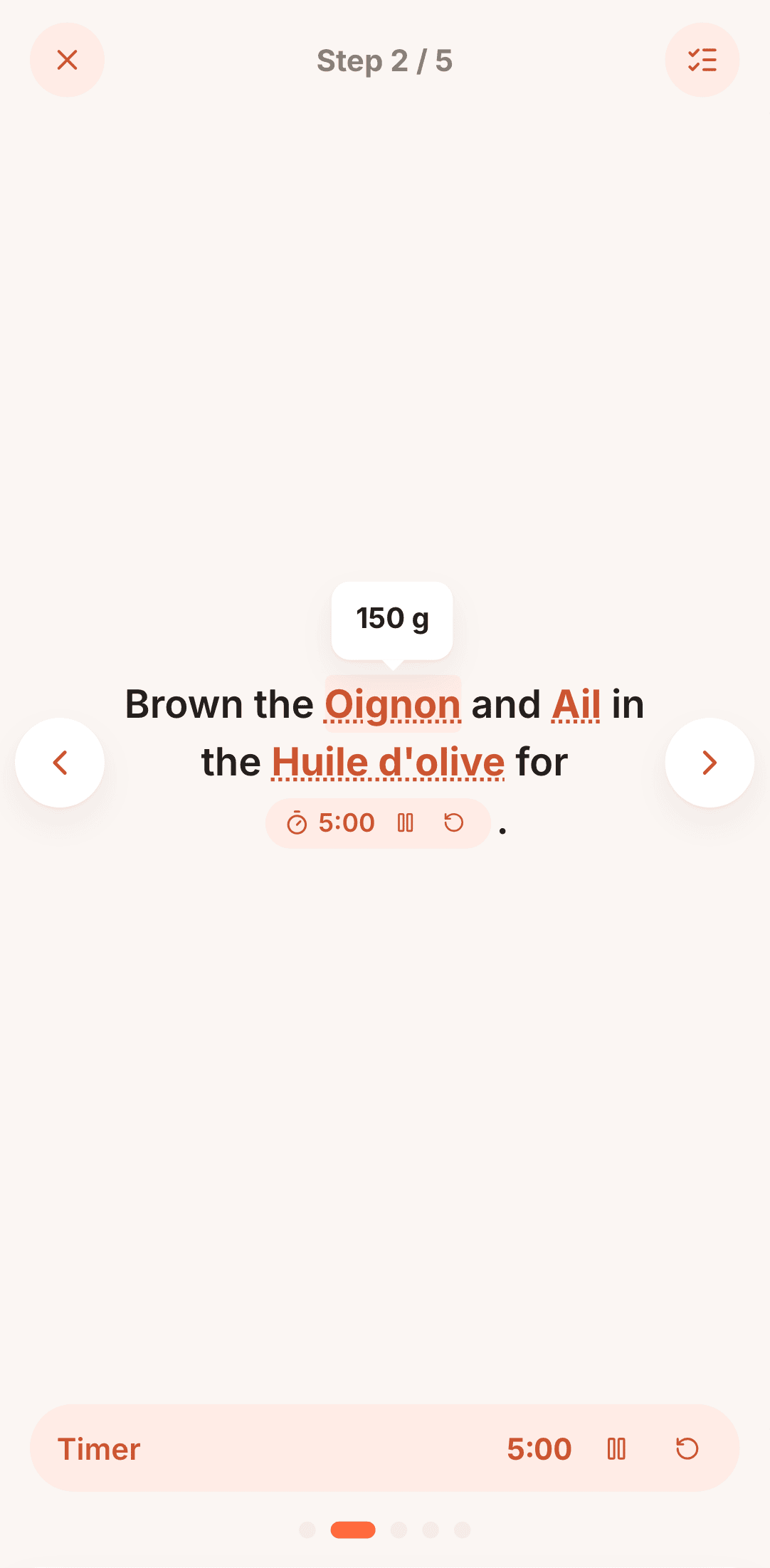
- Starting a timer in a step pins it to a dock at the bottom of the screen with its own
pause/resume and reset buttons. It keeps counting down, and stays in the dock, even after you
move to another step — so a "rest 10 min" timer from step 2 is still visible and controllable
while you're reading step 5. Several timers running at once each get their own row in the dock.
- Close cook mode with the ✕ button or the Escape key.
- If the recipe has a YouTube video, a small play icon next to the step counter opens it in a
new tab.
- Starting a timer in a step pins it to a dock at the bottom of the screen with its own
pause/resume and reset buttons. It keeps counting down, and stays in the dock, even after you
move to another step — so a "rest 10 min" timer from step 2 is still visible and controllable
while you're reading step 5. Several timers running at once each get their own row in the dock.
- Close cook mode with the ✕ button or the Escape key.
Use a step timer
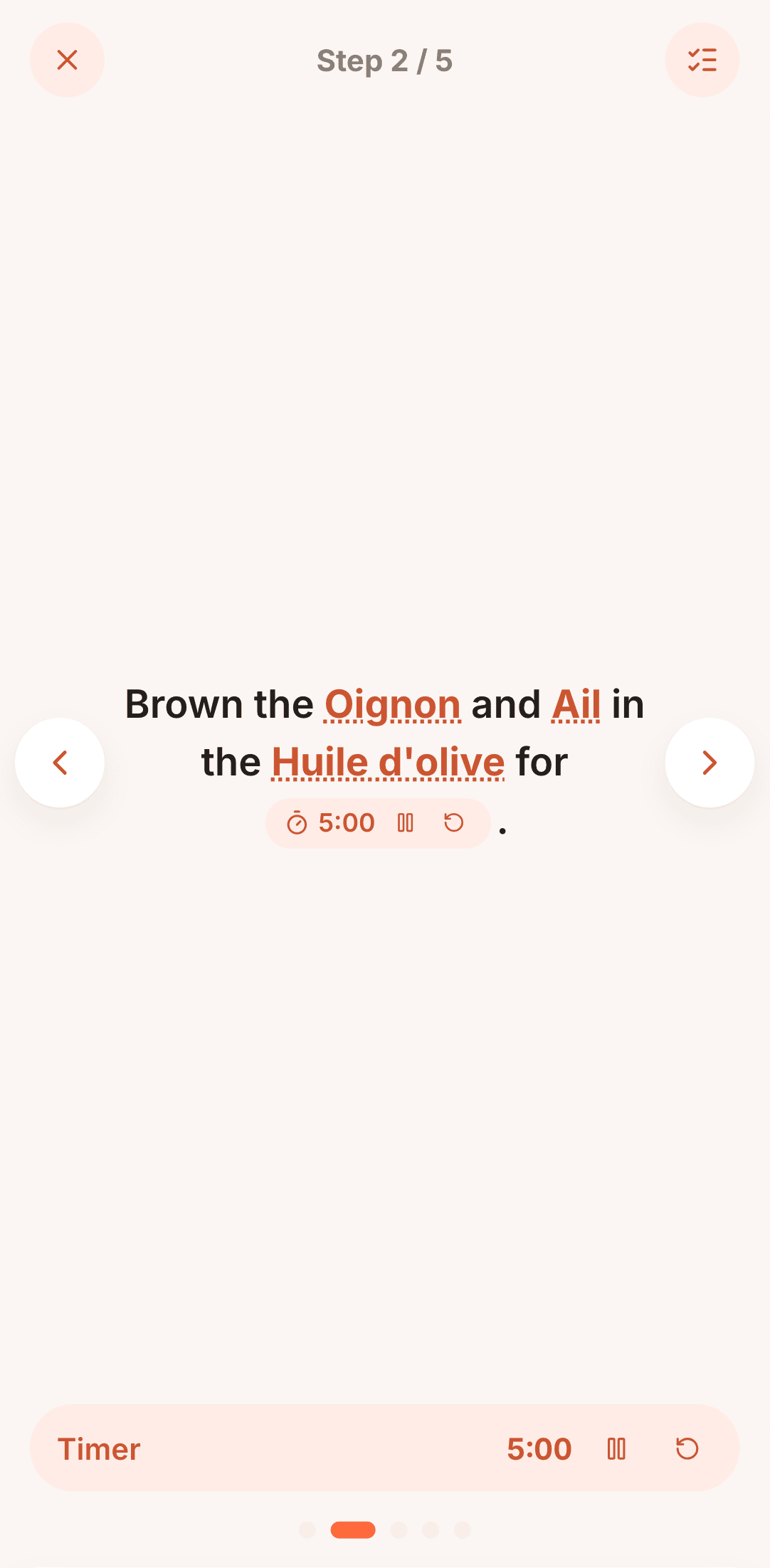
- Click the timer button in the step. The countdown starts.
- Use Pause / Resume and Reset as needed.
- When time is up, the button shows Done! and a short chime plays.
The first time you start a timer, your browser asks whether Cocotte may show notifications. If you allow it, you also get a Timer done! notification when the time is up, even if you are in another tab. You can run several timers at once.
Note
Timers only run while the recipe page stays open. If you leave the page or close the tab, the timer stops.
Nutrition facts and carbon footprint
The Nutrition facts card shows values per serving: calories, protein, carbs, fat, iron, vitamin B12, calcium, omega-3 and zinc, and the Carbon footprint (per serving) in kg CO₂e.
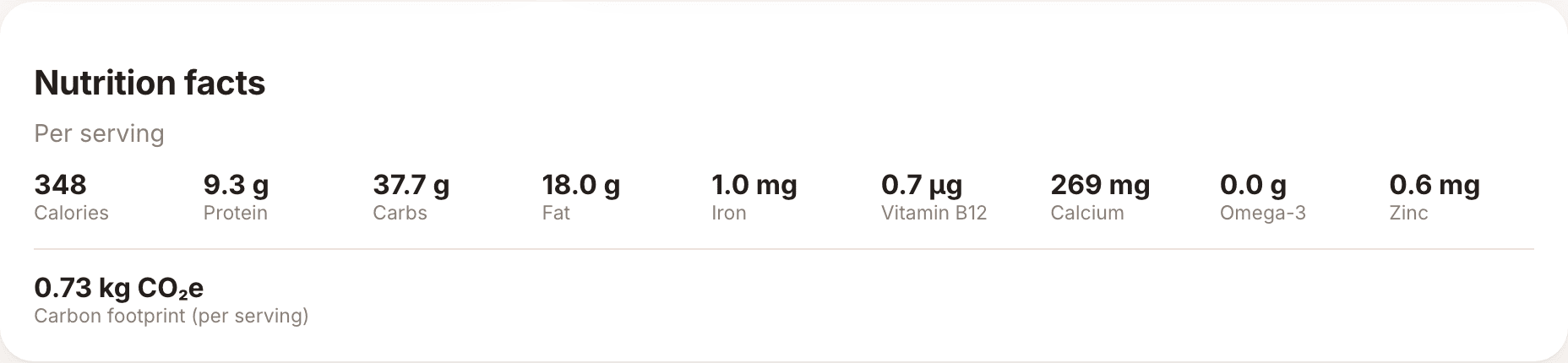
These are estimates computed from the ingredients. See Nutrition & carbon to learn how.
Download as PDF
Click Download as PDF, next to the summary chips, to get a printable PDF of the recipe. On small screens the button shows only a download icon.
The ingredients are listed under a heading for each section of the recipe. The alternatives are not printed.
In the PDF steps, ingredient mentions are printed in bold, cookware is underlined and timers (e.g. 20 minutes) are highlighted, so they stand out on paper like on the recipe page.
Tag the recipe
Logged-in users see a My tags card below the recipe, to put their own tags on it (only they see them). See My tags.
Add to the planner
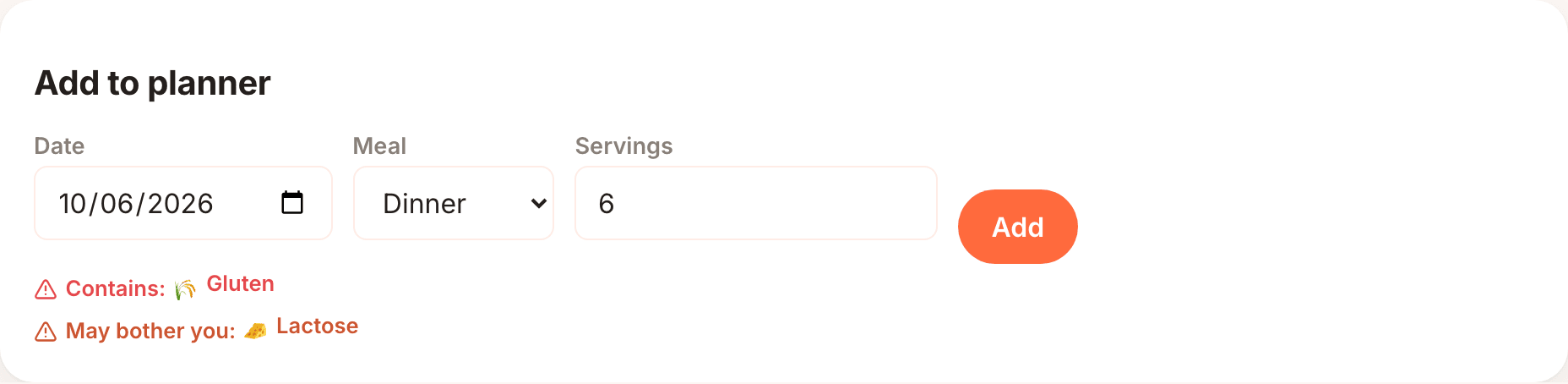
Logged-in users see an Add to planner card below the recipe:
- Pick a Date. It starts at today.
- Choose the Meal: Breakfast, Lunch, Dinner (default) or Snack.
- Set the number of Servings. It starts at the recipe's servings.
- Click Add.
Added to the planner. confirms it. If the recipe contains one of your allergens, a warning is shown under the form. See Meal planning for more.
The actions menu
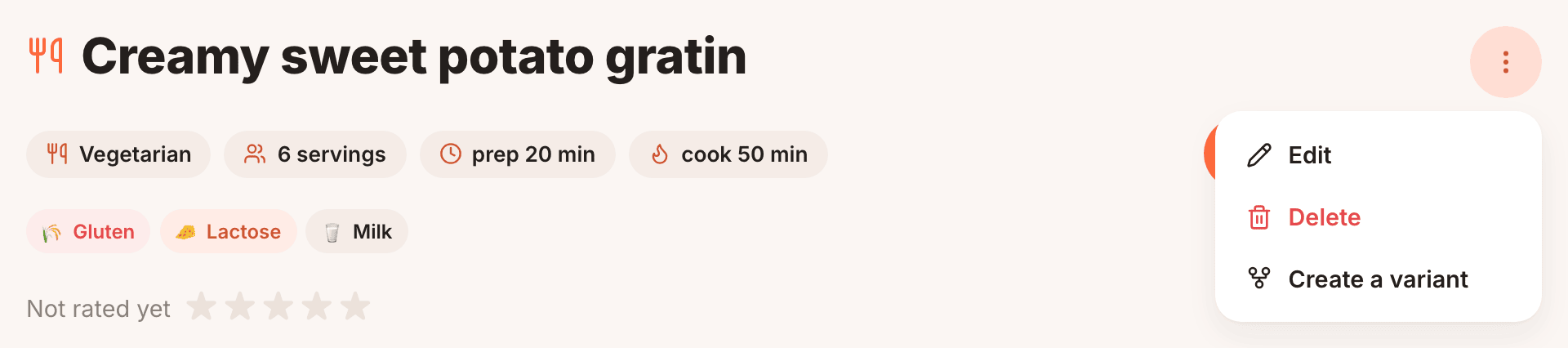
When you're logged in, a ⋮ button (Actions) at the top right of the recipe opens a menu:
- Edit and Delete: on your own recipes only. Delete asks for confirmation.
- Create a variant: see below.
Versions and variants
A variant is your own copy of a recipe, such as a gluten-free or spicier version. It stays linked to the original.
To create one:
- Open the recipe, then ⋮ → Create a variant.
- Type a variant name, for example Gluten-free.
- Click Confirm (or Cancel).

Cocotte copies the recipe (ingredients with their sections and alternatives, steps, servings, times, diet and tags) into a new recipe that belongs to you, titled Original title (Variant name). It then opens the edit form so you can make your changes. The picture, video and source link are not copied.
Every version of a recipe then lists the others under Other versions of this recipe, with their variant name (or Original) and author:

Note
You can make a variant of anyone's recipe, except recipes whose content is restricted (see below). Only the person who imported those can make variants of them.
Recipes with restricted content
Recipes imported from a website, or with a source link, may be protected by copyright. The way a recipe is written (its steps and description) belongs to its author, but its list of ingredients and its times are facts that anyone can share. So by default, for these recipes:
- the title, picture or video, Source link, ingredients, times, allergens and carbon footprint are public;
- the description and steps are only visible to the person who added the recipe and to admins. Other people see a notice with a padlock instead.
The author can make the whole recipe public once they've rewritten the steps in their own words. See Creating recipes.
For other people, a restricted recipe:
- shows a padlock in the recipe list (its tooltip reads Description and steps are only visible to the person who imported this recipe (copyright)),
- can't be downloaded as PDF or used for a variant,
- can still be added to the planner and to shopping lists.
Ratings
Next to every recipe's title, click a star (1 to 5) to rate it. Ratings are fully anonymous — no name or account is needed, and it's completely separate from comments below. Clicking a star again later updates your own rating instead of adding a new one, and the average shown to everyone always reflects one vote per person. To limit abuse, you can rate at most about 30 recipes per hour.
Comments
At the bottom of every recipe, the Comments card shows the comments, newest first.
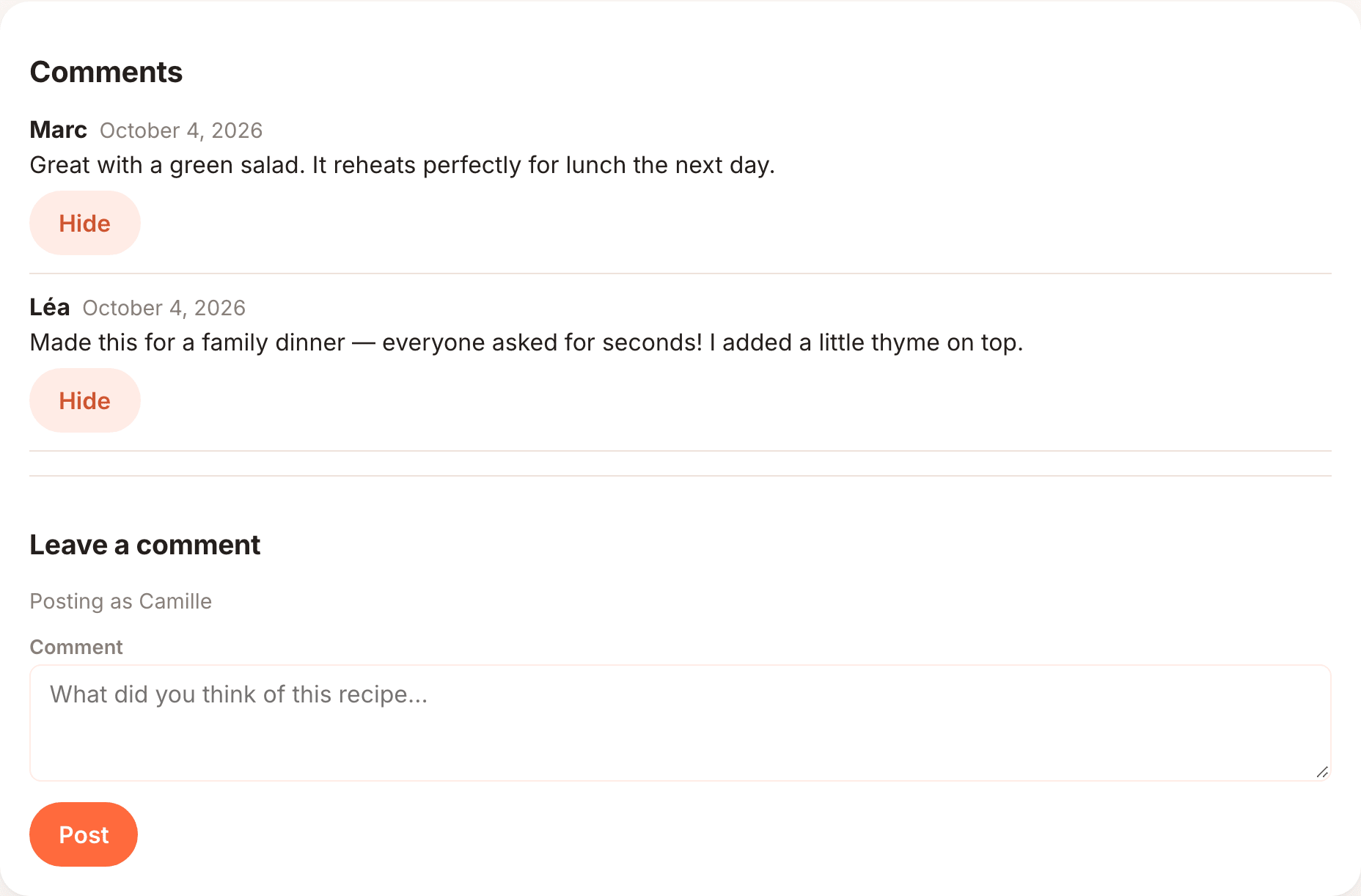
To post a comment, under Leave a comment:
- If you're a visitor, enter your Name. If you're logged in there is no name field: the form shows Posting as followed by your username, which is used for the comment.
- Type your Comment (up to 2,000 characters).
- Click Post.
You don't need an account to comment. To limit spam, visitors can post at most about 10 comments per hour.
Hide a comment
The recipe's author and admins see a Hide button under each comment. A hidden comment disappears for everyone else and stays visible to them with a (hidden) mark. Click Unhide to show it again. See Moderation.