Users
This page explains the two levels of administrator in Cocotte, how to create the first one, and how staff members manage user accounts from the app's Users page.
Staff and superusers
Cocotte uses Django's standard account flags:
| Flag | Grants |
|---|---|
Staff (is_staff) |
Access to the staff pages of the app (Admin, Thematic pages, Ingredients) and to the staff-only API. |
Superuser (is_superuser) |
Every permission in the Django admin, without having to assign them one by one. |
A superuser created with createsuperuser has both flags. Promoting someone to Staff from
the Users page sets only is_staff: they can use every staff page of the app, but they see
nothing in the Django admin until a superuser gives them model permissions or makes them a
superuser.
What staff members can do
In addition to everything a regular user can do, a staff member can:
- manage user accounts from the Users page (this page);
- edit and delete ingredients in the ingredient library (any logged-in user can create one, but only staff can change or delete it);
- manage the homepage thematic pages;
- edit, replace the image of, and delete any recipe, not only their own;
- see the full content of imported recipes that are restricted to their author (see Moderation);
- see hidden comments and hide or unhide comments on any recipe (see Moderation);
- export every recipe of the instance as an archive (see Moderation).
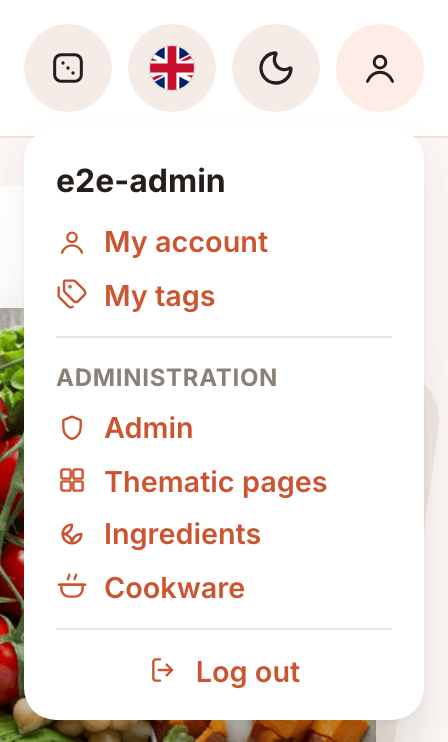
Staff pages are reached from the account menu (the person icon at the top right), in the Administration section. Regular users don't see this section, and the API refuses staff requests from non-staff accounts even if they type the URL.
Create the first superuser
Right after installation there is no account at all. Create the first administrator from the command line. You are asked for the email address (used to log in), a username (the display name shown as recipe author), and a password.
Without prompts
For scripted installs, pass --noinput and provide the values through DJANGO_SUPERUSER_*
environment variables (EMAIL is the login field, USERNAME the required display name):
Warning
The password ends up in your shell history. Change it from My account after the first login, or clear the history entry.
Manage accounts from the Users page
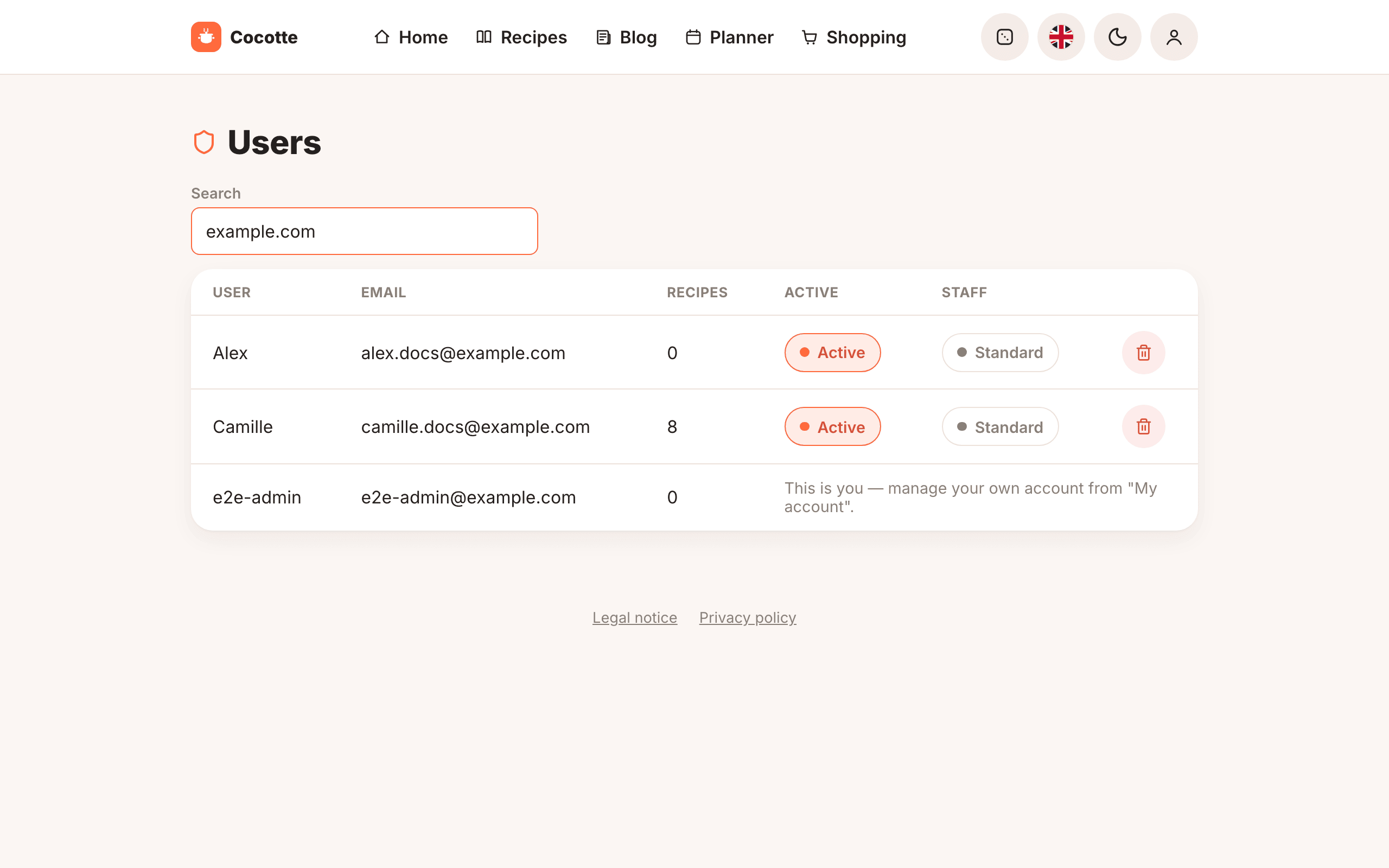
Open the account menu and choose Administration > Admin, or go to /admin/users. The
page lists every account, most recent first, 20 per page.
| Column | Content |
|---|---|
| User | Username (display name). |
| Login email address. | |
| Recipes | Number of recipes the user authored. |
| Active | Toggle button showing Active (highlighted, with a coloured dot) or Inactive (outlined, grey dot); click to switch. |
| Staff | Toggle button showing Staff (highlighted) or Standard (outlined, grey dot); click to switch. |
| (last column) | Delete button (bin icon). |
Your own row shows "This is you — manage your own account from "My account"." instead of the buttons: you cannot deactivate, demote or delete yourself from this page, which prevents locking yourself out.
Search for a user
Type in the Search field (placeholder "Username, email..."). The list filters as you type, on any part of the username or the email address. The search and the page number are kept in the URL, so you can bookmark or share a filtered view.
Deactivate or reactivate an account
Click the Active button of a user to switch it to Inactive, and click again to reactivate.
An inactive user:
- cannot log in;
- is rejected by the API as soon as the app makes its next authenticated request, even if they were logged in;
- keeps all their data: recipes stay visible to others, and everything comes back when you reactivate the account.
Deactivation is the reversible alternative to deletion, for example for a suspected compromised account or a temporary ban.
Grant or revoke staff access
Click the Standard button to make a user Staff, and click Staff to revoke it. The change applies to the API immediately; the user sees the Administration menu section after their app reloads their profile (for example on their next login or page reload).
This button only changes is_staff. It does not touch the superuser flag: to make someone a
superuser, or to remove that flag, use the Django admin.
Caution
Staff members can manage every other account, including other staff members and superusers: they can demote, deactivate or delete them. Only grant staff access to people you trust.
Delete an account
Click the bin icon and confirm the prompt ("Permanently delete the account "…" and all its data?"). Deletion is immediate and cannot be undone. It removes:
- the account and its profile (diet, activity level, allergies);
- every recipe the user authored, with their ingredients, steps and comments;
- the user's planner entries, shopping lists, calendar subscription link and planner shares.
Warning
Deleting recipes also removes them from other users' planners if they had scheduled them. Recipe versions forked from a deleted recipe are kept but lose their link to it. Comments the user posted on other people's recipes are kept with their display name. Consider deactivating instead, or export the user's recipes first.
Promote or edit an account in the Django admin
The Django admin gives access to fields the Users page does not show:
- Go to
/django-admin/and log in with a superuser account. - Open Accounts > Users (the Django admin interface is in French, so labels may read Utilisateurs). You can search by username, first name, last name or email, and filter by staff status, superuser status, active status and group.
- Open the user, then change the superuser flag (Statut super-utilisateur), the staff flag (Statut équipe), the active flag (Actif), the user's permissions and groups, their email or username, or their diet type and activity level (Préférences alimentaires section).
- Save.
Note
Don't create accounts with the Django admin's "Add user" form: it only asks for a username and
a password, while Cocotte logins use the email address. Let people sign up in the app, or use
createsuperuser for administrators.
Help a user who lost their password
Staff cannot see or set a user's password from the Users page. Depending on the situation:
- The user still has access to their mailbox: ask them to click Forgot your password? on the login page. They receive a link, valid for a limited time, to choose a new password. This requires working email (see Configuration).
-
Email is not configured, or the user cannot receive it: set a temporary password yourself from the command line, then ask the user to change it from My account:
The argument is the user's email address, because it is the login field. A superuser can also set a password from the user's page in the Django admin (link under the Mot de passe field).
Changing a password does not log out sessions that are already open in the app: their login token stays valid until it expires (at most 7 days). To cut access immediately, deactivate the account as well.
See also
- Your account: what users can do themselves (profile, password, data export, account deletion).
- Moderation: handling data export and deletion requests.