Creating recipes
You need to be logged in to add recipes. There are three ways to create one:
| Method | Best for | Where |
|---|---|---|
| Manual entry | Your own recipes | New recipe → Create manually, on the Recipes page or the home page |
| Import from a URL | A recipe from a cooking website | New recipe → Import from a URL, on the Recipes page or the home page |
| Paste Cooklang | A recipe already written in Cooklang markup | New recipe → Paste Cooklang tab |
Whichever you choose, you end up in the same recipe form, where you can check and fix everything before or after saving.
Write a recipe by hand
- Click Recipes in the top bar, then New recipe → Create manually.
- Make sure the Manual entry tab is selected.
- Fill in the cards described below.
- Click Save. The recipe page opens.
Save and Cancel sit in a bar that stays at the bottom of the screen while you scroll, so you don't need to reach the end of the form to save. Cancel leaves without saving (back to the recipe when editing, to the recipe list otherwise).
If a field is missing or invalid, saving stops, the message appears in red under that field (for example Enter a title. under Title) and the page scrolls to the first field to fix. The message disappears as soon as the field is corrected.
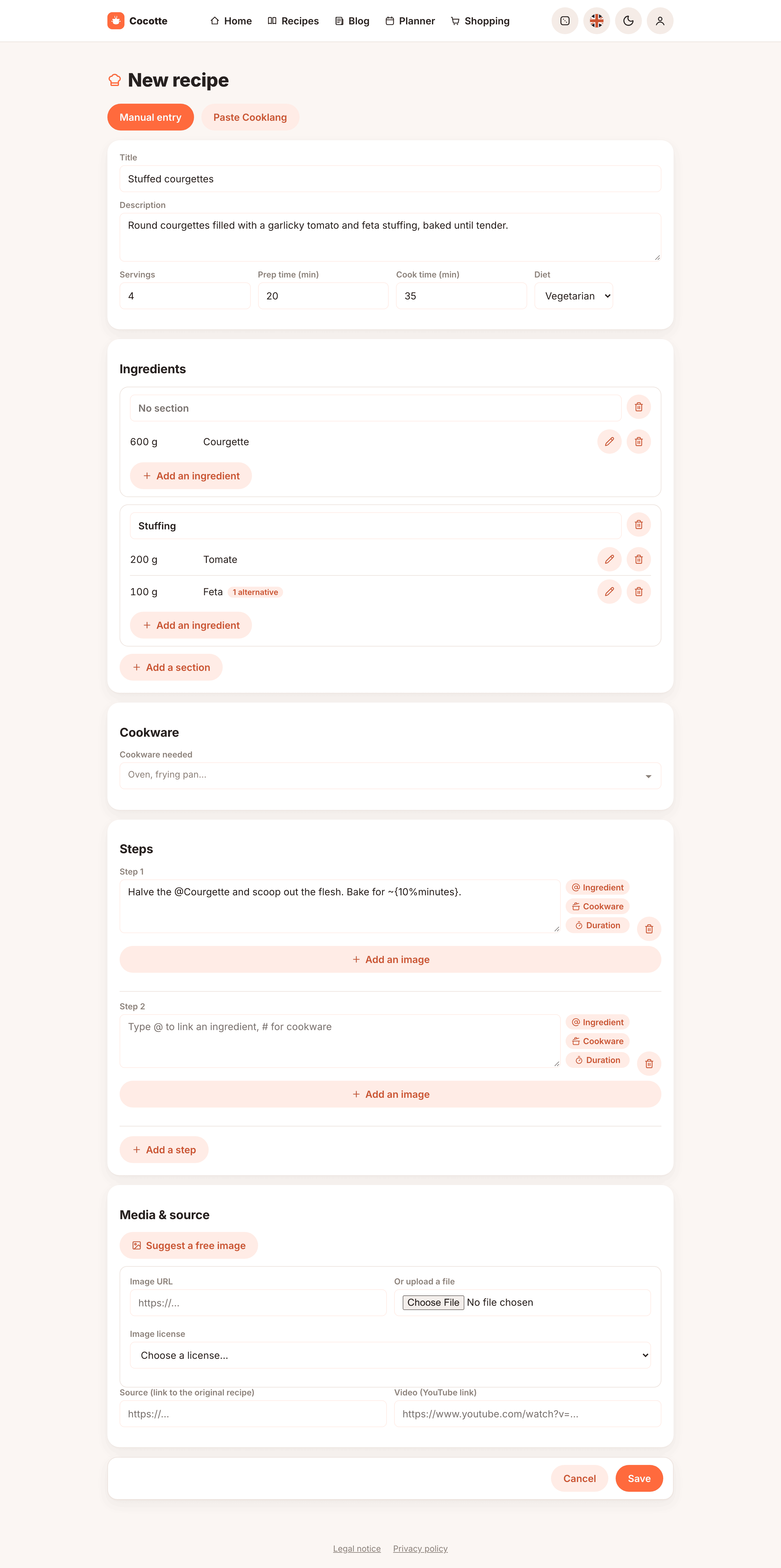
General information
| Field | Notes |
|---|---|
| Title | Required. |
| Description | Optional. A few words to introduce the dish. |
| Servings | Required, at least 1 (default 4). Quantities in the planner and shopping lists are scaled from this number. |
| Prep time (min) | Required (default 10). |
| Cook time (min) | Required (default 20). |
| Diet | Flexitarian, Vegetarian or Vegan. Used by the diet filter. |
Note
Cocotte doesn't guess the diet from the ingredients. Choose it yourself so that the diet filters and thematic pages show the recipe in the right place.
Ingredients
Ingredients are listed in bordered blocks called sections. A new recipe starts with a single section: click Add an ingredient in it to open a window with three fields.
- Ingredient: start typing and pick an ingredient from the suggestions. You can use the arrow keys and Enter. The search ignores case and accents, tolerates typos and also finds ingredients by their English name.
- Quantity: a number. Decimals are allowed for every unit, including piece (for example
0.5for half a camembert). - Unit: g, kg, ml, l, piece, tbsp, tsp or pinch.
Press Enter in the Quantity field, or click Add, to add the ingredient; Add and continue keeps the window open for the next one. Each ingredient then appears as a line (quantity, unit, name) with a pencil button to edit it in the same window and a bin button to remove it.
Sections
Click Add a section to split the ingredients into parts, such as Dough and Filling. As soon as there are two sections, each one shows its name in an editable field, including the first one, which can also stay unnamed (it then reads No section). Section names must be different from each other. The bin button next to a name removes the section and, after a confirmation, the ingredients in it.
The same ingredient can be used in several sections: add it once per section, each with its own quantity (for example butter in the Dough and again in the Filling). The recipe page and the PDF show a heading per section. The shopping list and the nutrition and carbon estimates add the lines up. In the cook mode, mentioning the ingredient in a step shows every quantity with its section.
Alternatives
An ingredient can come with alternatives: what to use instead when someone follows a diet, when you don't have it at home, or when a smaller quantity is enough. Open an ingredient (pencil button) and click Add an alternative. For each alternative, choose:
- a Type: Vegan, Vegetarian, Gluten-free, Lactose-free, If you don't have it or Less,
- Replace with: the other ingredient (not asked for Less, which keeps the ingredient of the line in a smaller quantity),
- a Quantity and Unit, which can differ from the original line,
- an optional Note, for example Soy milk works too.
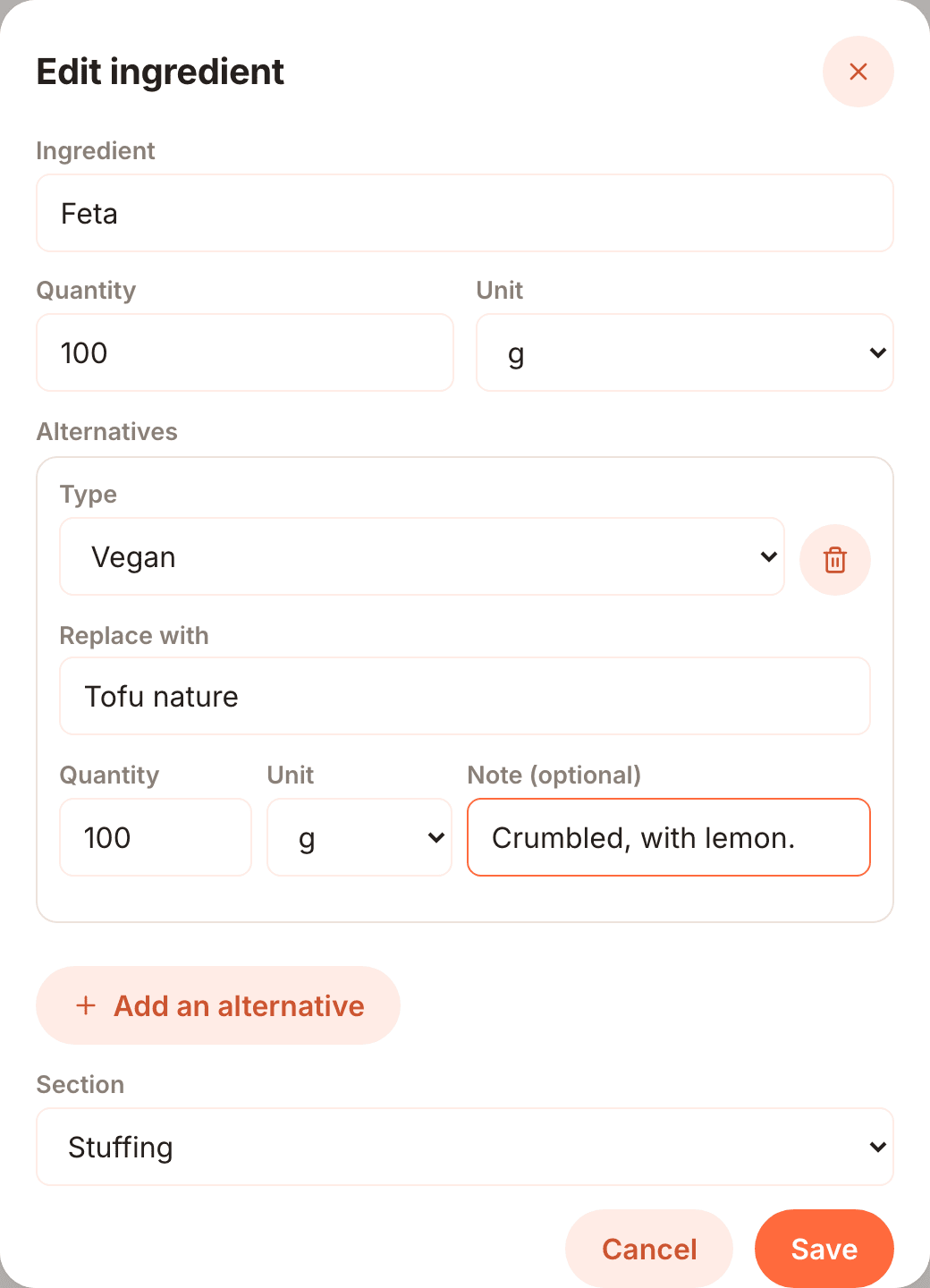
The ingredient line then shows how many alternatives it has. The bin button next to an alternative removes it. Alternatives are only suggestions for the person reading the recipe: the shopping list, the planner and the nutrition and carbon estimates always use the ingredients listed in the recipe.
An ingredient line coming from a URL import may not have an ingredient from the list yet: the line shows a not found badge, and saving fails with Select an ingredient for each row (or remove the row). until you edit it and pick one.
Tip
Units affect the nutrition and carbon estimates: Cocotte converts 1 piece to 100 g, 1 tbsp to 15 g, 1 tsp to 5 g and 1 pinch to 1 g, and treats 1 ml as 1 g. When you can, prefer grams for accurate figures. See Nutrition & carbon.
Create a missing ingredient
If the ingredient you need doesn't exist yet, the suggestion list ends with + Create "your text". Click it to open the New ingredient form:
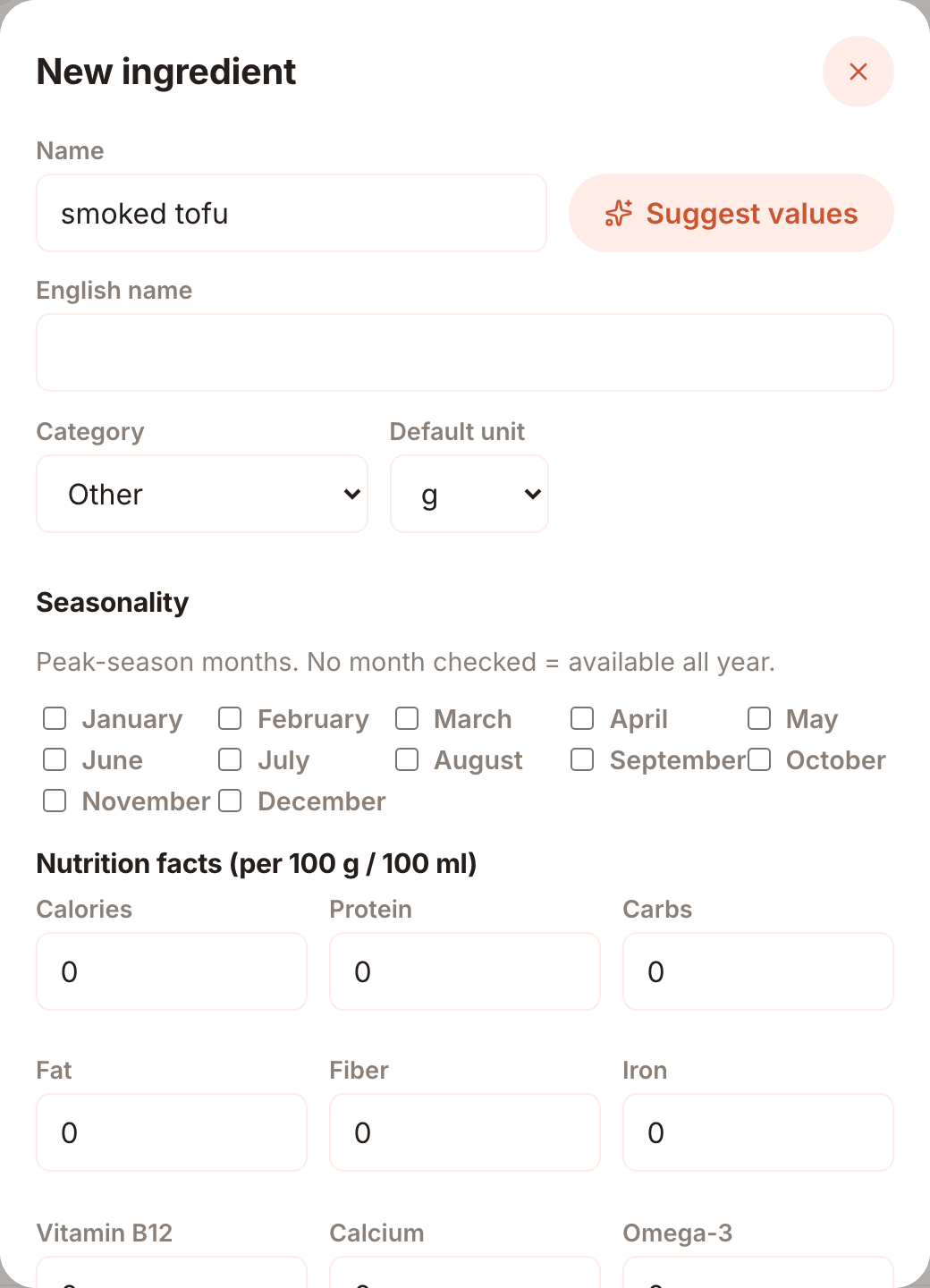
- Check the Name (pre-filled with what you typed). Optionally add an English name.
-
Click Suggest values to look the ingredient up online:
- Open Food Facts provides calories, protein, carbs, fat and fiber per 100 g,
- Agribalyse (ADEME) provides the carbon footprint in kg CO₂e per kg.
If something is found, you see Suggested values applied — review before creating the ingredient. Otherwise: No suggestion found for this ingredient. Suggestions are based on the first search result, so always check them. 3. Pick a Category and a Default unit. 4. Under Seasonality, tick the months when it is in season. Leave all months unticked if it is available all year. 5. Fill in or correct the Nutrition facts (per 100 g / 100 ml). Iron, vitamin B12, calcium, omega-3 and zinc are never suggested: enter them yourself if you know them. 6. Check the Carbon footprint (kg CO2e / kg). 7. Under Allergens, tick the allergens it contains. If it contains none, tick I checked: this ingredient contains none of the listed allergens. Otherwise recipes using it will say Allergens not verified for some ingredients. 8. Click Create ingredient. It's added to the shared library and selected in your row.
Important
Ingredients are shared by everyone on the instance. Yours stays Unverified until an admin reviews it (see Unverified ingredients and cookware); after that, only admins can edit or delete it. Take a moment to get the name and values right.
Cookware
The Cookware card lists what the recipe needs (oven, frying pan, air fryer...), so readers know before they start whether they have it. Type in Oven, frying pan... and pick items from the shared cookware library; each one becomes a pill (click its × to remove it).
If what you need isn't in the list, type its name and press Enter (Press Enter to create this cookware): it's added to the library and to the recipe at once, marked Unverified until an admin reviews it (see Unverified ingredients and cookware).
Unverified ingredients and cookware
Ingredients and cookware you create from the recipe form are added to the shared library straight away, so you can use them at once, but they carry an Unverified badge (in the suggestion lists, under the ingredient you picked and on cookware pills) until an admin reviews them. Hover the badge to read Added by a user: an administrator will review it. Until then, its creator can edit or delete it. The admin then verifies it, or merges it into an existing item if it was a duplicate (your recipe then simply points to that item).
Until then, you can fix your own items without leaving the recipe:
- Ingredient: click Edit under the ingredient you picked to open the Edit ingredient form (name, English name, category, seasonality, nutrition, carbon footprint, allergens), then Save. Delete ingredient removes it from the library and clears the row. If one of your saved recipes or shopping lists still uses it, Cocotte refuses (Cannot delete "…": it is used by recipes or shopping lists. Remove it from them first.).
- Cookware: click the pencil on its pill (Edit cookware "…") to change its Name, English name or Emoji, then Save. Delete cookware removes it from the library and from the recipe.
The Edit button (or the pencil) disappears once the item is verified, or as soon as someone else uses it in their own recipes: from then on, only admins can change it (see Ingredient library and Cookware library).
Steps
Each step is a text box. Click Add a step to add one, and the bin button to remove one. Empty steps are ignored when saving.
The three buttons next to each step insert special markup:
| Button | Inserts | Result on the recipe page |
|---|---|---|
| Ingredient | @ and opens the ingredient suggestions |
A highlighted link to the ingredient in the list |
| Cookware | # and opens the cookware suggestions |
A link to the item in the Cookware list |
| Duration | ~{10%minutes} with 10 selected, ready to overwrite |
A timer button |
Link an ingredient with @
Type @ followed by the start of an ingredient's name, for example @oign. A list of
matching ingredients from the whole library appears:
- Pick one: Cocotte writes it as a mention (for example
@oignon). If the ingredient isn't in the recipe yet, it's added to the ingredient list automatically with its default unit. Don't forget to fill in its quantity. - If nothing fits, + Create "…" opens the New ingredient form.
You can pick from the keyboard: the arrow keys move the highlight, Enter (or Tab) inserts the highlighted ingredient, and Escape closes the list and keeps what you typed. When the list is closed, Enter adds a new line as usual.
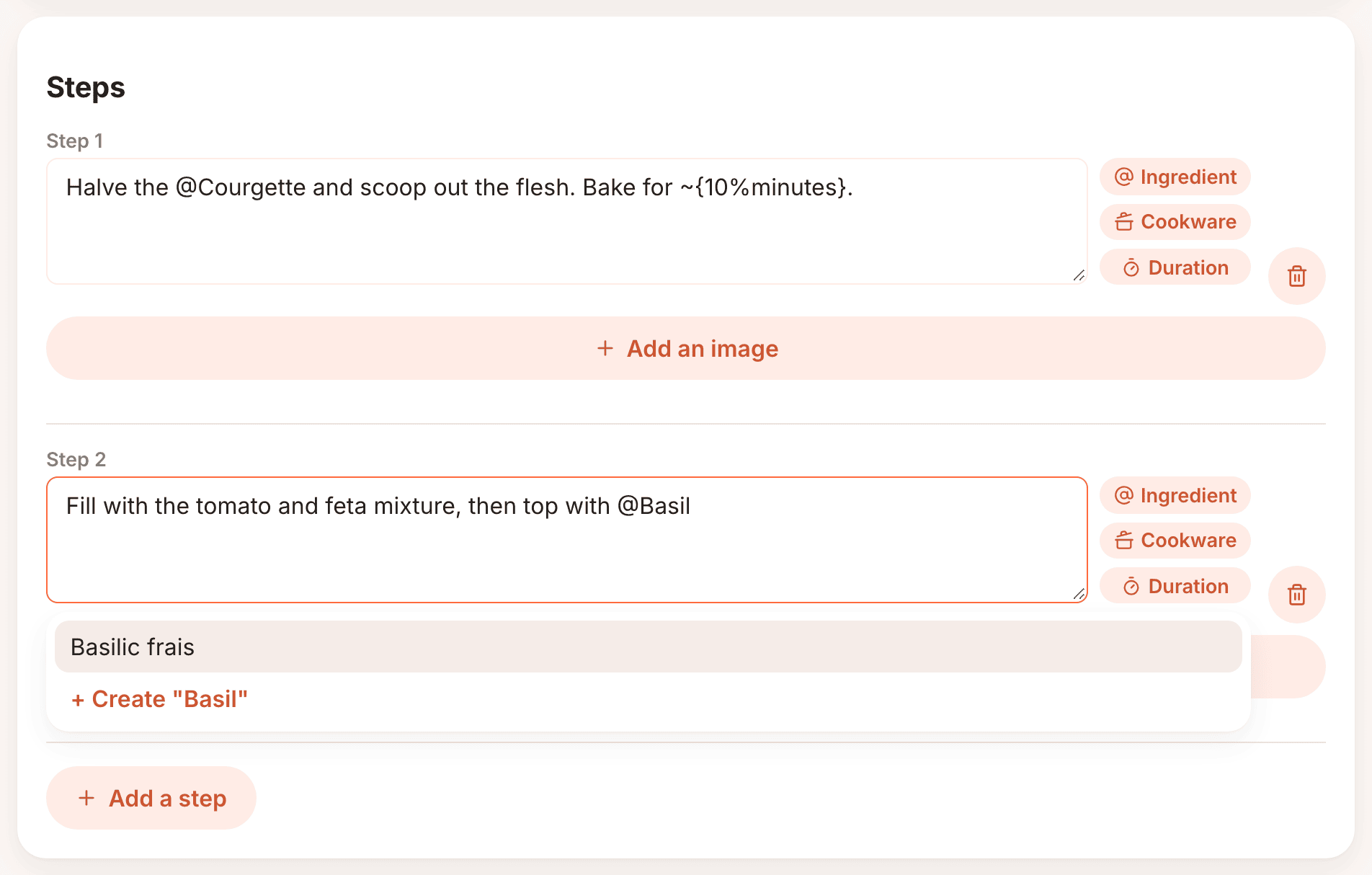
Rules of the syntax:
- A mention ends at the first space. Multi-word names use underscores instead of spaces:
@huile_oliverefers to huile olive, and@creme_fraicheto creme fraiche. Cocotte inserts the underscores for you when you pick a suggestion. - The name must match the ingredient's name in the list (case doesn't matter). Otherwise, once
you've finished typing the mention (a space or punctuation after it, or you click elsewhere), a
warning appears under the step: "name" isn't in the ingredient list above. The step still
saves with the mention exactly as typed (for example
@len), and the recipe page shows it as plain text,@included, instead of a link. - You can add a quantity in braces, as in Cooklang:
@huile_olive{2%tbsp}. In manual entry the braces are accepted and hidden on the recipe page, but quantities come from the Ingredients card, not from the step.
Example:
Mention cookware with #
Type # followed by the start of a cookware name, for example #fo, and pick a suggestion:
Cocotte writes it as a mention (for example #Four) and adds it to the recipe's Cookware card
if it isn't there yet. If nothing fits, + Create "…" adds it to the library directly (a
cookware item only has a name).
The rules are those of ingredient mentions: multi-word names use underscores
(#Friteuse_à_air), case doesn't matter, and a warning appears under the step when the name isn't
in the recipe's cookware. A cookware mention also stops at punctuation (#four. refers to
four), and # followed by a digit (step #2) stays plain text.
Add a timer with ~
Write a duration as ~{quantity%unit}, for example:
- The unit can be seconds (
s,sec,seconds,secondes…), minutes (m,min,minutes…) or hours (h,hr,hours,heure,heures…), in French or English. - Decimals work with a dot or a comma (
~{1,5%h}). - An optional name before the braces (
~repos{…}) is shown on the timer button. Use underscores for several words. - If the unit isn't recognised, the text is shown as-is, without a timer button.
See Use a step timer for how timers work when cooking.
Add a photo to a step
Each step can optionally have its own photo. Since most steps don't need one, it's hidden by default: click Add an image below the step's text box to reveal the same picker as the recipe's own photo (see Media & source below) — pick a file or paste an image URL, then choose a license and fill in the credit fields it requires.
On the recipe page, a step with a photo shows a small photo icon at the end of its text; click it to view the picture (with its credit) in a dialog. In cook mode, the current step's photo fills most of the screen, with its instruction text in a band at the bottom.
Media & source
| Field | Notes |
|---|---|
| Suggest a free image | Opens a search for pictures you're free to reuse (see Suggest a free image below). |
| Image URL | Link to a picture on the web. |
| Or upload a file | Upload a picture from your device. An uploaded file is shown instead of the image URL. |
| Source (link to the original recipe) | Where the recipe comes from. Shown as a Source button on the recipe page. |
| Video (YouTube link) | A YouTube link, for example https://www.youtube.com/watch?v=…. The video is embedded on the recipe page. |
Image credit and license
Setting a recipe's (or a step's) photo for the first time, or replacing it, requires picking a license so Cocotte can display proper credit next to the picture. The Image license dropdown offers:
| License | Requires |
|---|---|
| CC BY (Attribution) | Author, source URL |
| CC BY-SA (Attribution — Share Alike) | Author, source URL |
| Public domain | Nothing else |
| Personal photo | Author |
| Used with permission | Author, note |
| Not specified | Nothing else |
Only the fields required by the chosen license are shown. For a CC license, the License URL field is pre-filled with the standard license text URL (you can still edit it, and Cocotte fills it in automatically if you leave it blank). Not specified is a normal, valid choice when you don't know the license, not just an internal placeholder.
Note
Recipes (and their pictures) created before this feature existed have no credit information. Their photo shows Credit not specified until you next change that picture — editing anything else about the recipe never asks for a credit.
Suggest a free image
Click Suggest a free image to search for pictures under a free license (CC BY, CC BY-SA or public domain), found with Openverse. The search starts with the recipe's title; change the words and click Search to try again (English words often give more results). Click a picture to use it: the Image URL, Image license and credit fields are filled in for you, and the credit is shown next to the picture on the recipe page.
Publicly licensed content
As soon as a Source is filled in, an I rewrote the steps in my own words and the images used respect copyright: make the whole recipe public checkbox appears.
By default, a recipe with a source shows its title, picture, source link, ingredients, times, allergens and carbon footprint to other people: an ingredient list and cooking times are facts, not protected by copyright. Its description and steps stay visible only to you and to admins: the way a recipe is written belongs to its original author. See Recipes with restricted content.
To make the whole recipe public, rewrite its steps (and description) in your own words, make sure the recipe's and steps' pictures are your own or freely licensed, then tick the box. A Copyright: before making this recipe public reminder appears below it:
- the ingredient list, quantities and times are always public;
- the steps and description must be rewritten, not copied or changed by a few words;
- the source website's photos are protected too: use your own, or a free image.
Right after importing a recipe, Cocotte refuses to save with the box ticked while a step is still identical to the imported text: Some steps are still identical to the imported recipe. Rewrite them in your own words before making the recipe public, or uncheck the box. You can also tick the box if you own the rights to the original text, or have explicit permission to share it.
Import a recipe from a URL
Cocotte can read recipes from many cooking websites (the ones supported by recipe-scrapers).
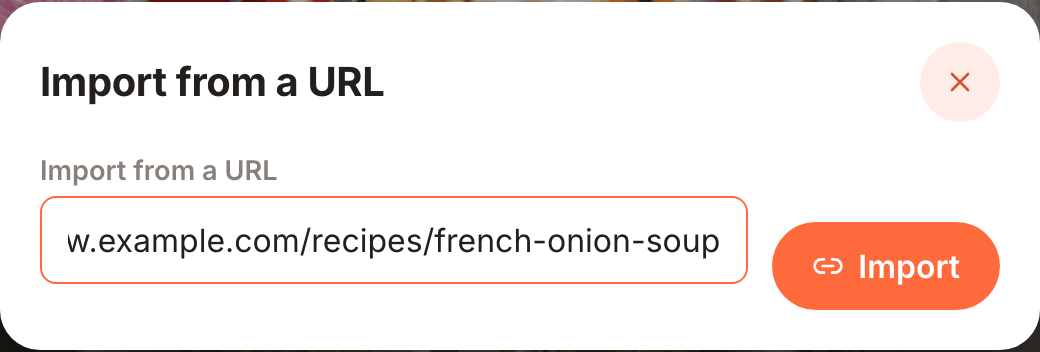
- On the Recipes page or the home page, click New recipe then Import from a URL. On the Recipes page the form opens above the list (the Close button hides it again); on the home page it opens in a dialog.
- Paste the recipe's address in Import from a URL.
- Click Import and wait a few seconds.
Cocotte reads the page and opens the New recipe form pre-filled with:
- the title, servings and cook time,
- the source link,
- the steps,
- the ingredients, each matched with the ingredient library when possible, in French or English.
Nothing is saved yet. Review the form:
- Look for rows with a Not found badge, followed by the original line from the website (for example Not found — « 2 gousses d'ail »). No ingredient could be matched for those rows. Pick the right one in the Ingredient field, or create it with + Create. You can also remove the row.
- Check the quantities and units. Unusual formats may be misread.
- Fill in what import doesn't provide: description, prep time, diet, and a picture. The website's own photo is never copied, since it belongs to its photographer: upload your own, or click Suggest a free image.
- Click Save.
If the page can't be read, you see Couldn't fetch this recipe. Check the URL and try again.
Note
Imported recipes keep the source link, so their description and steps are restricted by default; their ingredients and times stay public. To share the whole recipe, rewrite the steps in your own words (see Publicly licensed content). Other people see imported by followed by your name.
Paste a Cooklang recipe
Cooklang is a simple markup for recipes. You can paste a whole .cook
file, for instance one downloaded from recipes.cooklang.org,
metadata and sections included.
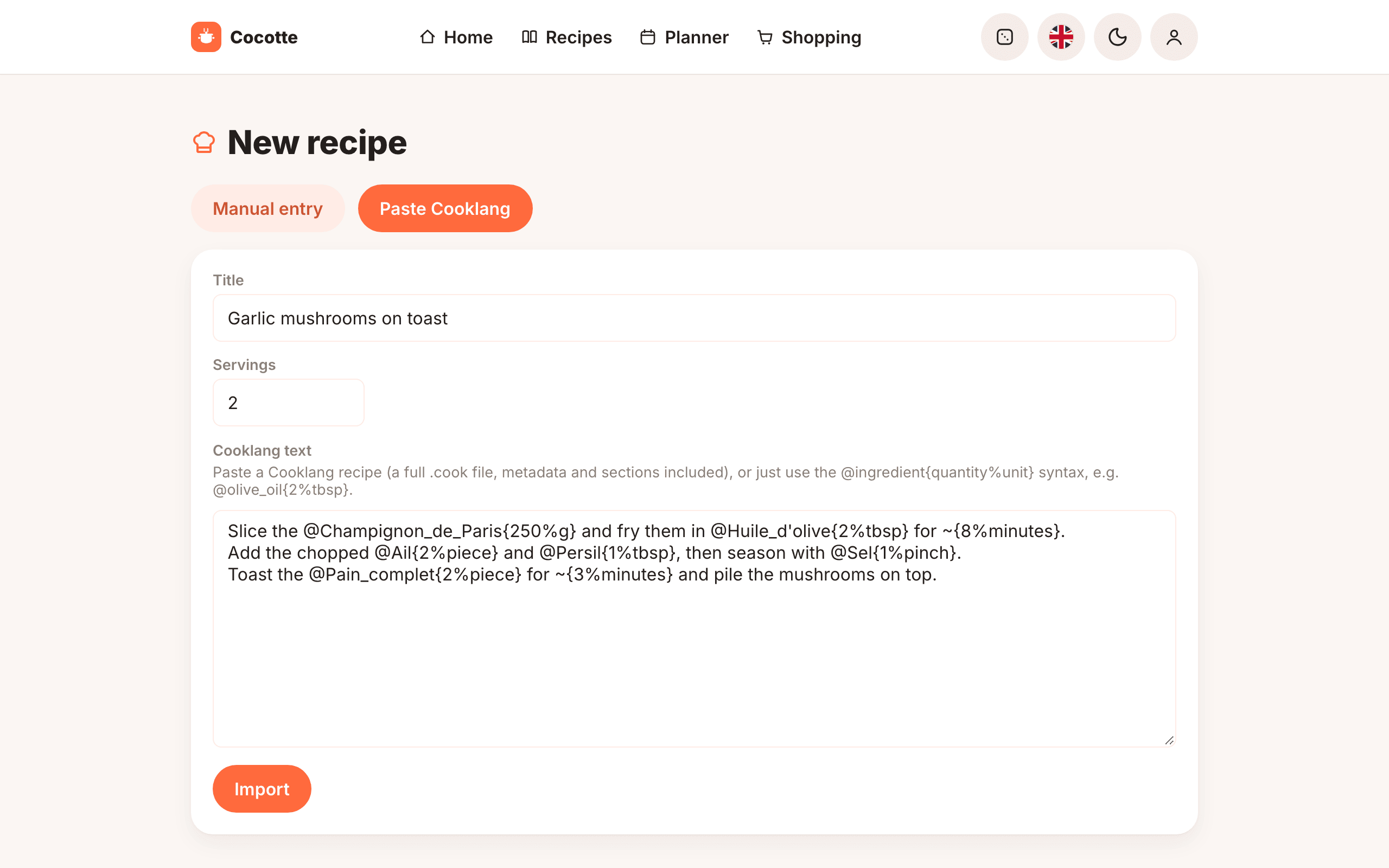
- Click New recipe, then the Paste Cooklang tab.
- Paste your text in Cooklang text.
- Optionally enter the Title and Servings. Left empty (From the file's metadata), they are read from the file's metadata. Filled in, they take precedence over it.
- Click Import. The Manual entry tab opens, filled in with what was read from the text. Check and correct it, then click Save as for a recipe written by hand.
The syntax Cocotte understands:
| Syntax | Meaning |
|---|---|
@sel |
An ingredient (one word). |
@huile d'olive{2%tbsp}, @huile_olive{2%tbsp} |
An ingredient with a quantity and unit. Multi-word names work with braces, or with underscores. |
@oignon{1}, @sucre{1/2%cup} |
A quantity without unit; fractions work. |
@café{30%g}(moulu) |
A preparation note, kept in the step text. |
~{10%minutes}, ~repos{1%heure} |
A timer. |
#poêle, #poêle à frire{} |
Cookware. It's added to the recipe's Cookware card and kept as a mention in the step. |
= Pâte |
A section title. The ingredients that follow are grouped under it. |
> Astuce… |
A note. Notes are added to the recipe description, not to the steps. |
-- …, [- … -] |
A comment, ignored. |
--- block at the top, or >> key: value lines |
Metadata (see below). |
| Paragraphs separated by a blank line | One step each. If the text has no blank line at all, each line is a step. |
The metadata Cocotte reads: title, servings (or serves, yield), prep time/cook time
(e.g. 1h15, 20 minutes, or prepMinutes/cookMinutes as found on recipes.cooklang.org), a
source that is a web address, description and note. Other entries (tags, category, …) are
ignored.
Example:
---
title: Sauce tomate
servings: 4
cook time: 25 minutes
---

= Base

Faire revenir l'@oignon{1} dans l'@huile_olive{2%cs} pendant ~{5%minutes}.

Ajouter les @tomates{400%g}(concassées) et laisser mijoter ~{20%minutes}.

> On peut ajouter du basilic à la fin.
-- Ce commentaire est ignoré.
What happens on import:
- Nothing is created yet. The text fills in the title, description, servings, times, source link, ingredients and steps of the Manual entry form; the recipe only exists once you click Save. Leaving the page before that discards it.
- Units are mapped to Cocotte's units. French, English, German and Spanish words and
abbreviations work:
g,grams,kg,ml,l,cs/c.à.s/tbsp,cc/c.à.c/tsp,pincée/pinch,pièce/piece…cl,dlandmgare converted to ml and g. A missing or unknown unit becomes piece. - Quantities can be whole or decimal numbers, fractions (
1/2,1 1/2,½). A range (2-3) keeps its first number. A quantity that isn't a number (quelques) becomes 1. - Each ingredient is matched against the ingredient library the same way as a
URL import: by name, by translation (so
sugarcan find Sucre), then by a close spelling. A row whose ingredient matched nothing shows a Not found badge followed by the name from the text: pick or create its ingredient before saving. Check the other matches too, since a close spelling can occasionally pick the wrong ingredient. - Mentioning the same ingredient again without a quantity doesn't create a duplicate row. Two quantities of the same ingredient in the same section and unit are added up into one row.
- Anything the text doesn't give keeps the form's default value (servings 4, prep time 10 min, cook time 20 min, diet Flexitarian). Adjust it before saving.
- If the metadata's
sourceis a web address, it's saved as the recipe's source link, so its content is restricted like any import. - With unreadable metadata, you see Unreadable Cooklang text. and stay on the Paste Cooklang tab. A missing title is fine: type it in the form before saving.
- Cookware is matched against the cookware library by name or English name, ignoring case and
accents (
#poelefinds Poêle,#ovenfinds Four), and pre-selected in the Cookware card. Cookware that matches nothing is listed under Cookware not found in the library, with a + Create "…" button for each; ignore the ones you don't want.
Edit or delete a recipe
You can edit and delete your own recipes:
- Edit: open the recipe and choose ⋮ → Edit, or click the pencil button on its row in the recipe list. The same form opens, titled Edit recipe. Make your changes and click Save.
- Delete: open the recipe and choose ⋮ → Delete, or click the bin button on its row. Confirm the prompt.
Warning
Deleting a recipe also removes it from every planner it was scheduled in, including other people's. Existing variants are kept but no longer linked to it.
To make your own version of someone else's recipe, create a variant instead.