Blog
The blog is where everyone on the instance can write about cooking: a weekly menu, a market haul, a story behind a family dish. Unlike a recipe, a post is free text, with headings, pictures, links, and Cocotte recipes embedded in the text as clickable cards.
Note
Button labels are quoted in English. Switch the language with the flag button if you want them to match (see The interface).
Read the blog
Click Blog in the top bar (or in the tab bar on a phone), or one of the Latest blog posts on the home page. Posts are listed newest first, ten per page, each with its title, author, date, the first lines of text and its cover image (or, failing that, the first picture of its text). Click a post to read it. You don't need an account to read posts or to comment on them.
Search and filter
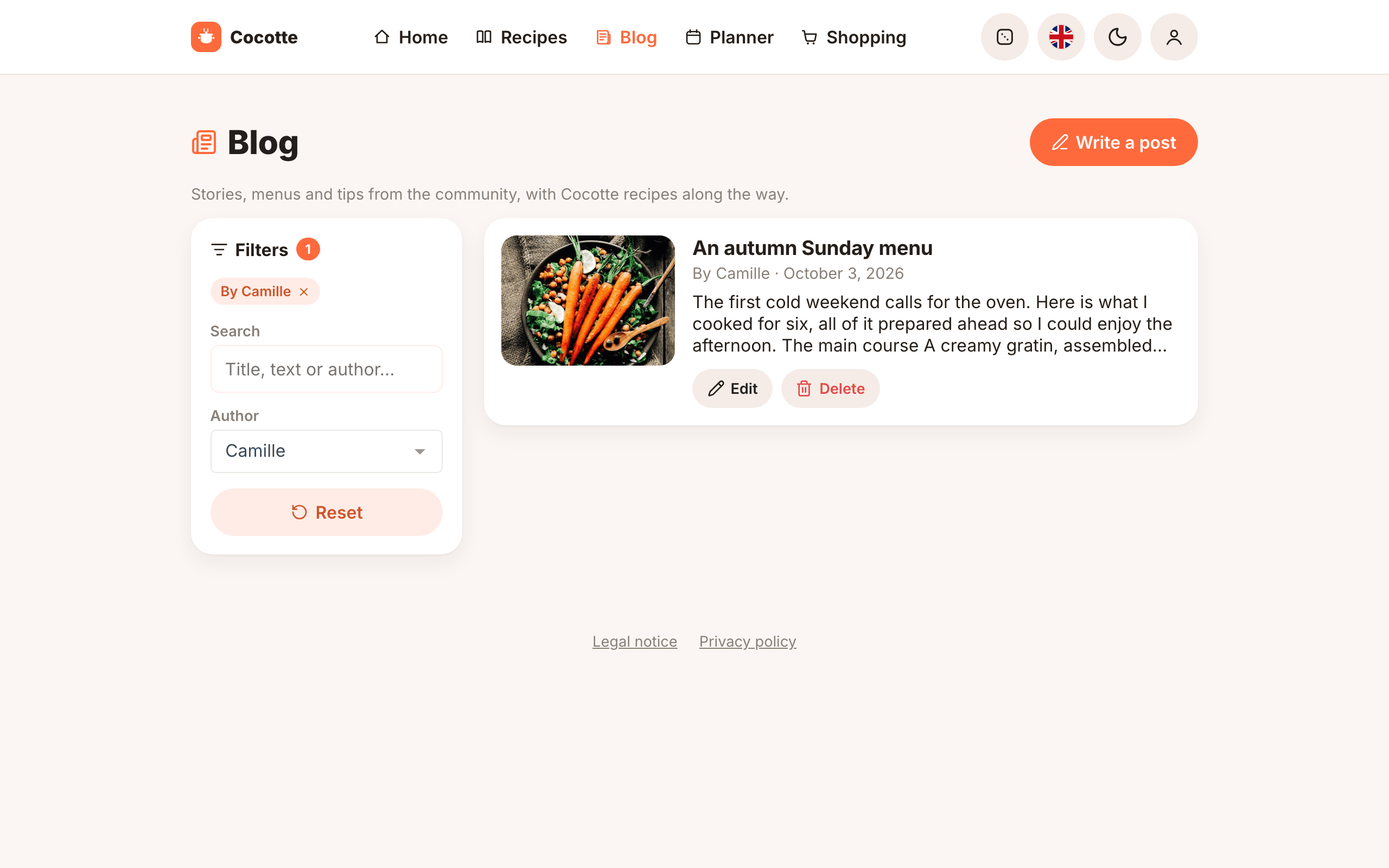
The filters work like the ones of the recipe list (see The recipe list): a column on the left on a computer, a Filters button above the list on a phone.
- Search looks for your words in the title, the text and the author's name of each post.
- Author shows the posts of one person only. The list offers everyone who has published a post.
Each active filter also shows as a pill (for example By Camille): click its × to remove it, or click Reset to remove them all. Filters are kept in the page address, so you can bookmark or share a filtered list.
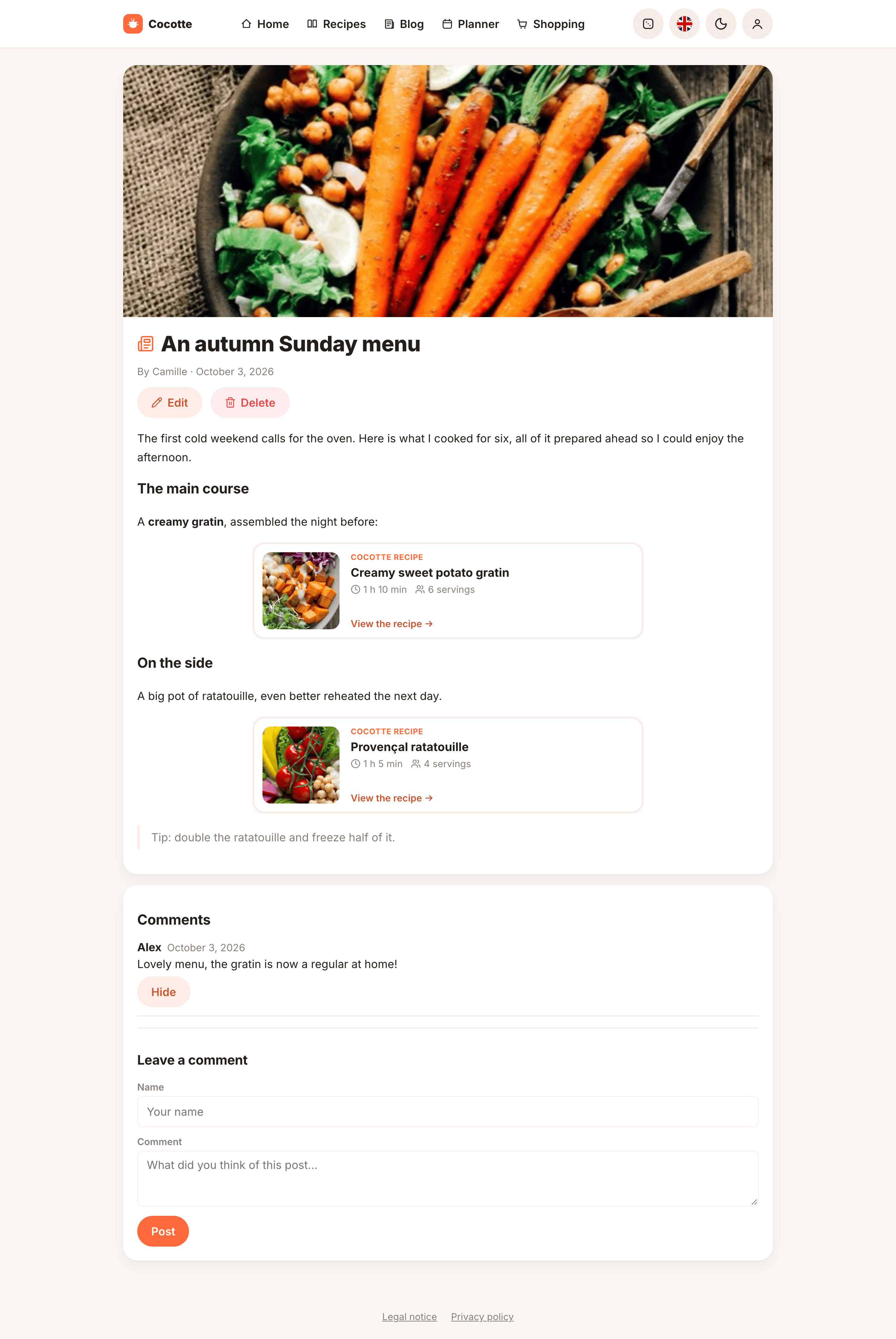
An embedded recipe shows as a card with its picture, title, total time and servings. Click it to open the recipe. If the recipe was deleted since, the card says This recipe is no longer available.
Under the post, the Comments section works like the one on recipes (see Comments). If the author turned comments off, existing comments stay visible and the form is replaced by Comments are closed for this post.
Write a post
Logged-in users only.
- In Blog, click Write a post.
- Type a Title.
- Optionally, click Add a cover image and pick a picture (see Cover image).
- Write the Content in the editor (see below).
- Untick Allow comments if you don't want comments on this post.
- Read the Before publishing rules, tick My post follows these rules, and click Publish.
Cover image
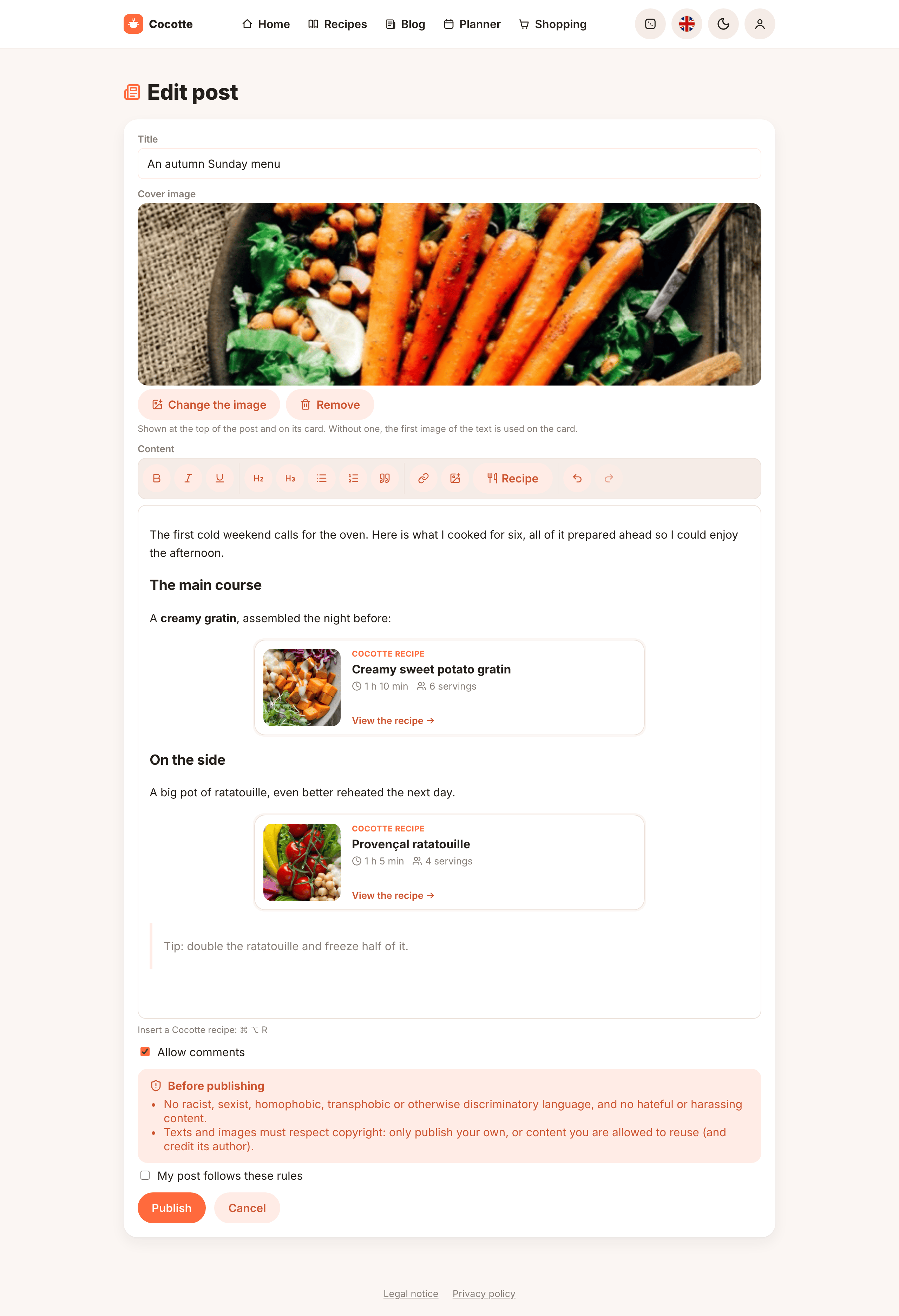
The cover image is shown across the top of the post and on its card, in the blog list and on the home page. After picking one, a preview appears with Change the image and Remove. The image is uploaded when you click Publish (8 MB maximum).
A post without a cover image uses the first picture of its text on its card, and none at the top of the post.
The editor
The editor shows the post as it will look once published. Its toolbar offers, from left to right: Bold, Italic, Underline, Heading, Subheading, Bulleted list, Numbered list, Quote, Link, Insert an image, Recipe, Undo and Redo. The usual keyboard shortcuts also work (Ctrl+B, Ctrl+I, Ctrl+Z, … or ⌘ on a Mac).
- Link: select some text, click the button and type the address. Leave the address empty to remove a link.
- Insert an image: pick a picture on your device. It is uploaded and inserted where the cursor is (8 MB maximum).
Embed a recipe
- Put the cursor where the recipe should go.
- Click Recipe in the toolbar, or press Ctrl+Alt+R (⌘ ⌥ R on a Mac).
- In Insert a recipe, type part of the recipe's name and pick it in the suggestions.
The recipe card appears in the text. Click it once to select it: you can then drag it elsewhere, or delete it with the Backspace key. Any recipe of the instance can be embedded, not only yours.
Publishing rules
Every post must follow two rules, recalled above the Publish button. Cocotte asks you to confirm them each time you publish or edit a post:
- no racist, sexist, homophobic, transphobic or otherwise discriminatory language, and no hateful or harassing content;
- texts and images must respect copyright: only publish your own, or content you are allowed to reuse, and credit its author.
Admins can remove posts that break them (see Moderation).
Edit or delete a post
Edit and Delete buttons appear on your posts, both in the blog list and under the title of the post itself (admins see them on every post). A post edited after publication shows updated on with the date next to its publication date. Deleting a post also deletes its comments, and cannot be undone.
As the author, you can also hide and unhide comments on your posts, exactly like on your recipes (see Hide and unhide comments).