Install & offline
Cocotte is a Progressive Web App (PWA). You can install it on your phone or computer like a regular app, with its own icon and window. It also keeps working in read-only mode when you lose your connection, for example in a shop basement.
Note
Installing requires the site to be served over HTTPS, or from localhost. A
production deployment takes care of that.
Install the app
Desktop: Chrome or Edge
- Open Cocotte in Chrome or Edge.
- Click the install icon at the right end of the address bar (a small screen with a down arrow). If you don't see it, open the browser menu (⋮ in Chrome, … in Edge) and look for the Install Cocotte entry. Its exact place in the menu depends on your browser version.
- Confirm with Install.
Cocotte opens in its own window and appears in your Start menu, Dock or launcher. To uninstall it, open the app's menu (⋮) and choose Uninstall Cocotte.
Android: Chrome
- Open Cocotte in Chrome.
- Tap ⋮ at the top right, then Add to Home screen (or Install app).
- Tap Install.
The Cocotte icon appears on your home screen and in your app drawer. The app opens full screen, without the browser bar.
iPhone and iPad: Safari
- Open Cocotte in Safari.
- Tap the Share button (a square with an up arrow).
- Scroll down and tap Add to Home Screen.
- Tap Add.
The Cocotte icon appears on your home screen.
Tip
Installing is optional: everything described below also works in a normal browser tab. The installed app just starts faster and leaves more room on screen.
What works offline
When the connection drops, a banner at the top of the page says You're offline — showing the last saved version. Cocotte then shows the latest copy it has on your device.
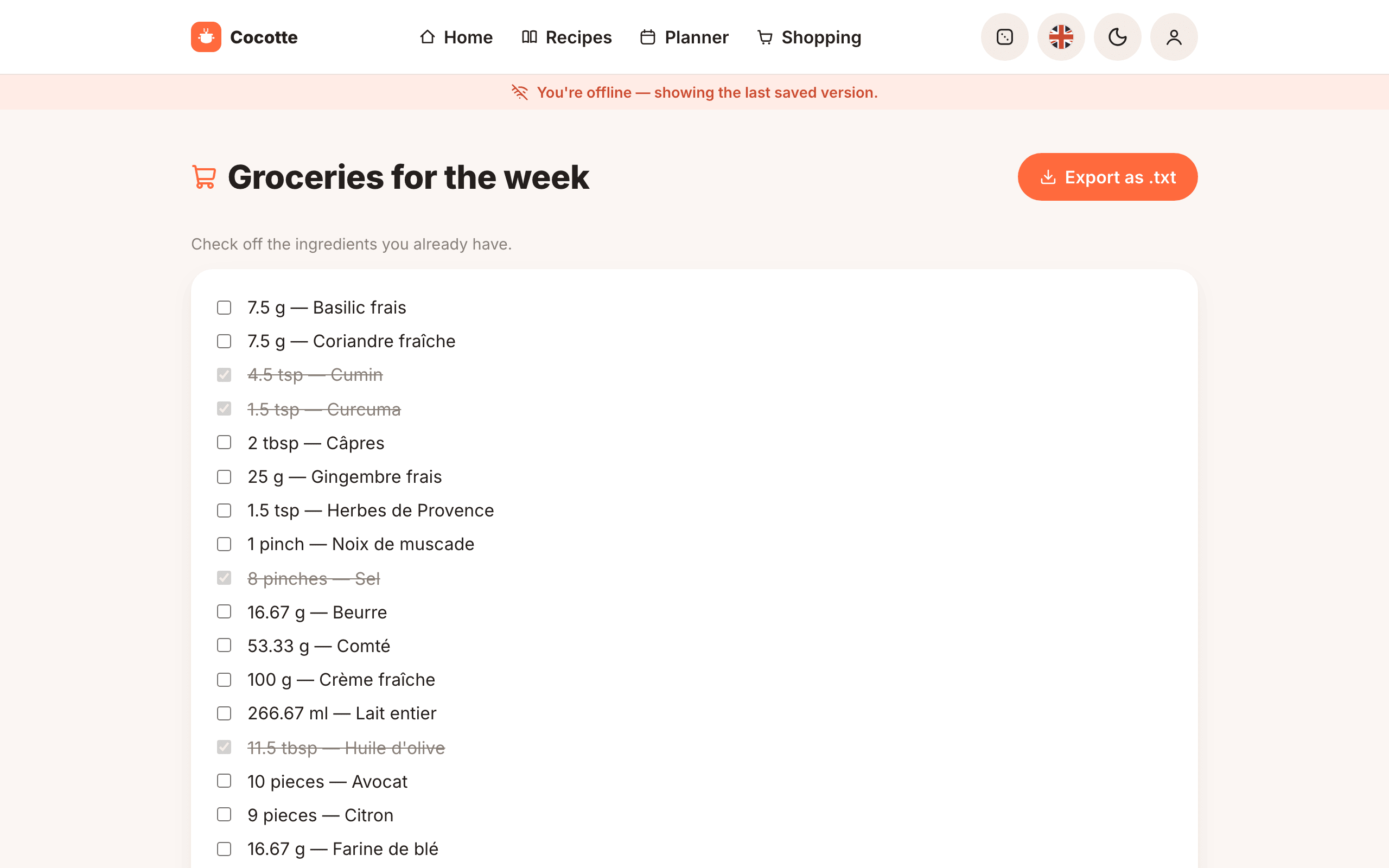
Only what you have already opened while online is available offline. Cocotte saves the data as you browse:
| Content | Kept on your device for | How it's refreshed |
|---|---|---|
| Recipes you viewed, recipe lists and searches you ran, nutrition facts, home page thematic pages | up to 7 days (300 most recent requests) | Always fetched from the network first. The saved copy is used if the network doesn't answer within 4 seconds. |
| Your planner and shopping lists | up to 3 days (200 most recent requests) | Same: network first, saved copy as a fallback. |
| Recipe pictures | up to 30 days (150 pictures) | Served from the device once saved. |
| The app itself (pages, scripts, icons) | until the next update | Updated automatically (see below). |
Tip
Before going shopping, open your shopping list, and the planner week if you need it, while you still have a connection. They'll be available in the shop even with no network.
Tick shopping-list items offline
Ticking items on a shopping list is the only change you can make offline:
- Tick the item as usual. It's ticked straight away.
- A small cloud icon appears next to it (Waiting for a connection to sync).
- When the connection comes back, Cocotte sends the pending ticks automatically and the cloud icon disappears. If you closed the app in the meantime, they're sent the next time you open Cocotte with a connection.
Unticking an item still needs a connection — if you try it offline, it snaps back to ticked since there's no pending-tick queue to sync an "untick" with.
See Shopping lists.
What needs a connection
Everything else needs the network, including:
- logging in, signing up and resetting your password,
- creating, importing, editing or deleting recipes, and creating ingredients,
- adding or removing meals in the planner, and generating shopping lists,
- posting or hiding comments,
- PDF downloads, the shopping-list .txt export, .ics downloads and data exports,
- any recipe, list or search you haven't opened before.
This is deliberate. Offline editing of recipes and planners would need a way to resolve conflicting changes, so it's out of scope. If you try one of these actions offline, it fails with an error message. Try again once you're back online.
Privacy on shared devices
When you log out, Cocotte deletes your planner and shopping-list data from the device's offline storage, along with any pending shopping-list ticks. Public recipe data and pictures stay cached, since they aren't personal.
Updates
Cocotte updates itself. When a new version is deployed, the app downloads it in the background and switches to it automatically, usually the next time you open or reload the app. There is nothing to install from an app store.
Note
If something looks outdated after an update, close every Cocotte tab or window (or the installed app) and open it again.