Thematic pages
Thematic pages are the shortcut cards shown on the homepage under Explore, such as "seasonal produce" or "ready in 30 minutes". Each one is a title, a short description and an image or icon, pointing to the recipe list with a set of filters already applied. They are pure configuration: no code change is needed to add, reorder or retire one.
This page explains how staff members manage them from the Thematic pages page.
How they appear on the homepage
- Only pages marked Active are shown, to everyone (logged in or not).
- They are sorted by Display order (lowest first), then alphabetically by title.
- Each card shows the image as its background if there is one; otherwise it shows the icon (emoji). The title and description are overlaid on the card.
- Clicking a card opens the recipe list (
/recipes) with the page's filters in the URL, for example/recipes?in_season=true. From there, visitors can adjust the filters like any search. - If no page is active, the Explore section is not shown at all.
Titles and descriptions are displayed as entered, in every interface language: there is no per-language version. Write them in the language of your audience.
Open the Thematic pages page
Open the account menu (person icon, top right) and choose Administration > Thematic
pages, or go to /admin/thematic-pages.
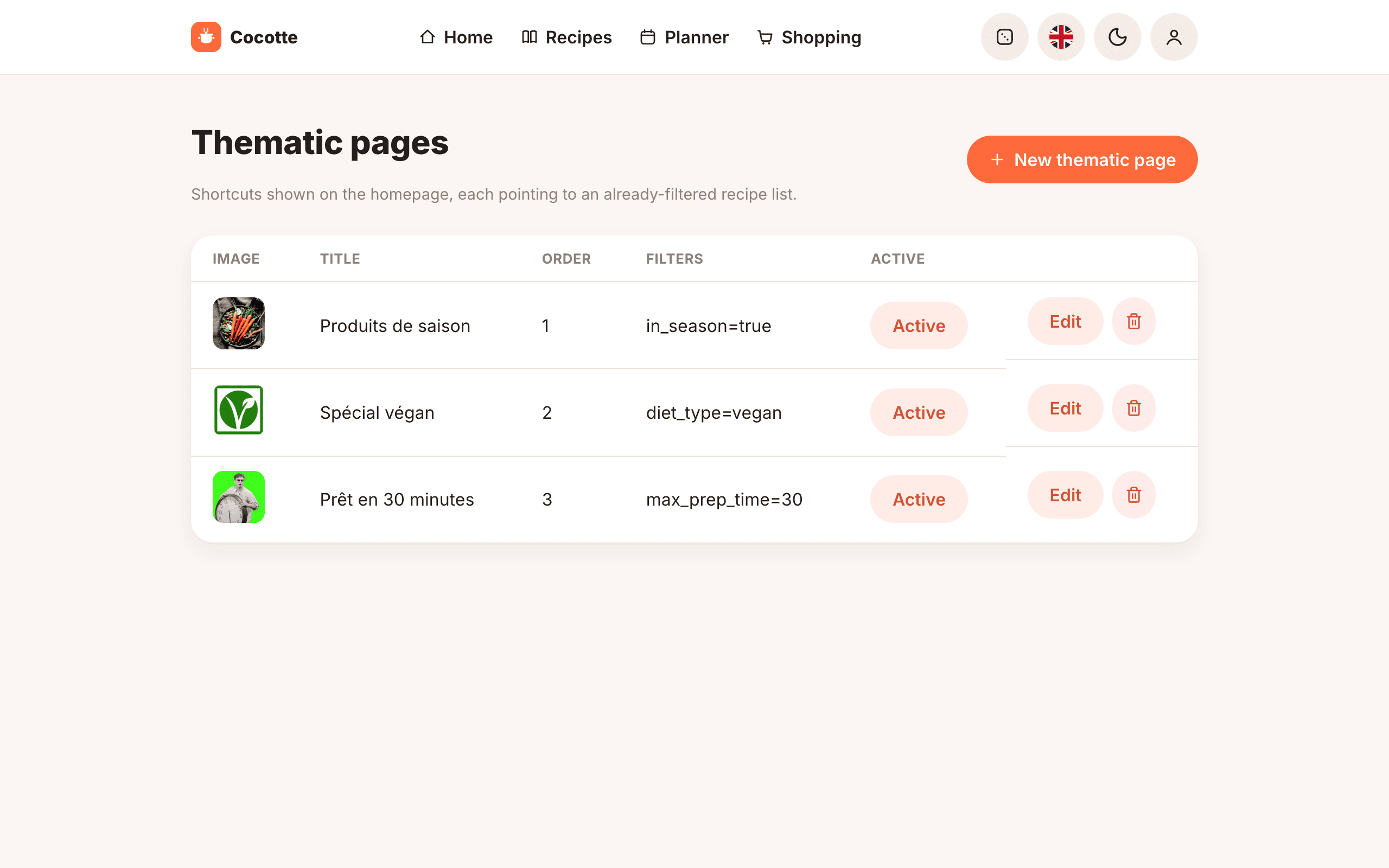
The table lists every page, active or not, with its Image (or icon), Title, Order,
Filters (summarised as key=value pairs, or "No filters") and Active status, plus
Edit and delete buttons.
Create or edit a thematic page
- Click New thematic page, or Edit on an existing row. The form opens above the table.
- Fill in the fields and filters described below.
- Click Save. Click Cancel to close the form without saving.
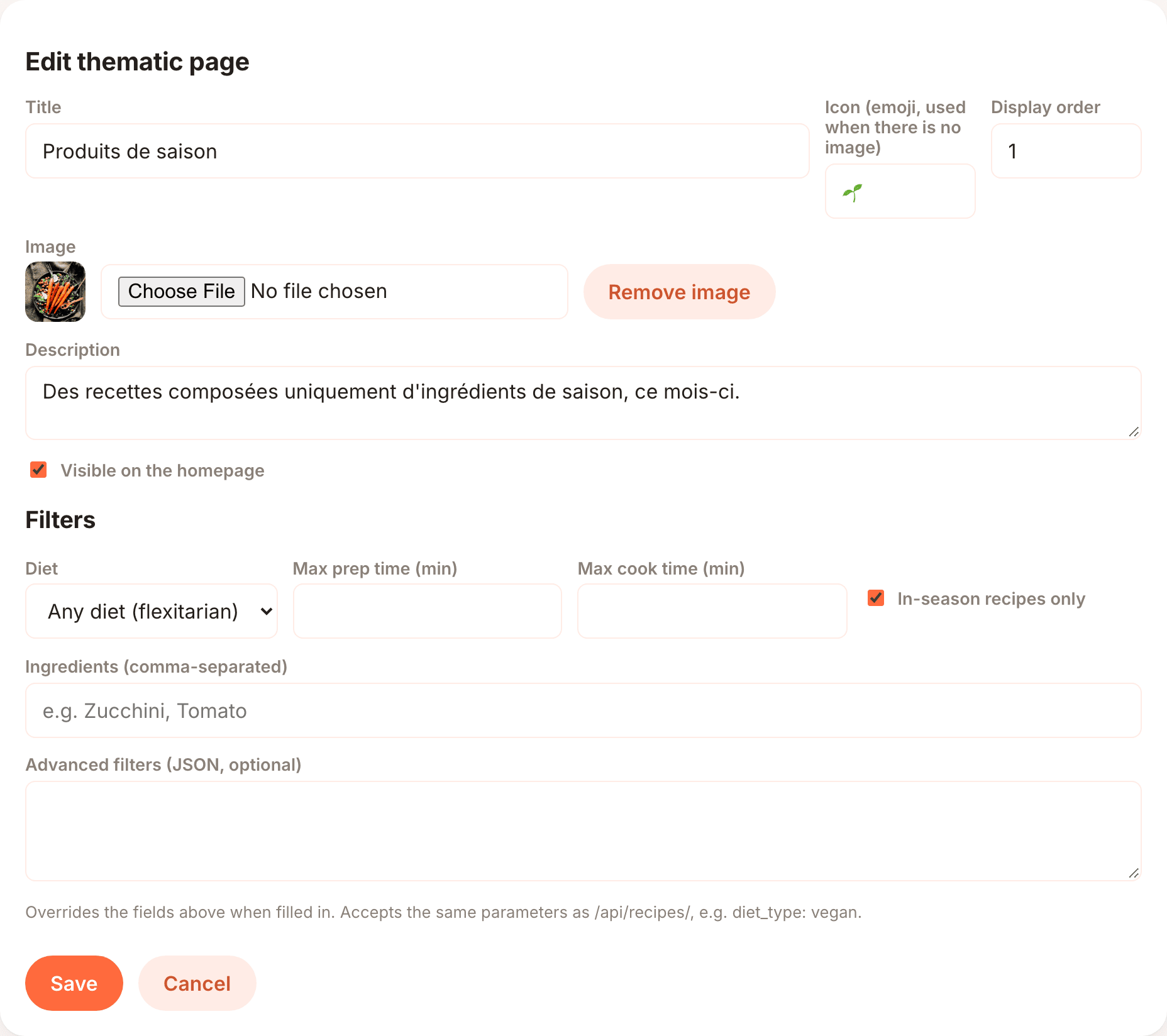
Fields
| Field | Description |
|---|---|
| Title | Required. Shown on the card. The page's internal identifier (slug) is generated from the first title and does not change if you rename the page. |
| Icon (emoji, used when there is no image) | An emoji, up to 8 characters, e.g. 🌱. Also shown in the table. |
| Display order | A number, 0 or more. Lower numbers come first on the homepage. Pages with the same order are sorted by title. |
| Image | Optional picture used as the card background. Choose a file to upload it, or click Remove image to go back to the icon. Landscape images work best. The image is uploaded right after the page is saved. |
| Description | Optional short text shown under the title on the card. |
| Visible on the homepage | Ticked: the page is active and shown. Unticked: it is kept but hidden. |
Filters
The Filters section defines what the card's link shows. The simple fields cover the common cases:
| Field | Filter added | Effect on the recipe list |
|---|---|---|
| Diet | diet_type = vegetarian or vegan |
Recipes of that diet only. Any diet (flexitarian) adds no filter. |
| Max prep time (min) | max_prep_time |
Preparation time at most this many minutes. |
| Max cook time (min) | max_cook_time |
Cooking time at most this many minutes. |
| In-season recipes only | in_season = true |
Only recipes whose ingredients are all in season this month. |
| Ingredients (comma-separated) | ingredients |
Recipes containing all the listed ingredients, e.g. Courgette, Tomate. Names are matched against the ingredient library, ignoring case and accents, including English names. |
Leaving every field empty creates a page with no filter, which links to the full recipe list.
Advanced filters
Advanced filters (JSON, optional) accepts a JSON object whose keys are recipe-list URL parameters and whose values are strings:
When this field is filled in, it replaces the simple fields above: only the JSON is saved. An invalid JSON object is refused with "The advanced filters JSON is invalid.".
The keys that the recipe list understands are:
| Key | Values |
|---|---|
search |
Free text, searched in recipe titles and descriptions. |
diet_type |
vegetarian, vegan (omnivore, shown as Flexitarian, adds no filter) |
max_prep_time |
Minutes, e.g. "30" |
max_cook_time |
Minutes |
ingredients |
Comma-separated ingredient names |
in_season |
"true" |
carbon_level |
low (up to 0.5 kg CO2e per serving), medium (0.5 to 1.5), high (above 1.5) |
exclude_allergens |
Comma-separated allergen codes: gluten, milk, lactose, egg, peanut, tree_nuts, soy, fish, crustaceans, molluscs, celery, mustard, sesame, sulphites, lupin |
Note
The form hint says the JSON accepts the same parameters as /api/recipes/. The API does
accept a few more (such as max_carbon), but the card link goes through the recipe list page,
which only reads the keys listed above: other keys are silently ignored. Write values as JSON
strings ("30", "true") rather than numbers or booleans.
When you edit a page whose filters contain any key that the simple fields don't cover (such as
carbon_level or search), the form shows all its filters in the Advanced filters box and
leaves the simple fields empty, so nothing is lost when you save.
Tip
The easiest way to build advanced filters is to set up the search on the recipe list page
itself, then copy the parameters from the address bar. /recipes?diet_type=vegan&carbon_level=low
becomes {"diet_type": "vegan", "carbon_level": "low"}.
Note
When a logged-in visitor has declared allergies or intolerances, the recipe list hides recipes
containing them by default. A page that sets exclude_allergens replaces that personal
default for the visitor.
Show, hide or delete a page
- Hide or show: click the Active / Inactive button in the table. The change is immediate. Hiding is the best way to retire a seasonal page you want to bring back later.
- Delete: click the bin icon and confirm ("Permanently delete the thematic page "…"?"). Deletion cannot be undone.
Seeded pages
seed_thematic_pages creates three pages, each with a default image shipped with the code:
| Order | Title | Icon | Filters |
|---|---|---|---|
| 1 | Produits de saison | 🌱 | in_season=true |
| 2 | Spécial végan | 🌍 | diet_type=vegan |
| 3 | Prêt en 30 minutes | ⏱️ | max_prep_time=30 |
The seeded titles and descriptions are in French. Edit them freely, for example to translate them for an English-speaking audience.
Warning
seed_thematic_pages finds its pages by title. Re-running it resets the icon, description,
filters and order of any page still titled as above; a page you renamed is no longer matched,
and the command creates a fresh copy of the original instead. See
Re-run the seed commands.
Thematic pages can also be managed from the Django admin, where the order and active status can be edited directly in the list.