Ingredient library
Every recipe ingredient in Cocotte points to a shared ingredient record. That record carries the data behind the app's key features: nutrition values, carbon footprint, seasonality and allergens. Keeping the library accurate is therefore the most useful curation task for a staff member.
This page explains the staff Ingredients page, every field of the ingredient form, the Suggest values pre-fill, reviewing and merging user-created ingredients, deletion rules and the seeded data.
Who can do what
| Action | Who |
|---|---|
| Create an ingredient | Any logged-in user, from the recipe form when an ingredient is missing (see Creating recipes), and staff from the Ingredients page. Recipe imports can also create ingredients automatically. |
| Edit an ingredient | Staff, at any time. Its creator too, while it is unverified and no other user's recipe or shopping list uses it (see Unverified ingredients). |
| Delete an ingredient | Same people as editing, and only when no recipe or shopping list uses it |
| Verify or merge ingredients | Staff only |
Because anyone can create ingredients, and imports create them with minimal data, it is worth reviewing recently added ingredients from time to time: they often have zero nutrition values, no carbon footprint and unreviewed allergens. The Unverified filter lists the ones created by users that no staff member has checked yet (see Review user-created ingredients).
Open the Ingredients page
Open the account menu (person icon, top right) and choose Administration > Ingredients,
or go to /admin/ingredients.
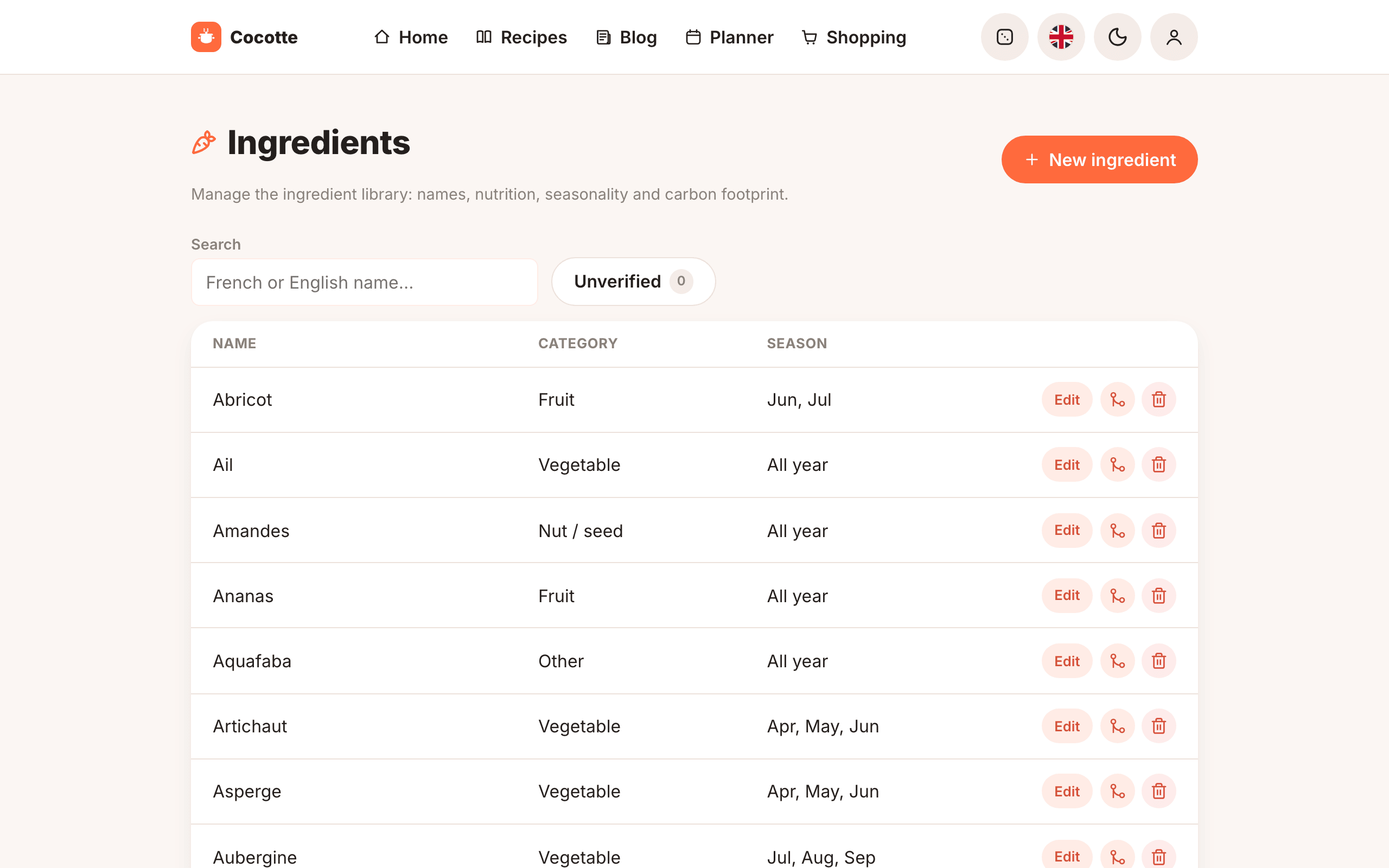
The table shows each ingredient's Name, Category and Season (the abbreviated peak-season months, or All year), with an Edit button, a merge button (branch icon) and a delete button (bin icon). The list is paginated, 20 ingredients per page.
The Search field (placeholder "French or English name...") matches the ingredient name and its English name. The search ignores case and accents, and tolerates small typos. The search and page number are kept in the URL.
Create or edit an ingredient
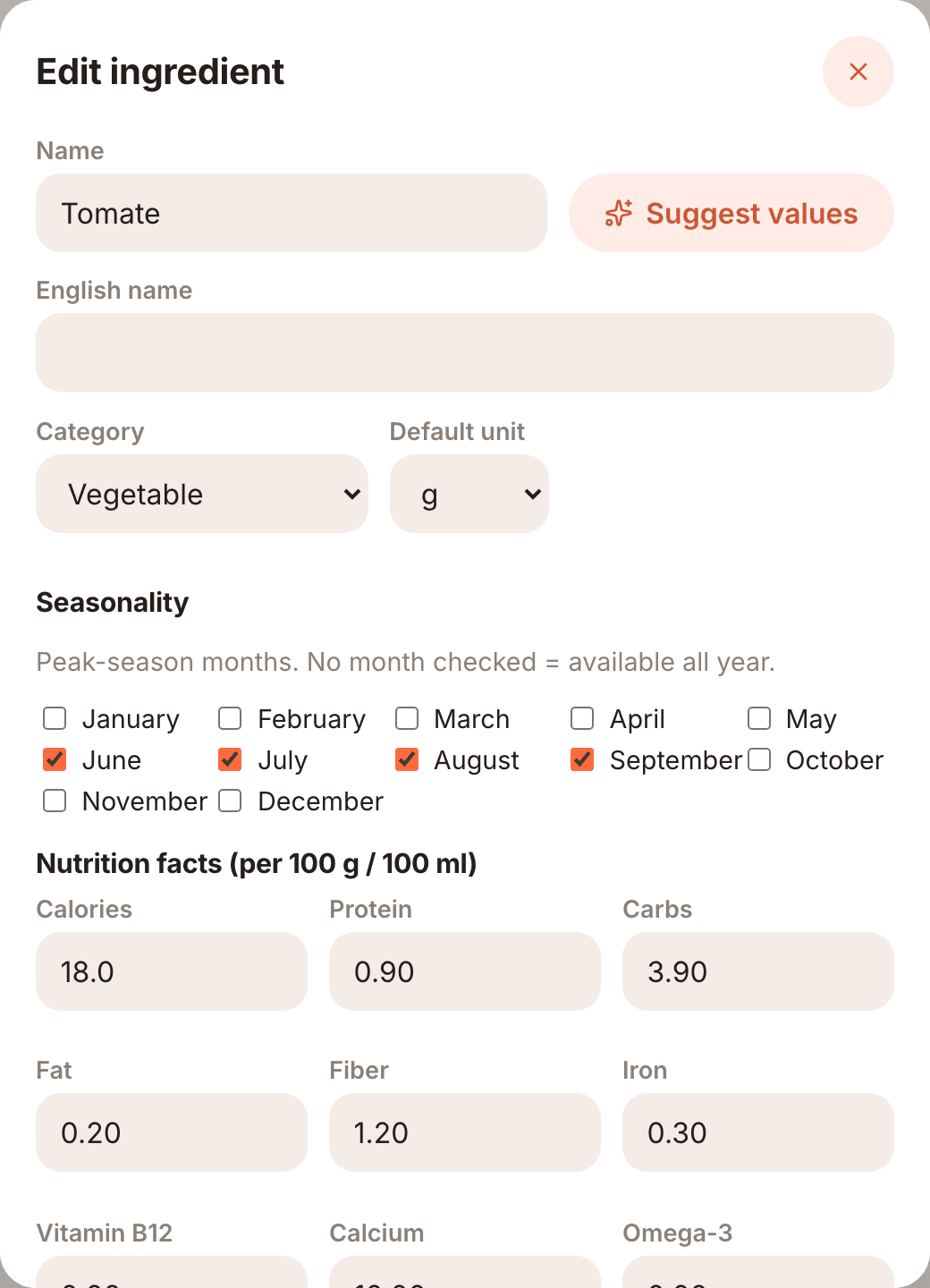
- Click New ingredient to create one, or Edit on a row to modify it. The form opens as a dialog (New ingredient or Edit ingredient).
- Fill in the fields described below. Optionally click Suggest values to pre-fill nutrition and carbon data.
- Click Create ingredient (new) or Save (edit). Cancel, the close button or the
Esckey closes the form without saving.
Identity
| Field | Description |
|---|---|
| Name | The ingredient's name, as displayed everywhere in the app. It must be unique. By convention the library uses French names (the seeded data does). |
| English name | Optional English name. It is used by the ingredient search (so English speakers can find "garlic" as well as "ail") and to match ingredients when importing recipes written in English. Other translations stored on an ingredient (the seeded data also includes German and Spanish names) are kept when you save. |
| Category | One of Vegetable, Fruit, Legume, Grain, Nut / seed, Dairy, Meat / fish, Egg, Fat, Condiment / spice, Other. |
| Default unit | The unit pre-selected when the ingredient is added to a recipe: g, kg, ml, l, piece, tbsp, tsp or pinch. |
Seasonality
Tick the months when the ingredient is in peak season. Leave every month unticked for an ingredient available all year (pasta, oil, spices...).
The "in season" recipe filter and the seasonal homepage shortcut keep only recipes whose ingredients are all in season in the current month; an all-year ingredient never excludes a recipe.
Nutrition facts
All values are per 100 g (or per 100 ml for liquids):
| Field | Unit |
|---|---|
| Calories | kcal |
| Protein | g |
| Carbs | g |
| Fat | g |
| Fiber | g |
| Iron | mg |
| Vitamin B12 | µg |
| Calcium | mg |
| Omega-3 | g |
| Zinc | mg |
These values feed the per-serving nutrition of each recipe and the weekly deficiency alerts of the planner (see Nutrition & carbon).
To compute them, recipe quantities are converted to grams with fixed factors: 1 ml = 1 g, 1 l = 1 kg = 1000 g, 1 tbsp = 15 g, 1 tsp = 5 g, 1 pinch = 1 g, and 1 piece = 100 g. The piece conversion is a rough average; for ingredients usually counted (eggs, onions...), per-100 g values remain the reference.
Carbon footprint
Carbon footprint (kg CO2e / kg): the estimated greenhouse-gas emissions of producing one kilogram (or litre) of the product, in kilograms of CO2 equivalent, from a life-cycle assessment. This is an order of magnitude, not a measurement. The seeded values come from Agribalyse (ADEME/INRAE) and Poore & Nemecek (2018).
It is converted with the same unit factors as nutrition to give each recipe's footprint, the per-serving carbon level shown on recipe cards, and the planner's weekly total.
Allergens
The Allergens section lists the reference allergens: the 14 allergens of EU regulation 1169/2011 (Gluten, Milk, Eggs, Peanuts, Tree nuts, Soy, Fish, Crustaceans, Molluscs, Celery, Mustard, Sesame, Sulphites, Lupin) plus Lactose. Tick the ones the ingredient contains.
Below the list, the checkbox I checked: this ingredient contains none of the listed allergens records that the allergens were reviewed:
- Ticking at least one allergen automatically marks the ingredient as reviewed (the checkbox is then locked).
- For an ingredient without any allergen, tick the checkbox yourself once you have verified it. "No allergen ticked" alone means unknown, not "allergen-free".
What users see. A recipe's allergens are derived from its ingredients. Recipes containing at least one unreviewed ingredient show Allergens not verified for some ingredients next to their allergen badges. Filters that hide recipes matching a user's allergies only exclude recipes whose ingredients have that allergen ticked: a recipe with unreviewed ingredients is flagged, never silently treated as safe, but it is not hidden either.
Ingredients created on the fly by users or by recipe imports start unreviewed unless their creator ticks the box. Reviewing them is the best way to make allergy warnings reliable.
Note
The allergen list is loaded with the reference data (seed_allergens, which
seed_common_ingredients runs automatically). If the Allergens section of the form is
empty, the reference data has not been loaded; see
Production deployment.
Pre-fill with Suggest values
Next to Name, the Suggest values button looks the name up in two public databases and fills the form with what it finds:
| Source | What it provides | How it is queried |
|---|---|---|
| Open Food Facts | Calories, Protein, Carbs, Fat, Fiber (per 100 g) | Search API (world.openfoodfacts.org/api/v2/search), first matching product |
| Agribalyse 3.1 (ADEME open data) | Carbon footprint (kg CO2e / kg), from the "climate change" indicator | ADEME data API (data.ademe.fr, dataset agribalyse-31-synthese), first matching line |
Micronutrients (iron, B12, calcium, omega-3, zinc) are never suggested: their units are too inconsistent in Open Food Facts to be imported safely.
After a click, the form shows either "Suggested values applied — review before creating the ingredient." or "No suggestion found for this ingredient.". Suggested values overwrite the corresponding fields of the form, and nothing is saved until you click Create ingredient or Save.
Tip
Both lookups take only the first result, which can be a processed product rather than the raw ingredient (Open Food Facts is a database of packaged products). Agribalyse is indexed by French product names, so French names give better carbon matches. Always check the values before saving.
The lookups are made by the backend, with a 5-second timeout each, so the server needs outgoing
HTTPS access to world.openfoodfacts.org and data.ademe.fr. If either service is unreachable,
the button simply finds nothing.
Unverified ingredients
An ingredient created by a user who is not staff starts unverified, and records who created it. This includes ingredients created while importing a Cooklang recipe or a recipe archive: the importing user is recorded as their creator. Ingredients created by staff, loaded by the seed commands, or that existed before this feature are verified.
While an ingredient is unverified, its creator can fix or delete it themselves (a typo in the name, a wrong category...), as long as it is only used by their own recipes (as an ingredient or as an alternative to one) and shopping lists. It becomes locked for them, and only staff can change it, as soon as either:
- a staff member verifies it, or
- another user's recipe or shopping list uses it.
Staff can always edit, verify or delete any ingredient.
Review user-created ingredients
- On the Ingredients page, turn on the Unverified filter to list only the ingredients still waiting for a review, with the name of the user who created each one.
- For each one, check its name and data (nutrition, carbon, season, allergens), fix them with Edit if needed, then click Verify. It leaves the review list and is locked for its creator.
- If it is a duplicate or a misspelling of an existing ingredient, use Merge into… instead (see below).
Merge a duplicate
The merge button (branch icon, tooltip Merge into…, next to the bin) replaces a duplicate ingredient (the one on whose row you click) by the correct one you pick, then deletes the duplicate:
- every recipe line using the duplicate now uses the chosen ingredient, with the same quantity and unit, and so does every alternative that suggests the duplicate;
- every shopping-list item does too. When the chosen ingredient is already on the same list with the same unit, the two quantities are added up in a single item, which stays marked as owned or checked only if both were;
- translations missing from the chosen ingredient are copied from the duplicate (its own ones are kept when both have one), and the duplicate's allergens are added to it.
Nothing else of the duplicate (nutrition, carbon, season) is copied: check the chosen
ingredient's values. Recipe steps that mention the duplicate by name (@poirreau) are not
rewritten.
Warning
Merging cannot be undone.
Delete an ingredient
Click the bin icon on the ingredient's row and confirm ("Permanently delete ingredient "…"?").
An ingredient that is still used cannot be deleted: the database protects ingredients referenced by a recipe (as a line or as an alternative) or by a shopping-list item. The page then shows "Cannot delete "…": it is used by recipes or shopping lists. Remove it from them first."
To get rid of a duplicate or misspelled ingredient that is in use, don't delete it: use Merge into…, which moves its recipes (and alternatives) and shopping-list items to the correct ingredient first.
Seeded data
seed_common_ingredients loads about 170 common ingredients with realistic nutrition values,
carbon footprint, seasonality, English/German/Spanish names and reviewed allergens. It is run
once at installation (see Production deployment).
Running it again updates the seeded ingredients in place, matching them by name regardless of case, which also enriches an ingredient that a user had already created under the same name.
Warning
Re-running seed_common_ingredients overwrites your edits to seeded ingredients (nutrition,
carbon, season, category, unit, translations and allergens). See
Re-run the seed commands.
You can also browse and filter the library in the Django admin, which offers filters on category, allergens, allergen review status, verification status and creator. The allergen review-status filter is a quick way to list every ingredient whose allergens still need checking.