First run
A fresh Cocotte install has an empty database. Before the app is usable, you need to:
- create the database tables (migrations),
- create an administrator account,
- load the reference data (nutrient thresholds, the ingredient library with allergens, and the home page shortcuts).
You only do this once. The seed commands are idempotent: running them again updates the data without creating duplicates.
Note
The Docker commands below are for the local development stack (docker-compose.yml),
started as shown in Installation. They run in a second terminal while
docker compose up keeps running. The production stack is covered in
Production deployment.
1. Create the database tables
Note
On the development Docker stack, migrations do not run automatically: you have to run this command yourself, and again after pulling code that adds new migrations. Only the production image runs them on start-up.
2. Create an administrator account
The command asks for an email (this is what you log in with), a username (the name
shown in the app) and a password. This account is a staff account. It can open the
Administration section of the account menu and Django admin at
http://localhost:8000/django-admin/. See Users.
3. Load the reference data
Run these commands in this order:
docker compose exec backend python manage.py seed_allergens
docker compose exec backend python manage.py seed_common_ingredients
docker compose exec backend python manage.py seed_cookware
docker compose exec backend python manage.py seed_nutrient_requirements
docker compose exec backend python manage.py seed_thematic_pages
| Command | What it loads | Without it… |
|---|---|---|
seed_allergens |
The reference list of allergens: the 14 EU allergens plus lactose. | The Allergies and intolerances section of the profile and the allergen checkboxes of the ingredient form are empty. |
seed_common_ingredients |
A library of common ingredients with nutrition values (per 100 g), carbon footprint (kg CO₂e/kg), seasonality, English names and checked allergens. | You would have to create every ingredient by hand, and recipes would show no nutrition or carbon data. |
seed_cookware |
About 60 common cookware items (oven, air fryer, pans, dishes, tools) with their English names, emojis and photos downloaded from Wikimedia Commons (needs Internet access; --skip-images to skip them). |
The cookware picker of the recipe form and the Cookware filter start empty; users create items as they go. |
seed_nutrient_requirements |
Daily minimums for protein, iron, vitamin B12, calcium, omega-3 and zinc, for every diet type and activity level. | The planner never shows nutrition alerts. |
seed_thematic_pages |
Three home page shortcuts: Produits de saison (in season), Spécial végan and Prêt en 30 minutes (30 minutes of prep or less), with their images. | The Explore section of the home page stays empty. |
Tip
Running a public instance? Fill in the LEGAL_* variables and schedule purge_inactive_users and purge_audit_logs:
see GDPR compliance.
Note
seed_common_ingredients needs the allergen list to tag ingredients. It runs seed_allergens
itself first, so nothing breaks if you skip that step. Running seed_allergens explicitly
keeps the order clear, and it's also how you get the allergen list alone if you'd rather build
your own ingredient library from scratch.
Tip
Running seed_common_ingredients again later is safe. It updates the library entries,
including ingredients created by users with the same name (case-insensitive match), and
leaves your other ingredients alone. See Ingredient library.
4. Log in
- Open
http://localhost:5173/. - Click the person icon at the top right. The login page opens.
- Enter the email and password of the account you just created, then click Log in (Se connecter).
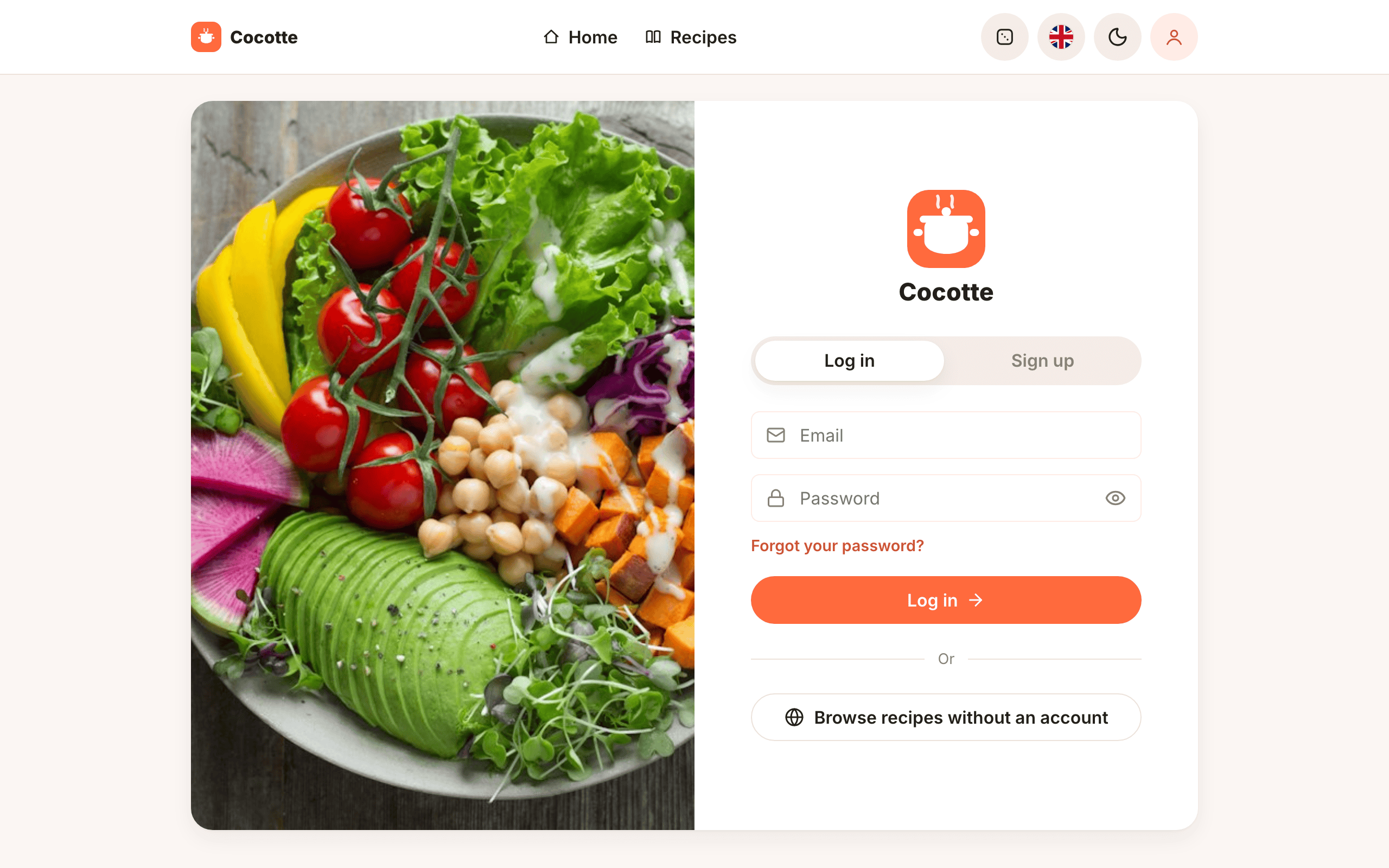
After logging in you are taken to the recipe list. It is empty for now: see Creating recipes to add your first one.
5. Switch the language
The interface starts in French. To change it:
- Click the flag button in the top bar, between the dice and the moon/sun button.
- Choose English (or Français to go back).
This choice is saved in your browser, so you only do it once per device. The same top bar has the dark mode toggle. See The interface.
6. Create more accounts
Anyone who opens the app can create their own account:
- Click the person icon, then the Sign up tab (Inscription).
- Fill in the username, email, password, diet and activity level.
- Click Create my account.
See Your account for details. To give another person admin rights, see Users.
Important
In a local setup, password-reset emails are not sent. They are printed in the backend
logs (docker compose logs -f backend or the runserver terminal). To send real emails,
configure SMTP as described in Configuration.